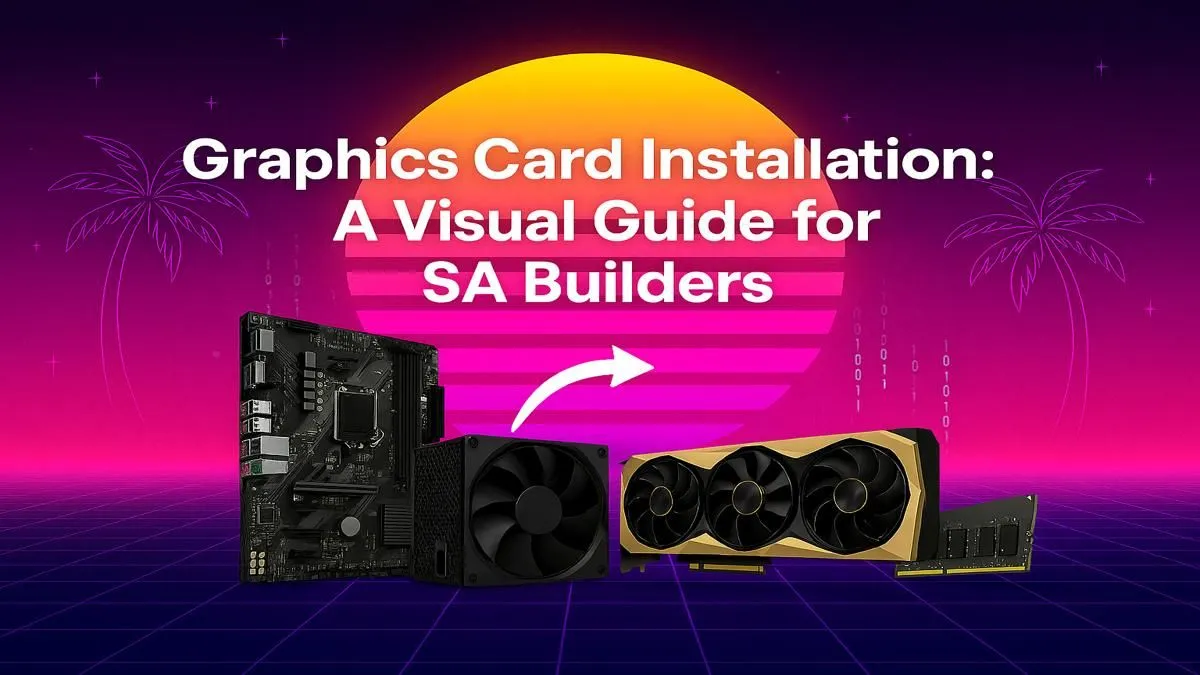
So, that shiny new graphics card box is sitting on your desk. The excitement is electric... but maybe there's a hint of anxiety too. What if you break something? Don't stress. Learning how to install a graphics card is one of the easiest and most rewarding PC upgrades you can do. This step-by-step guide is built for South African gamers, showing you exactly how to get that beastly new GPU seated and ready for action. 🚀
Before You Begin: The Prep Work 🔧
A smooth installation is all about good preparation. Before you even touch a screwdriver, let's run through a quick checklist to make sure you're ready to go.
Key Compatibility Checks
- Power Supply (PSU): Does your PSU have enough wattage for the new card, and does it have the right PCIe power connectors (e.g., 8-pin or 6+2 pin)? The GPU's box or product page will tell you its requirements.
- Case Size: Will the new card physically fit inside your PC case? Check the card's length, height, and width against your case's specifications. Modern GPUs can be massive.
- Motherboard Slot: You'll need a free PCIe x16 slot—that's the long one closest to your CPU.
If this initial check feels like a mission, remember that a professionally assembled PC handles all this for you. You can find some incredible value in our range of budget gaming PCs that are ready to go straight out of the box.
Tools You'll Need
- A Phillips head screwdriver.
- An anti-static wrist strap (optional, but highly recommended).
- Your PC's power cable (for grounding).
- A clear, well-lit workspace.
Your Step-by-Step Graphics Card Installation Guide
Alright, prep work is done. Time for the main event. Unplug your PC from the wall and move it to your workspace. Let's get this done.
Step 1: Open Your PC Case
Unscrew the thumb screws on the back of your case and slide off the side panel (usually the left one when viewed from the front). This gives you access to the motherboard and all the components.
Step 2: Remove the Old Graphics Card (If Upgrading)
If you have an old card, unplug its PCIe power connectors first. Then, undo the screw(s) holding its bracket to the case. Finally, find the small plastic latch at the end of the PCIe slot on the motherboard. Gently press it down or push it aside—it will click open, releasing the card. You can now carefully pull the old GPU straight out.
Step 3: Install the New Graphics Card
First, remove the metal PCIe slot covers on the back of your case that correspond to where your new GPU will sit. Most cards take up two or three slots. Now, line up the gold connectors on your new graphics card with the PCIe x16 slot. Gently but firmly press the card straight down into the slot until you hear and feel a solid click. This is the latch engaging.
Step 4: Secure the Card & Connect Power
Screw the card's metal bracket into the case where you removed the slot covers. This stops it from sagging. Now, take the PCIe power cables from your PSU and plug them firmly into the power sockets on your new GPU. They only fit one way. This process is the same whether you're building from scratch or upgrading one of our pre-built gaming PCs under R20k.
The Final Lap: Drivers and Software ✨
You're almost there! Close up your PC case, plug everything back in (including your monitor cable into a port on the new graphics card, not the motherboard), and boot up your machine.
Your resolution might look a bit weird at first—that's normal.
- Go to the NVIDIA or AMD website, depending on your card's brand.
- Navigate to their drivers section.
- Select your specific graphics card model and download the latest driver package.
- Run the installer and follow the on-screen prompts. A reboot is usually required.
Pro Tip: Go for a Clean Slate ⚡
For a truly flawless driver installation, especially when switching brands (NVIDIA to AMD or vice-versa), use Display Driver Uninstaller (DDU). This free tool completely wipes old driver files from your system in Safe Mode, preventing conflicts and ensuring your new card runs at peak performance from the get-go.
Once you've rebooted, your system is ready to unleash its new power. This is the kind of optimisation we ensure on all of our high-performance PCs over R20k, saving you the setup time.
Quick Troubleshooting
If you get a black screen, don't panic. Power down and check the most common issues:
- Is the card fully seated in the PCIe slot?
- Are the PCIe power cables plugged in all the way?
- Is your monitor's display cable plugged into the new GPU?
Following this guide on how to install a graphics card should lead to success. But if you ever run into trouble or just prefer a guarantee, skipping the hassle is easy. Our selection of the best gaming PC deals comes with expert assembly and full warranties. And for an even wider selection, you can always check out our pre-built PC deals for systems that are ready for any game you throw at them.