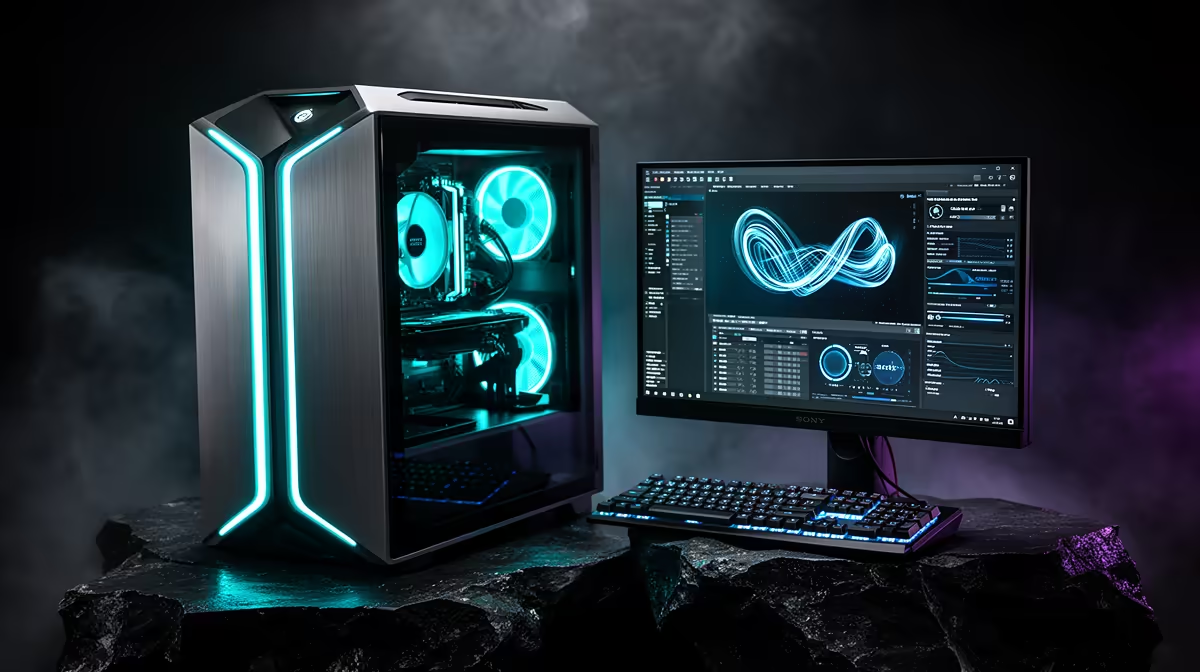
The terminal-and-Python route to local AI scares off most people before they start. It does not have to. Running a private AI assistant on your PC with no coding is now a download-and-click job: apps like LM Studio and Jan hand you a built-in model catalogue, a chat window, and a working assistant in well under 15 minutes, with no command line and no API keys.
Quick Answer
Use a GUI app such as LM Studio or Jan. You download a model from the built-in catalogue, click it, and start chatting, with no terminal, no scripts and no API keys. The whole process from install to first reply usually takes under 15 minutes, and everything runs locally on your own machine.
Step 1: Pick a GUI App
The two friendliest options both wrap a local model engine in a clean interface.
- LM Studio gives you a searchable model catalogue, a chat window, and clear labels showing which models your hardware can run. It is the most beginner-proof of the two.
- Jan is open and similarly simple, with a built-in store and a familiar chat layout.
Either works. The point is that you never touch a command line. Both run the model entirely on your PC, so your conversations stay on your machine. If you are buying or upgrading a machine specifically for this, the AI PC range at Evetech is built around exactly this kind of local-model workload.
Step 2: Install the App
This is an ordinary software install, nothing more.
- Download the installer for your operating system from the app's official site.
- Run it and accept the defaults.
- Open the app. You land on a model catalogue or a chat screen, ready to go.
No accounts, no keys, no configuration files to edit.
Step 3: Choose and Download a Model
Inside the app is a catalogue of models you can grab with one click. The trick is matching the model to your hardware.
- Open the model search or catalogue.
- Look for a model sized to your RAM and GPU. The app usually flags which ones will run smoothly. A smaller model in the 7 to 8 billion parameter range is a sensible first pick for most home PCs.
- Click download and wait for it to finish. These files are large, so the download is the slowest part of the whole process.
If you want a quick sense of which machines have the memory and GPU headroom for larger models, the PC best sellers at Evetech show what is currently popular for this kind of work.
Step 4: Start Chatting
Once the model is downloaded, you are done with setup.
- Select the model in the chat screen.
- Type a message and send it.
- The first reply may take a few seconds as the model loads into memory, then it responds like any chat assistant.
That is the whole loop. Everything happens on your PC, so you can use it offline and nothing leaves your machine.
Step 5: Tune It If You Want To
You can stop at step four, but a couple of optional tweaks help.
- Try a different model if responses feel slow or weak. A smaller model runs faster; a larger one is more capable but needs more memory.
- Adjust the response length and creativity sliders the app exposes, if you want shorter or more focused answers.
- Keep a couple of models installed so you can switch between a fast lightweight one and a slower, smarter one depending on the task.
Frequently Asked Questions
Do I really not need any coding for this?
Correct. LM Studio and Jan are point-and-click apps with a built-in model store and a chat window. You install, download a model and type, with no terminal, scripts or API keys at any stage.
How long does setup actually take?
Usually under 15 minutes, and the model download is the slowest part. The install and first chat take only a few minutes once the model file has finished downloading.
Is my data private if I run a model locally?
Yes. The model runs on your own PC, so your conversations stay on your machine and you can even use it offline. Nothing is sent to an external service.
What hardware do I need?
A modern PC with a decent amount of RAM runs smaller models comfortably, and a capable GPU speeds things up and unlocks larger models. The app flags which models suit your hardware, so start small and scale up.
Which model should a beginner start with?
A smaller model in the 7 to 8 billion parameter range is a good first choice for most home PCs. It runs quickly, and you can move to a larger model later once you know your hardware handles it.
Want a PC that runs local AI smoothly? Explore the AI-ready machines at Evetech and pick one with the RAM and GPU headroom to handle bigger models.