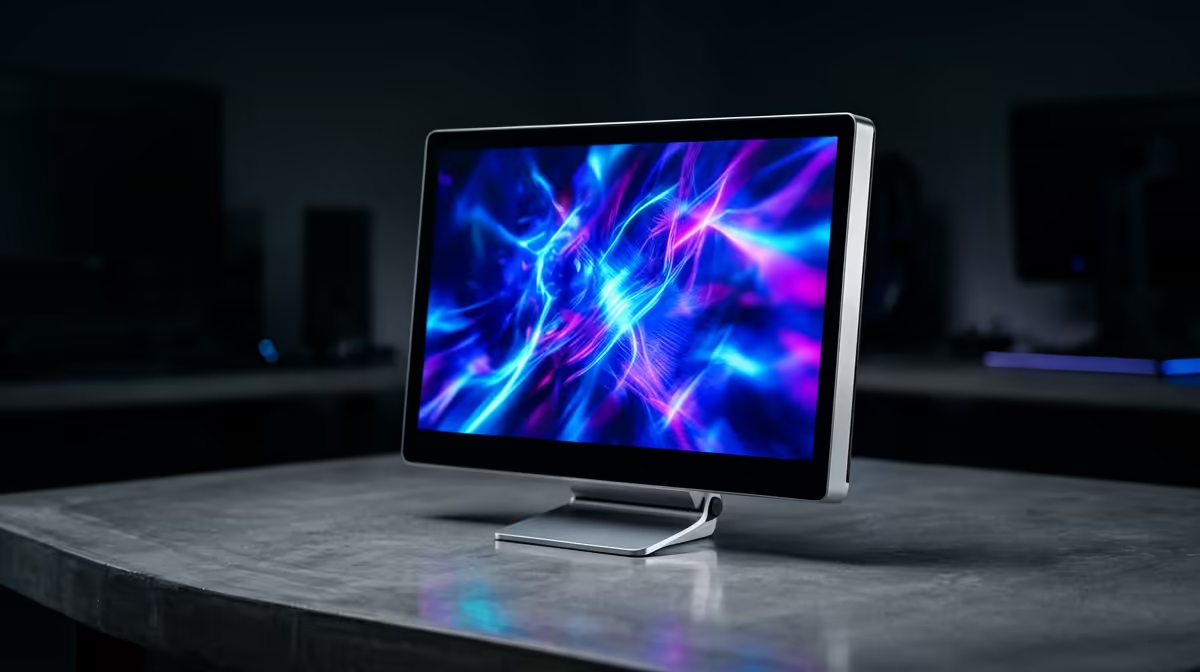
A new portable monitor that shows nothing on first connection is almost never faulty. The blank screen nearly always comes down to one of four things being wrong: the port, the cable, the power, or the display mode. Run through them in that order and you will have a working second screen in a couple of minutes rather than reaching for the returns form.
Quick Answer
A portable monitor needs four things to work on first connection: a video-capable port, a full-feature cable, enough power, and the right display mode set in your OS. Check them in that sequence. The most common cause of a blank screen is a charge-only USB-C cable that carries power but no video signal.
Step 1: Confirm the port carries video
Not every USB-C port outputs a display signal. The port has to support DisplayPort Alt Mode for a single-cable USB-C connection to send video. On many laptops the video-capable port is marked with a small "D" or DisplayPort icon, while plain USB ports are not.
If your laptop's USB-C ports do not carry video, use the monitor's HDMI input instead with an HDMI cable, or connect through a Thunderbolt port, which always carries video. Settle this first, because the rest of the checklist assumes the port can actually send a picture.
Step 2: Use a full-feature cable
This is the single most common failure point. The USB-C cable bundled with a phone charger is often a charge-only cable: it moves power but carries no video data. Plug your monitor in with one of those and the screen stays dark even though the monitor powers on.
Use the cable that came with the monitor, or a cable explicitly rated as full-feature USB-C, meaning it carries video and data, not just charge. If you are unsure whether a cable qualifies, swap it for the bundled one before assuming the monitor is broken. You can see the cable and connection options for current models across the portable monitor range at Evetech.
Step 3: Give it enough power
A portable monitor draws power to light its panel. Some can run entirely from a single USB-C cable if your laptop port supplies enough wattage. Brighter or larger panels often need more than one port can give, in which case you plug the monitor into a separate power source, a wall adapter or a power bank, alongside the video connection.
If the monitor flickers, dims, or keeps cutting out, that is the symptom of insufficient power. Add a dedicated power source and the picture stabilises.
Step 4: Set the display mode in your OS
With port, cable and power sorted, the monitor may be receiving a signal but your operating system might not be using it yet.
- On Windows, open the display projection panel with Win+P and select either Duplicate or Extend.
- On macOS, head to System Settings and open the Displays section to arrange the screens.
- If the monitor still does not appear, open display settings and click Detect or Detect Displays.
Choosing Extend gives you a true second workspace, while Duplicate mirrors your main screen, which is handy for presentations.
A quick recap before you panic
If the screen is still blank after all four steps, swap the cable one more time and try a different port, since a single bad cable or port masquerades as a dead monitor more often than anything else. Once it is working, it makes a genuinely useful travel and home-office addition. For desk monitors and second screens beyond the portable category, the monitor best sellers are a good reference for what other buyers are choosing.
Frequently Asked Questions
Why is my new portable monitor not displaying anything?
Most often it is a charge-only cable carrying no video, or a USB-C port that does not output video. Try the bundled full-feature cable first, and confirm the port supports DisplayPort Alt Mode.
Can a portable monitor run from a single cable?
Sometimes. If your laptop's USB-C port supplies enough power and carries video, one cable does both. Larger or brighter panels often need a separate power source alongside the video connection.
How do I know if my USB-C port supports video?
Look for a small DisplayPort or "D" icon near the port, or check your laptop's specs for DisplayPort Alt Mode. Thunderbolt ports always carry video, so they are a safe bet.
The monitor powers on but stays black, what now?
It is receiving power but probably not a video signal, or your OS has not switched it on. Swap to a full-feature cable, then press Windows plus P on Windows or use Displays settings on macOS to detect it.
Do I need to install drivers for a portable monitor?
Generally no. Standard USB-C and HDMI portable monitors are recognised by the operating system automatically. If yours uses a single-cable USB display link, follow the included instructions for that specific connection type.
Setting up a new screen on the go? Run this four-step check first, and if you are still shopping, browse the portable monitor range at Evetech to find a model with the cable and power setup that matches your laptop.