Rendering 8K video or compiling 3D scenes? Standard rigs simply will not cut it anymore. For South African creators, bandwidth is everything. Learning how to set up a creator motherboard for DDR5, PCIe 5.0 and dual 10G workflows is essential. It turns hours of waiting into minutes of creating. Let us look at building a workstation that actually keeps up with your ideas.
Choosing the Right Foundation 🔧
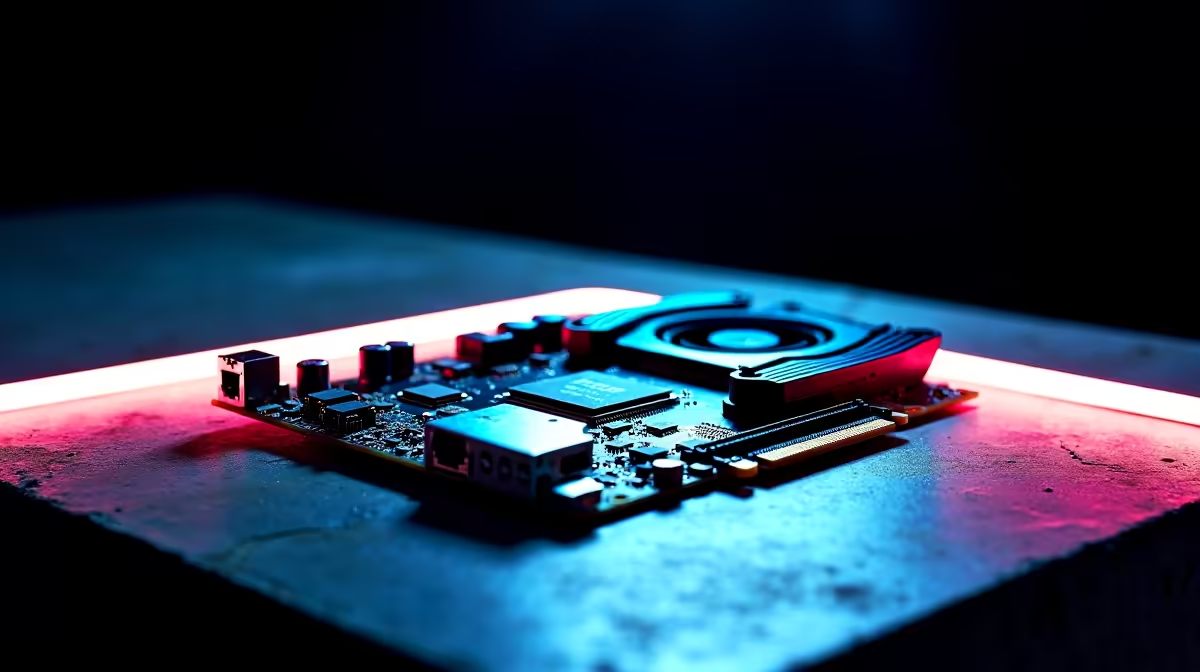
Before tweaking BIOS settings, you need the right hardware. The backbone of any heavy-duty workstation is the mainboard. If you want to handle intense workloads, you must explore premium creator motherboards designed for stability.
Team Blue fans should look into high-end ASUS Intel motherboards. They offer incredible Thunderbolt support for external storage. Prefer Ryzen? The latest ASUS AMD motherboards deliver massive PCIe lane counts. This is crucial for running multiple GPUs and NVMe drives simultaneously.
Optimising DDR5 for Heavy Loads
DDR5 RAM is ridiculously fast. However, it requires proper configuration to shine. When you install your DDR5 memory kits, always populate slots A2 and B2 first. This ensures dual-channel stability. Next, boot into your BIOS and enable XMP or EXPO.
Creators often need 64GB or even 128GB of RAM. At these capacities, extreme speeds can sometimes cause instability. If your system crashes during a heavy render, manually dial back the frequency slightly. Stability always beats a tiny speed boost when thousands of ZAR are on the line.
Unleashing PCIe 5.0 Storage 🚀
PCIe 5.0 NVMe drives offer read speeds exceeding 10,000 MB/s. This makes scrubbing through 4K timeline footage buttery smooth. To properly configure your storage, you must use the primary M.2 slot. This slot connects directly to the CPU rather than the chipset.
Be warned... these Gen 5 drives run incredibly hot. Always use the chunky heatsink included with your motherboard. Thermal throttling will ruin your render times if you ignore cooling.
Storage Pro Tip ⚡
When setting up multiple NVMe drives, keep your OS and software on a Gen 4 drive. Dedicate your ultra-fast PCIe 5.0 drive exclusively to active project files and media cache. This prevents Windows background tasks from slowing down your renders.
Managing Power and VRM Thermals
High-end processors draw massive amounts of power during sustained rendering. This puts immense stress on your motherboard VRMs. When you set up a creator motherboard for DDR5, PCIe 5.0 and dual 10G workflows, cooling is critical.
Ensure your PC case has excellent front-to-back airflow. If your mainboard features active VRM cooling fans, adjust their curves in the BIOS. Keeping these components cool prevents your CPU from downclocking during overnight 3D renders.
Configuring Dual 10G Ethernet
For local network setups in SA studios, dual 10G LAN is vital. It allows you to connect directly to a high-speed NAS while maintaining internet access. In Windows, you can bridge these connections or set specific IP ranges.
Go to your Network Adapter settings and enable Jumbo Frames. Set the MTU to 9000. This reduces CPU load and maximises throughput when transferring massive video files across your network. You will save countless hours during client handovers.
Beyond the DIY Route ✨
Building and tuning a workstation takes time. Sometimes you just need to plug in and start earning ZAR immediately. If you prefer a pre-tuned system, browsing premium custom gaming PCs is a smart alternative. Many of these high-end rigs double as absolute rendering monsters.
Ready to Build Your Ultimate Workstation? Whether you are editing 8K RAW footage or compiling complex code, you need serious bandwidth. Explore our massive range of creator motherboards and start building a machine that never holds you back.