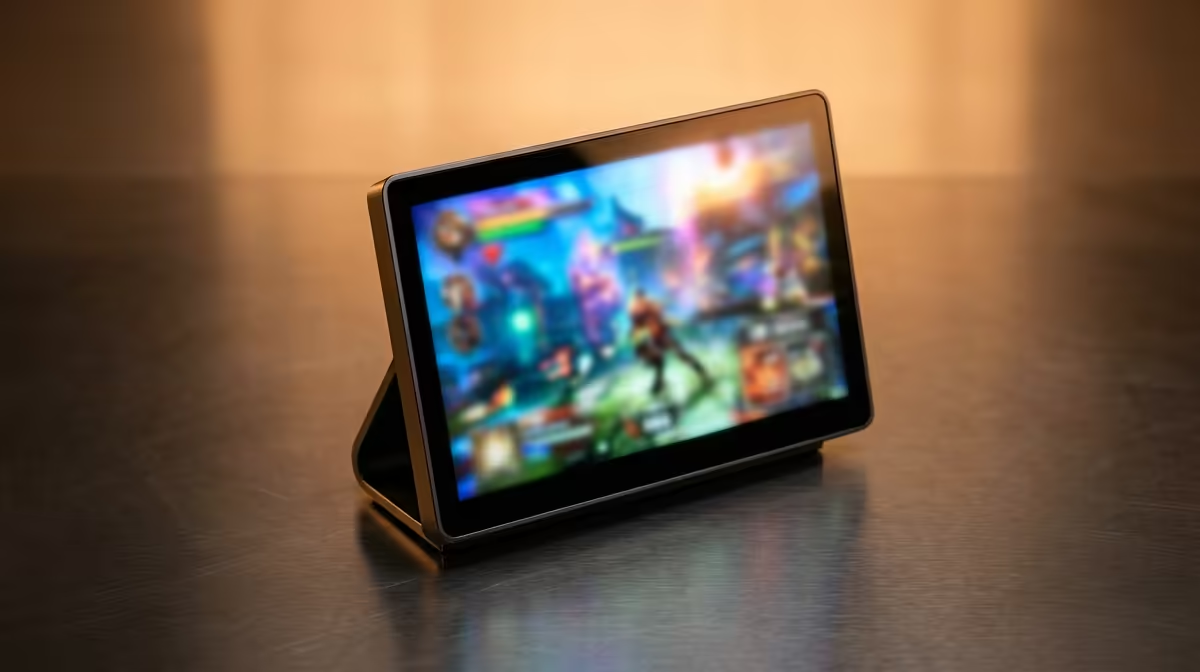
A handheld screen is fine on the couch, but plug a portable monitor into a ROG Ally and the whole experience changes. The Ally pushes video out over its USB-C port using DisplayPort, which means you can drive a 144Hz panel at a higher refresh than the Ally's built-in display, and Windows treats it as a standard extended monitor with no special drivers to install. What follows is the complete setup walkthrough.
Quick Answer
Connect a USB-C portable monitor to the ROG Ally's USB-C port, which carries a DisplayPort signal. Windows detects it as a normal extended display, no drivers needed, and a 144Hz portable panel will run smoother than the Ally's own screen. Set the monitor as your main display and match the refresh rate in Windows, and you are gaming on a bigger, faster screen in under five minutes.
Step 1: Check Your Cable and Port
The Ally outputs DisplayPort Alt Mode over USB-C, so you need a USB-C cable that carries video, not a charge-only cable. Most portable monitors ship with the right cable, but bargain-bin cables sometimes lack the data lines. If the monitor does not light up, the cable is the first suspect. A single USB-C connection can carry both the video and power the monitor draws, which is why many portable panels run from the Ally alone.
Before you buy, confirm the panel's refresh rate. A 60Hz portable monitor will work but caps you below the Ally's potential; a 144Hz panel is what unlocks the smoother-than-handheld experience. The current options are laid out in the portable monitor selection at Evetech so you can match refresh rate and size to how you play.
Step 2: Plug In and Let Windows Detect It
With the right cable, connect the monitor to the Ally's USB-C port. Windows recognises it as a standard external display within a few seconds, no driver download required. If nothing appears, press the Windows key plus P to open the projection menu and confirm a second display is listed.
Step 3: Choose Extend or Duplicate
The projection menu (Windows key plus P) gives you four modes. For gaming on the larger screen, pick "Second screen only" to send everything to the monitor, or "Extend" if you want the Ally screen for chat or a guide while the game runs on the monitor. "Duplicate" mirrors both at the lower of the two refresh rates, so avoid it if you want the full 144Hz.
Step 4: Set the Refresh Rate
Refresh rate is the setting most people skip, and its absence is why a 144Hz monitor can feel no different from a 60Hz one. Open Settings, then System, then Display, scroll to Advanced display, and set the refresh rate to the panel's maximum. Windows often defaults a new display to 60Hz. Manually selecting 120Hz or 144Hz is what actually delivers the smoothness. Do this for the monitor specifically, since each display has its own setting.
Step 5: Match In-Game Settings to the Hardware
A bigger, faster screen asks more of the Ally's GPU. Higher resolution and refresh rate mean more frames to render, so you may need to lower in-game settings to hold a steady frame rate. Cap the frame rate to the monitor's refresh, enable any available upscaling, and dial back resolution scaling if the frame rate dips. The goal is a stable rate that matches the panel, not raw maximum settings.
A Note on Power
Driving an external display and charging at once can exceed what a single USB-C port comfortably delivers. If you game for long sessions, a USB-C dock or a monitor with passthrough charging lets you power the Ally and the screen together. For shorter sessions, the Ally's battery will run both, but expect the runtime to drop since it is now feeding a second panel. For a desk setup, the best-selling monitors at Evetech include larger permanent options worth comparing alongside the portable models.
Frequently Asked Questions
Does the ROG Ally need a special adapter for a portable monitor?
No. The Ally outputs DisplayPort over its USB-C port, so a single video-capable USB-C cable connects directly to a USB-C portable monitor. No adapter or driver is required for a straight USB-C to USB-C connection.
Why does my 144Hz monitor still feel like 60Hz?
Windows usually defaults a new display to 60Hz. Go to Settings, System, Display, Advanced display, and manually set the refresh rate to 144Hz for that monitor. Until you do, you are not getting the panel's full smoothness.
Can one USB-C cable power the monitor and carry video?
Yes, many portable monitors draw their power and receive video over the same USB-C connection to the Ally. For long sessions, a dock or passthrough charging keeps the Ally topped up while it drives the screen.
Will a bigger screen lower my frame rate?
It can. A larger or higher-resolution panel asks the GPU to render more, so you may need to reduce in-game settings or use upscaling to keep a steady frame rate. Cap the frame rate to the monitor's refresh for consistency.