Upgrading your rig with Intel's latest platform is exciting... but getting it running flawlessly is another story. If you want to squeeze every drop of speed from your new hardware without dreaded blue screens, you need a solid plan. Today we look at how to set up a Z890 ATX motherboard for stable DDR5 memory and PCIe 5.0 performance. Doing this correctly ensures your South African ZAR goes much further. Let us dive into the BIOS tweaks and physical setup tips you need.
Preparing Your Z890 Platform 🔧
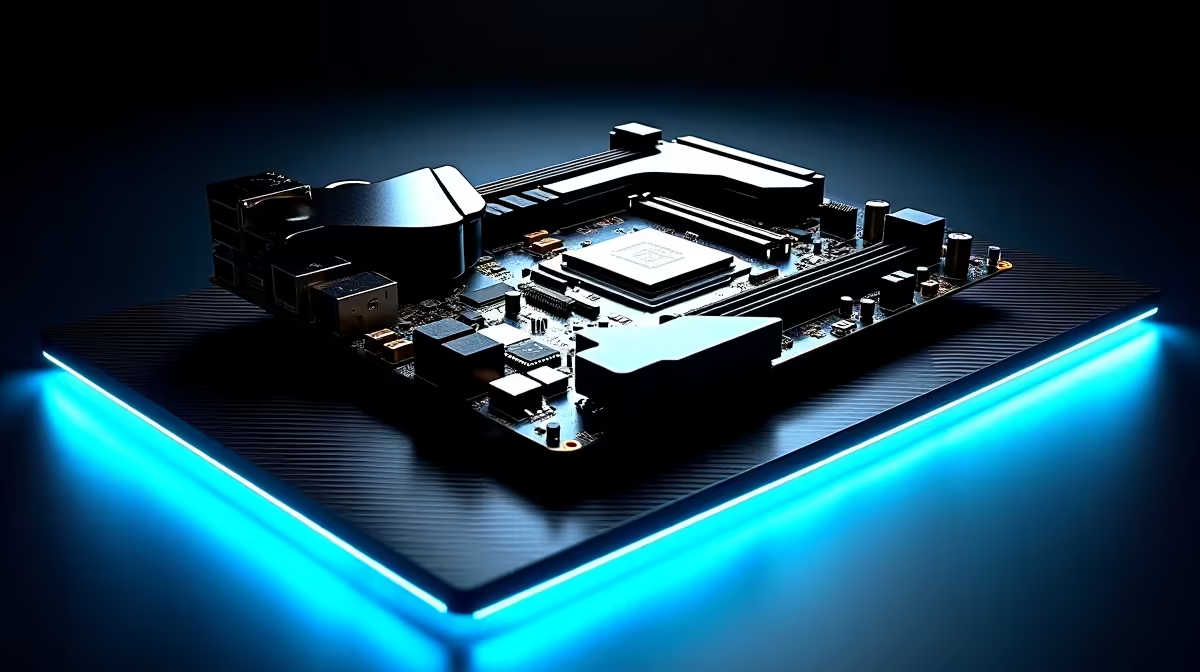
Let us start with the foundation. The Z890 chipset is an absolute powerhouse for both competitive gaming and heavy rendering workloads. When you browse the latest motherboards, you will quickly notice their robust VRMs and massive cooling blocks. These thermal solutions are strictly essential for pushing high processor frequencies.
Before dropping your expensive CPU into the socket, ensure your BIOS is fully updated. Motherboard manufacturers frequently release software patches to improve baseline stability... especially for high-speed RAM. Grab a USB flash drive, format it to FAT32, and use the BIOS flashback feature before you even install Windows.
Achieving Stable DDR5 Memory Frequencies ⚡
DDR5 technology is incredibly fast but notoriously sensitive to voltage changes. Hitting 7200MHz or higher requires more than just plugging in the sticks. First, you must populate the correct DIMM slots. On a standard ATX board, these are almost always slots A2 and B2. Check your manual to be absolutely certain.
Next, head directly into your BIOS and enable your Extreme Memory Profile (XMP). If your system suddenly fails to POST, do not panic. Manually dial back the frequency by 200MHz until it boots smoothly. Pairing a premium board with highly rated DDR5 memory kits is the single best way to guarantee you hit advertised speeds. Cheaper silicon often leads to constant crashing during intense gaming sessions.
Memory Stability Tip 💡
Always check your motherboard's QVL (Qualified Vendor List) before buying RAM. It saves you from spending thousands of Rands on memory that might not play nicely with your specific board's memory controller.
Unlocking Maximum PCIe 5.0 Performance
PCIe 5.0 offers massive bandwidth for next-generation graphics cards and ultra-fast NVMe storage. To get the absolute most out of it, install your primary GPU in the top reinforced x16 slot. Similarly, place your Gen 5 M.2 drive in the designated CPU-linked slot... usually located right above the primary GPU slot.
If you are proudly team Blue, looking at top-tier ASUS Intel motherboards gives you fantastic BIOS layouts. These intuitive menus make it easy to force PCIe Gen 5 mode if auto-detect fails. Just remember that Gen 5 NVMe drives run extremely hot. Ensure your motherboard's built-in heatsink is firmly secured with the thermal pad touching the drive.
Exploring Alternatives and Pre-Built Options 🚀
Maybe tweaking BIOS voltages and seating RAM sounds like too much manual work. If you prefer to skip the DIY troubleshooting, there are incredible best gaming PC deals available right now. You can get a fully optimised, stress-tested system delivered straight to your door.
Also, while Z890 is the current Intel king, some local builders prefer the Red team. If you decide to pivot your build strategy, there are equally powerful ASUS AMD motherboards offering excellent PCIe 5.0 support and DDR5 stability. Whichever route you ultimately choose, investing in a high-quality ATX board ensures your system handles future hardware upgrades with complete ease.
Ready to Build Your Dream Rig? Setting up a high-end system requires the right components. Whether you need a top-tier motherboard or blazing-fast RAM, we have you covered. Explore our massive range of PC components and start building your ultimate gaming machine today.