


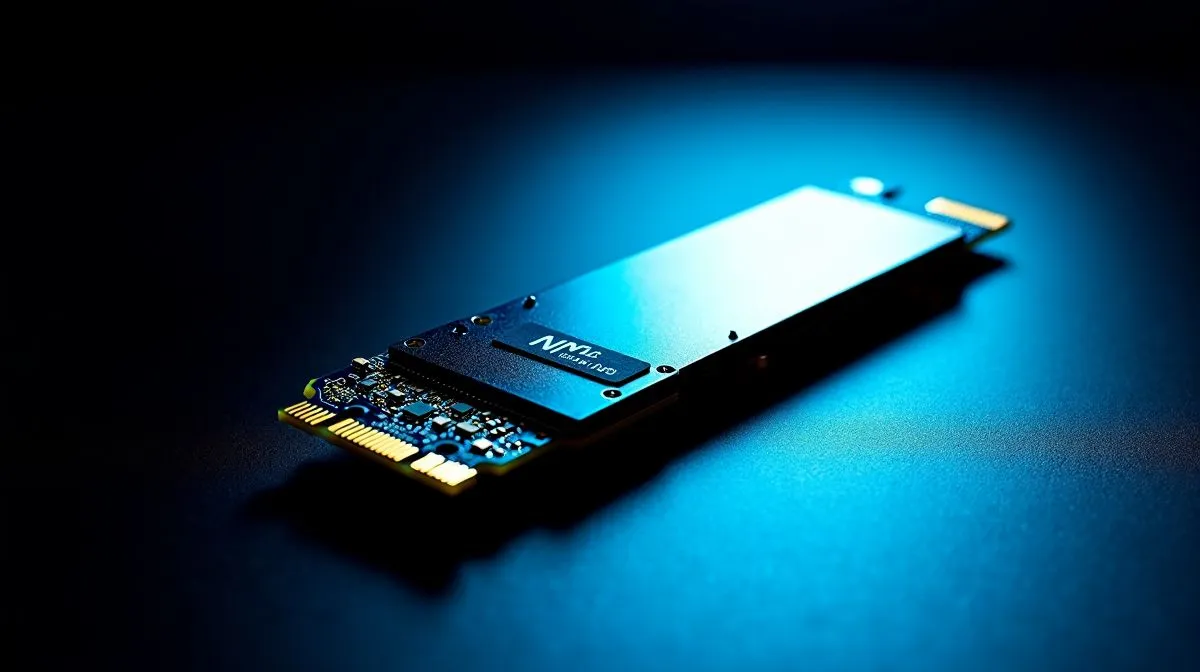
Tired of staring at loading screens while your squad is already dropping into the map? In South Africa, every second counts... especially when loadshedding is looming. Upgrading your storage is the quickest way to inject pure speed into your gaming PC. If you want blazing-fast boot times, this M.2 NVMe SSD installation guide for maximum performance will help you get your hardware running flawlessly.
Why You Need an NVMe Upgrade ⚡
Older hard drives and basic SATA drives just cannot keep up with modern gaming demands. When you upgrade to the latest solid state drives, you bypass the old bottlenecks completely. NVMe drives plug directly into your motherboard. This direct connection means faster data transfer... which translates to instant game loads and smoother texture rendering.
Picking Your Perfect Storage Weapon
Not all drives are created equal. Your choice depends on your budget and motherboard generation. Whether your system supports PCIe Gen 3, Gen 4, or the bleeding-edge Gen 5, matching the drive to your board is crucial. If you are looking for excellent value in ZAR, checking out reliable ADATA SSDs is a smart move. They offer great speeds without breaking the bank... perfect for budget-conscious builders.
For gamers wanting proven durability and peak read/write speeds, high-speed Kingston NVMe options are incredibly popular in the local market. They handle heavy creative workloads and massive gaming textures effortlessly.
If you are building an elite rig and want top-tier thermal management, premium Corsair storage delivers blistering performance under heavy loads. Modern games easily consume over 100GB of space each. To avoid constant uninstalling and re-downloading on your fibre line, we highly recommend looking at massive 2TB SSDs to future-proof your library.
Step-by-Step Installation Process 🔧
Installing your new drive is easier than you might think. Follow these steps to ensure a safe setup.
1. Prep Your Workspace
Unplug your PC and press the power button to drain any residual charge. Ground yourself by touching a bare metal part of your PC case.
2. Locate the M.2 Slot
Check your motherboard manual. The slot is usually located below the CPU or between the PCIe slots. Some boards have built-in heatsinks that you will need to unscrew first.
3. Insert the Drive
Hold the drive at a 30-degree angle. Gently slide the gold contacts into the slot. It should slot in easily... do not force it.
4. Secure the Drive
Once inserted, gently push the drive down flat. Use the tiny M.2 screw provided with your motherboard to secure it in place.
Thermal Pro Tip 🥶
If your motherboard includes an M.2 heatsink, remember to peel off the plastic film from the thermal pad before screwing it back over your new drive. Forgetting this will trap heat and severely throttle your speeds!
Optimise Your Drive in Windows 🚀
Physical installation is only half the job in our M.2 NVMe SSD installation guide for maximum performance. You still need to initialise the drive.
Right-click the Windows Start button and open Disk Management. A pop-up will ask you to initialise the new disk. Select GPT (GUID Partition Table) and click OK. Next, right-click the unallocated black space, select New Simple Volume, and follow the prompts. Assign it a drive letter and format it as NTFS.
Your drive is now ready to dominate.
Ready to Supercharge Your PC? Do not let slow storage hold your frame rates hostage. Whether you need a budget boot drive or a massive game vault, Evetech has the best deals in South Africa. Upgrade your storage today and experience true next-gen loading speeds.











