


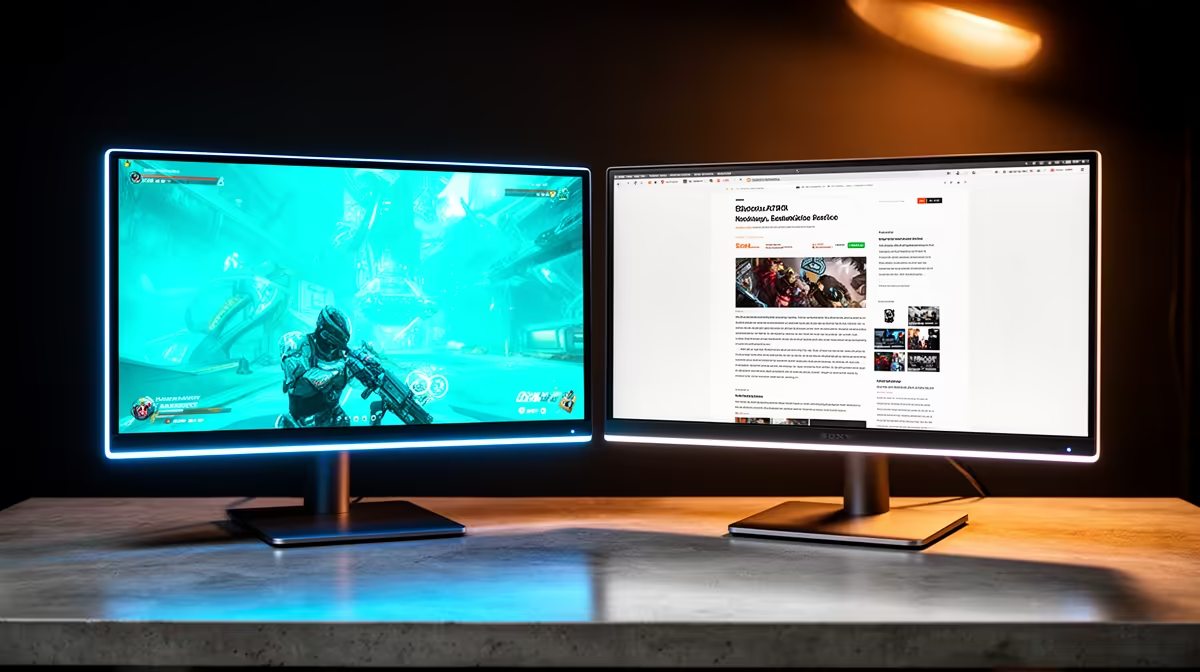
Mixing a 144Hz and a 60Hz Monitor: Problems and Fixes
Quick Answer
Windows can run a 144Hz and a 60Hz monitor together. Mixed refresh does not automatically cause stutter because each display has its own timing.
Problems can appear through a specific application, hardware-accelerated video, borderless presentation, an old driver or a GPU near its display limit. Diagnose the trigger before replacing the 60Hz panel.
Set the gaming screen to 144Hz as the primary display, keep games on it and test video or animation on the second screen one variable at a time.
Step 1: Confirm Both Refresh Rates
Open Windows advanced display settings and select each monitor. Check that the gaming screen shows 144Hz and the secondary shows 60Hz.
A driver update or cable change can return the main display to 60Hz. The mixed setup then gets blamed for a setting problem.
Use each monitor's native resolution. Non-native scaling adds image softness and can complicate timing tests.
Step 2: Choose the Primary Display
Set the 144Hz monitor as main so games, full-screen applications and the taskbar open there by default.
Move launchers, chat and static tools to the 60Hz screen. Keep high-motion video off it during the first game test.
The cursor will look less smooth as it crosses onto 60Hz. That is normal presentation, not system lag.
Step 3: Identify the Actual Symptom
Desktop cursor motion, game frame pacing, video playback and window animation are separate symptoms. Write down which one stutters.
Check whether the issue begins when a browser video plays, a stream preview runs or an overlay opens on the 60Hz panel.
Record game display mode, frame cap and GPU use. A repeatable trigger saves hours of random settings.
Step 4: Test Full-Screen and Borderless
Exclusive full-screen can give a game a more direct presentation path. Borderless mode integrates better with desktop switching and multiple monitors.
Compare both in the same game. Current Windows and game engines handle them differently.
Keep the mode that produces stable frame times and easy switching. There is no permanent winner across every title.
Step 5: Pause Hardware-Accelerated Content
Browsers, Discord, launchers and streaming tools can use GPU acceleration on the second screen. Their video presentation may interact with the game or consume resources.
Pause the content first. Then disable acceleration in one application for a controlled test, restarting it when required.
Do not switch off acceleration across the whole desktop at once. It can raise CPU use and hide which app caused the problem.
Step 6: Check Overlays and Capture
Game overlays, performance counters and capture previews add presentation layers. Disable one at a time.
A streaming preview at 60Hz can behave differently from the game at 144Hz. Test the stream with preview hidden.
Capture cards and USB displays introduce their own timing. Keep them out of the baseline.
Step 7: Use Sensible Frame Caps
Cap the game within the 144Hz adaptive-sync range when current GPU guidance calls for it. A stable cap can improve frame-time consistency.
Do not force both monitors to 60Hz as the permanent fix before diagnosing. That throws away the main screen's benefit.
Running the 144Hz panel at 120Hz can be a temporary comparison because 120 divides evenly into common video rates, but it is not a universal cure.
Step 8: Check Adaptive Sync
Enable FreeSync or G-SYNC Compatible operation on the gaming monitor. Decide whether it applies to full-screen only or windowed applications.
The 60Hz secondary does not need the same feature. Its presence should not disable the main screen's VRR on a suitable GPU.
Look for flicker or blanking tied to frame-time swings. Those can be panel or VRR issues rather than mixed refresh.
Step 9: Update Carefully
Use the current stable GPU driver and monitor firmware from official sources. Read release notes for multi-monitor fixes.
If the problem began after a driver update, use the supported rollback route after recording the version. Do not stack several driver-cleaning tools.
Keep Windows current, but avoid promising that one future update will solve every mixed-refresh interaction.
Step 10: Check GPU and Port Limits
Driving two high-resolution screens consumes display-engine resources and some idle power. The second monitor can keep memory clocks higher on certain configurations.
Read GPU limits for total displays, resolution and refresh. Use native outputs where possible.
Adapters and docks can add USB display drivers or conversion behaviour. Connect both monitors directly during diagnosis.
Step 11: Match Colour and Scaling Separately
Mixed refresh is not the reason two panels look different. Set colour mode, RGB range, HDR and scaling per screen.
Use SDR on the desktop unless HDR serves a purpose. One HDR monitor and one SDR monitor can show different white levels.
Arrange their positions in Windows so the pointer crosses at the expected edge. Match scaling where text size should feel consistent.
Step 12: Decide Whether to Upgrade the Second Screen
Replace the 60Hz panel when you want smoother motion on both, matching colour, another resolution or a wider adaptive-sync range.
Do not replace it merely because mixed refresh can have issues. A cleanly configured 60Hz secondary remains useful for documents, monitoring and chat.
Browse current PC monitor options and compare popular display choices if a matched pair improves the whole desk.
A Practical Test Order
First verify 144Hz and primary-display selection. Second close video and overlays on the 60Hz screen. Third compare full-screen and borderless.
Then test adaptive sync, one application acceleration setting and the current driver. Change only one item per run.
Write down the result. If no change affects the symptom, capture frame times and seek model-specific support rather than buying another screen blindly.
FAQ
Why can mixed refresh cause stutter?
It can expose application or presentation-path bugs, video acceleration interactions or driver limits. The two refresh rates alone are not proof.
Does it affect games or only desktop use?
Either can show a symptom depending on the application and display mode.
Will setting both to 60Hz fix it?
It can remove the mixed condition for a test but wastes the gaming monitor's refresh as a permanent solution.
Should 144Hz be primary?
Yes for a gaming setup. It helps games and applications open on the intended screen.
Will Windows fix it permanently?
Updates can improve multi-monitor behaviour, while application, driver and hardware combinations continue to vary.
Verify both rates, make 144Hz primary, remove second-screen video and overlays one at a time, and replace the 60Hz panel only for a clear desk upgrade.











