


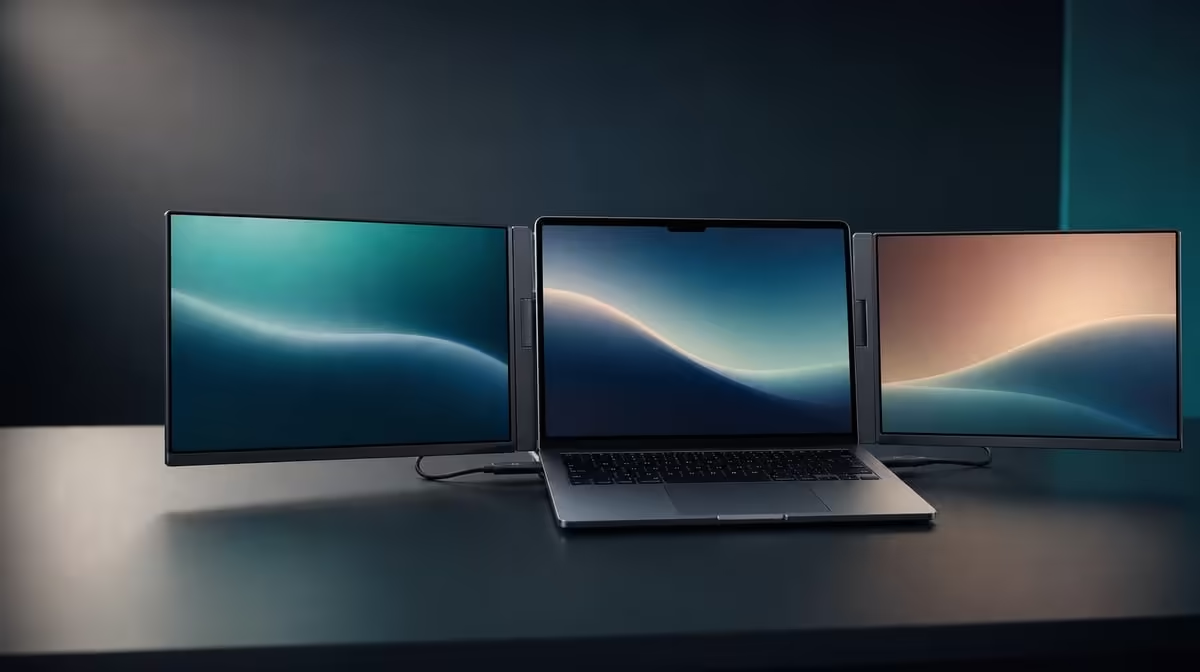
Sharp dual screens can still be tiring when text is tiny, brightness fights the room or colour work shares one careless setting with long-form reading. To optimise QHD scaling and colour for long sessions, begin at native resolution, set both panels for readable work and keep colour capability separate from comfort.
Quick Answer
Run both Delta Pro Touch panels at 2560 x 1600 beside the laptop, choose scaling that keeps interface targets comfortable and initially match the screens in the applications used. The R11,999 monitor covers 100% sRGB, but brightness, viewing distance, posture and breaks still determine long-session comfort.
🔍 Preserve native detail and enlarge the interface
Confirm 2560 x 1600 on each 16-inch panel before changing scaling. Native QHD provides the intended pixel detail, while operating-system scale controls how large text, menus and touch targets appear.
Open the laptop applications used most often: a browser, document, timeline, canvas or data view. Increase scale until controls can be read and touched without leaning closer. Do not lower resolution merely because the default interface feels small.
Evetech's portable-monitor category lets buyers compare other mobile workspaces, but the laptop's graphics capability and scaling behaviour remain part of every result.
🎨 Give 100% sRGB the right job
Full sRGB coverage describes the colour space the panels can cover. It is relevant to photo, video and design work targeting sRGB output, but it does not prove calibration or perfect colour accuracy.
Place the same familiar reference image on both Delta screens and compare them at similar brightness. Use the application and export target that matter to the work. Keep any pressure-sensitive creative input test separate from the colour check.
☀️ Match brightness to the room
Open a mostly white document and lower or raise brightness until it no longer dominates the surrounding light while remaining easy to read. Repeat on both panels. Control reflections and screen angle before using more output to fight glare.
The ergonomic stand should place the screens at a comfortable viewing angle alongside the laptop. Check whether the upper and lower or adjacent panels require excessive head movement. Reposition the complete workstation rather than forcing one setting to compensate for poor geometry.
Evetech's PC-monitor range provides a fixed-display comparison when long sessions occur at one desk and portability is secondary.
⏱️ Validate comfort through real work
Complete a representative 30-minute session with the chosen scaling, brightness and application layout. Note whether small controls cause squinting, touch targets encourage reaching or the second screen is positioned outside a comfortable range.
Use regular breaks and change focus away from the screens. A 100% sRGB gamut is not an eye-care feature, and the monitor's 25ms response figure does not alter comfort practice.
Check the monitor best-seller selection when comparing the R11,999 Delta with current alternatives. Recheck live availability at purchase time.
Save separate profiles for colour-aware work and long reading if the application or brightness needs differ. Restore the colour reference before final visual decisions and repeat the comfort test after the laptop wakes or the workstation moves.
Use a repeatable reference set
Keep one document with small text, one familiar sRGB image and one dark interface available. Use the same set after room lighting changes, a panel rotates or the laptop reconnects.
The reference makes it easier to distinguish changed settings from changed content. It also prevents a bright photograph from deciding a reading profile or a white page from deciding colour quality.
Tune touch targets with scaling
Open the smallest controls touched regularly and use them for several minutes. If fingers repeatedly miss a menu or timeline handle, increase scale or application zoom before changing native resolution.
Repeat on both panels because a tool palette and main canvas may place different demands on target size. The laptop screen can use its own readable setting when it remains active.
Review posture across both screens
Watch whether the user leans, raises the chin or twists to reach the second panel. Adjust the complete Delta-and-laptop placement and stand angle, then retest brightness. Physical layout often solves discomfort that a picture control cannot.
Take a break and return to the normal seated position. If text is only comfortable after creeping closer, scaling or distance still needs work.
Save mode-specific settings
Create a long-reading note with comfortable brightness and scale, plus a colour-work note that restores the intended reference. Avoid treating one warmer or dimmer profile as correct for every task.
After sleep and restart, verify the active profile instead of assuming the laptop restored it. A repeatable long-session setup should survive ordinary workstation events.
Review the setup at a second time of day
Room light can change enough to make yesterday's brightness uncomfortable. Reopen the same reference document and sRGB image later in the day, then adjust output only as much as the new environment requires.
Check both Delta panels from the normal seated position and include the laptop screen if it remains active. Record the useful range rather than chasing one supposedly permanent brightness number for every room and hour.
Frequently Asked Questions
Why start at 2560 x 1600?
It is the native QHD resolution for each Delta panel.
Does scaling remove QHD detail?
Appropriate interface scaling can enlarge controls while retaining native output.
What does 100% sRGB establish?
It states gamut coverage, not calibration or guaranteed perfect accuracy.
Should both screens use identical brightness?
Begin with a close match, then adjust for their physical angle and the room while preserving a useful comparison.
What else supports long-session comfort?
Readable scale, room-matched brightness, sensible distance, posture changes and regular breaks all matter.
Ready to make dual QHD detail readable through a full work session? Compare Evetech's portable monitors with your laptop scaling, colour target, room light and ergonomic workspace already considered.











