You’ve done it. The parts have arrived, the case is open, and after a focused weekend of cable management and careful assembly, your new rig is built. You press the power button, the fans spin to life, the RGBs light up… but your screen stays black. No POST, no BIOS, nothing. For South African PC builders, this silent panic is a rite of passage. But don’t despair. This practical PC build troubleshooting guide is here to help you solve the mystery.
First Steps: The Simple Stuff First 🔧
Before you start pulling components out, let's cover the basics. Overlooking these is incredibly common, and a quick check can save you hours of frustration. This essential first phase of PC build troubleshooting applies to any setup, from entry-level rigs to high-end beasts.
Start with the absolute most obvious:
- Power Connections: Is the switch on the back of the Power Supply Unit (PSU) flipped to 'I' (On)? Is the kettle cord plugged in firmly at both the wall and the PSU?
- Front Panel Connectors: Those tiny, fiddly pins for the power switch, reset switch, and LEDs are a classic pain point. Double-check your motherboard manual to ensure the
POWER SW connector is on the correct two pins. - Monitor Cable: Is your HDMI or DisplayPort cable plugged into the graphics card, not the motherboard's video output (unless you're using integrated graphics)?
Even the most affordable builds, like those found in our budget gaming PCs section, rely on these fundamental connections being perfect.
The Usual Suspects: RAM and GPU Reseating
If the basic power checks don't solve it, the next step is to look at the most commonly misplaced components. Improperly seated RAM is the number one cause of a new PC failing to boot.
Check Your Memory (RAM)
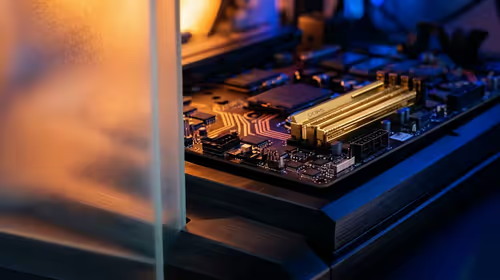
Power down completely and unplug the PC. Open the side panel and unlatch the clips on your RAM slots. Gently but firmly push each RAM stick out. Now, referencing your motherboard manual, install just one stick in the recommended primary slot (often A2). Push down firmly on both ends until you hear and feel both clips click into place. If it boots, power down and add the second stick. This simple process solves a huge percentage of PC building problems.
Check Your Graphics Card (GPU)
Similarly, an improperly seated GPU can cause a black screen. Ensure the card is pushed all the way into the PCIe slot and that the retention clip has clicked shut. Also, double-check that the PCIe power cables from your PSU are securely connected to the GPU. This is especially vital for the powerful cards found in premium systems like our PCs above R20k, which draw significant power.
Listen for the Beeps! 🤔
If you have a motherboard speaker connected, listen for beep codes. A series of short beeps, a long beep followed by two short ones… these aren't random. They are diagnostic codes. A quick search for your motherboard's "beep codes" will tell you exactly what it thinks is wrong—be it RAM, GPU, or CPU issues. It's an old-school but incredibly effective troubleshooting tool.
Diving Deeper: Motherboard & CPU Troubleshooting
If you're still facing a black screen, it's time to investigate the core of your build. This stage of PC build troubleshooting requires more patience. A common mistake for first-time builders is installing the motherboard directly onto the case without using standoff screws. These small brass screws create a gap, preventing the motherboard's circuits from shorting out on the metal case.
Also, re-check your CPU power connector. This is a separate 4-pin or 8-pin cable (often labelled 'CPU') that plugs in near the processor socket, not to be confused with the larger 24-pin motherboard power. Forgetting it is a guaranteed no-boot scenario, common across all builds, including the versatile machines in our PCs under R20k category.
When DIY Becomes a Drag ✅
There's immense satisfaction in building your own PC. But sometimes, the troubleshooting process can drain all the fun out of it. You just want to install your games and play. There is absolutely no shame in wanting a machine that works perfectly out of the box, backed by a professional warranty.
That's where a professionally assembled system shines. Every component is tested for compatibility, the system undergoes stress tests, and you get direct support if anything goes wrong. You skip the potential headache and jump straight to the high-frame-rate action. It's often the smartest choice for gamers who value their time and peace of mind, and you can find incredible value exploring the best gaming PC deals available.
Ultimately, whether you solve the issue yourself or opt for a ready-to-go solution, the goal is the same: to get gaming. If you find yourself at a dead end, remember that exploring our expertly configured pre-built PC deals is a fantastic, stress-free path to your next upgrade.
Ready to Skip the Hassle & Start Gaming? 🚀
While PC build troubleshooting is a valuable skill, sometimes you just want a rig that works flawlessly from day one. Our expertly built PCs are tested, optimised, and ready for battle. Explore our massive range of gaming PC deals and find the perfect machine to conquer your world, hassle-free.