Typing a query into the top bar and typing it into a page can produce different results even in the same browser window. Edge default search engine is the setting to check when the address bar sends your query to a provider you did not intend to use.
Quick Answer
Search once on your preferred supported provider, then open Edge settings and find the address-bar search engine control. Select the provider and test a fresh address-bar query. The setting costs R0 in extra hardware; it does not change Windows default apps or force every website search box to use that provider.
🔎 Begin with a controlled test
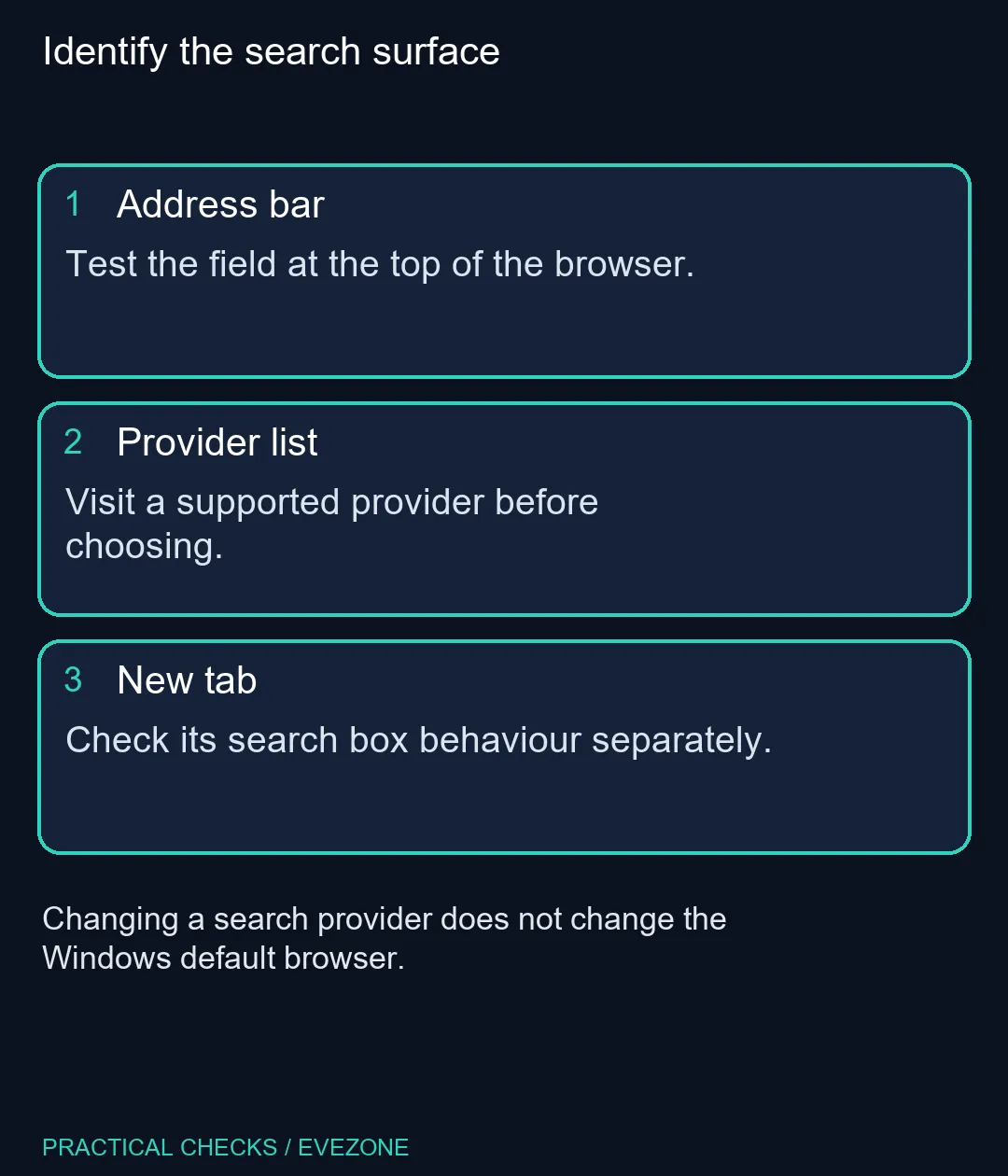
Open a normal browser tab and type a distinctive, harmless query directly into the address bar. Note which service receives it. Repeat the test after changing the setting so that you compare the same action. A bookmark to a search website and a search typed into the browser chrome are not equivalent tests.
This distinction helps when a new-tab page still looks unchanged. Its design or embedded search field may have separate behaviour. First establish whether the address bar works correctly. Changing several start-page and search settings together makes it harder to tell which control answered the original problem.
⚙️ Choose a detected provider
Microsoft supports providers that use OpenSearch. Visit the provider you want and carry out a search, then return to the browser's search settings. The menu wording can vary with the current Edge version; use the settings search field to find search engine or address bar if the layout differs from an older screenshot.
Select the desired provider rather than installing an extension simply to replace basic browser search. If a managed computer prevents the change, ask its administrator about the policy. A blocked setting does not show that your laptop lacks processing power or needs replacement. Save a note of the original selection so that you can return to it if desired.
💻 Separate preferences from performance
Changing the provider alters where a query goes, not the amount of installed memory or the speed of the network. If every browser page loads slowly, investigate that wider symptom separately. A different result page alone is not evidence of a hardware fault.
When evaluating all laptops on special, compare the actual tasks and applications you need. Only look at all memory (ram) for an upgrade when your machine and workload support that decision. A search preference is a small software adjustment, and checking it first can prevent an unnecessary purchase made to solve the wrong problem.
Frequently Asked Questions
Where does this setting apply?
It controls searches entered in the Edge address bar, rather than every search field on every website.
Why is my provider not listed?
Visit the provider and perform a search first. Edge can detect supported OpenSearch providers.
Does this change my default browser?
No. Windows default app selection is a separate setting.
Will a site search field change?
No. A search field inside a website normally uses that website's own search system.
Should I install a search extension?
A supported provider can be selected through Edge settings. An extra extension is not required for that basic change.
Does it cost money to change?
The built-in browser setting requires no hardware purchase. Internet access remains subject to your normal connection costs.
Want a laptop that suits your browsing workload?
Compare Evetech laptop specifications after fixing the browser preference, then decide whether hardware is actually limiting you.