A page left open for tomorrow does not always need to stay busy today. Edge sleeping tabs reduce activity in inactive pages, which can help a laptop carrying many open tabs. The useful choice is which pages can pause and which ones are doing something you still depend on.
Quick Answer
Review sleeping tabs under Edge's System and performance settings. You can control the feature and define sites that should never sleep, while faded tabs can identify inactive pages. Start with a R0 settings review on your present laptop; no particular memory saving or battery-life increase is guaranteed by this guide.
💤 Identify what the page is doing
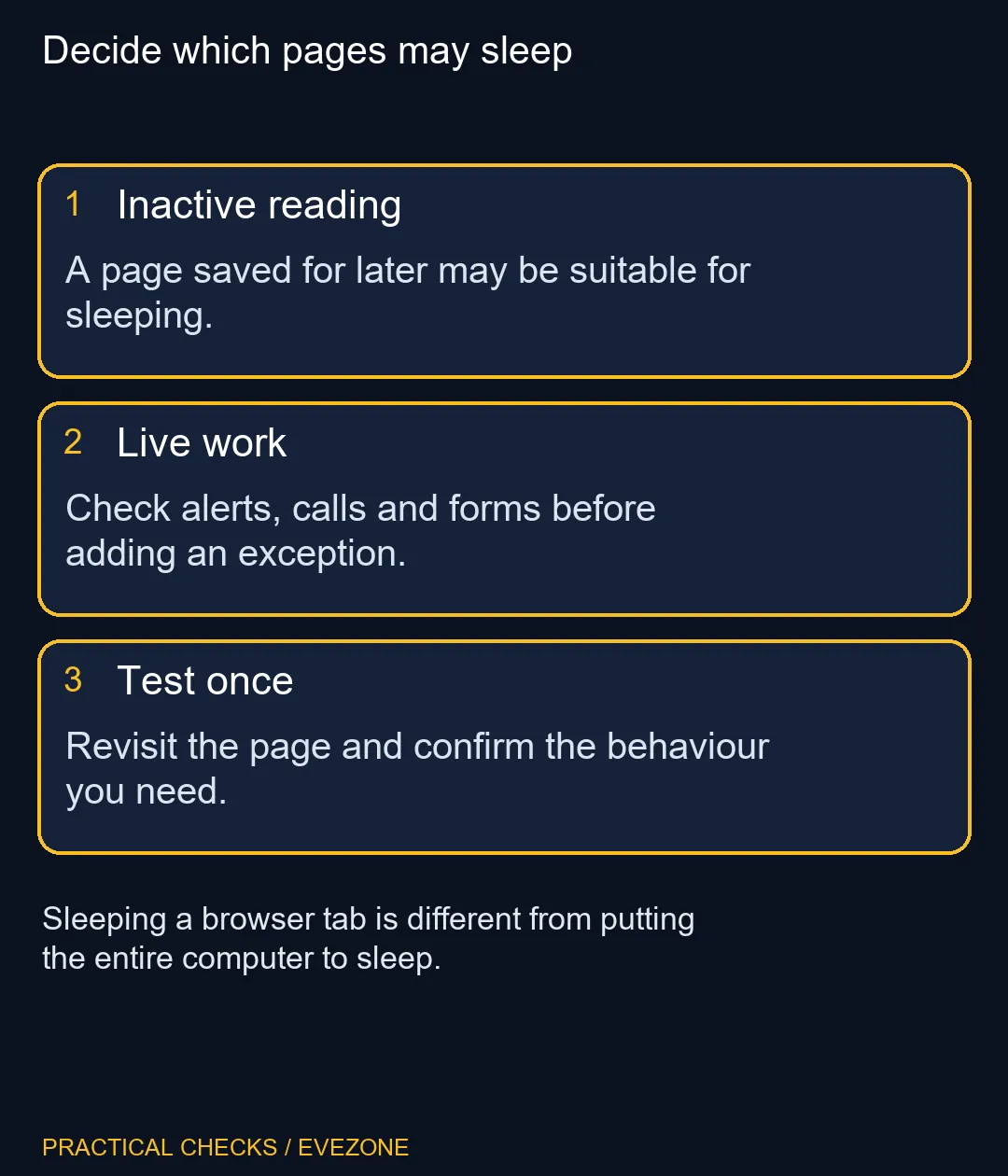
A reference article kept for later is different from an active call, a dashboard or an unfinished form. Think about the task rather than the number of open tabs. If a page needs to keep updating, test it under your current configuration before adding it to the exception list.
Avoid treating every website as special, because a long exception list can defeat the point of reducing background activity. Equally, do not assume that an important notification will always arrive just because a tab remains visible. Browser behaviour, site design and organisational policy all affect the final result.
⚙️ Change one performance option at a time
Open Settings and look for System and performance. Find the sleeping-tab controls, note the current choice and adjust only the item you intend to test. Microsoft describes configurable inactivity timing, but the exact options may change between Edge versions.
After the change, carry out your normal task and revisit an inactive page. Observe whether it resumes as expected and whether the troublesome behaviour remains. Altering several power and browser options at once makes it harder to know which one helped. Save documents and forms normally before experimenting; leaving them in a tab is not a substitute for saving.
💻 Distinguish browser resources from hardware limits
Resource management can improve how a busy browser shares the machine, yet it cannot add physical RAM. If one application consistently reaches the computer's limits even with fewer pages open, record that separately. A browser setting should not hide a reproducible capacity problem.
For an SA buyer comparing all laptops on special, consider the software and number of tasks that must run together. On a desktop, pre built pcs can be compared by their actual supplied memory and processor. Those decisions are better grounded in your daily workload than in a promise that sleeping tabs will transform any old computer.
🔔 Keep the exceptions deliberate
Add a site exception for a clear reason, then confirm that the relevant task behaves correctly. Remove an obsolete exception when the task ends. A short purposeful list is easier to maintain than one containing every site you have visited.
If a managed computer does not allow the change, follow its administrator's settings instead of looking for registry workarounds. The aim is dependable browsing with less unnecessary background activity. Keep any claimed improvement attached to what you actually observed, rather than a battery percentage borrowed from another machine.
Frequently Asked Questions
Where is the setting?
Look in Edge Settings under System and performance. Section wording may vary by version.
Does this put Windows to sleep?
No. It manages inactive browser tabs rather than the whole computer.
Why does an old tab look faded?
Fading can be a visual indication that Edge has put an inactive tab to sleep.
Can an important site stay awake?
Edge offers a never-sleep site list. Add an exception only when the task needs it.
Is a tab a backup for an unsaved form?
No. Save important work explicitly; an open page is not a durable backup.
Will it double battery life?
No fixed result is established here. The benefit depends on your workload and device.
Check the background workload first
Compare laptop capacity at Evetech after reviewing which pages genuinely need to remain active.