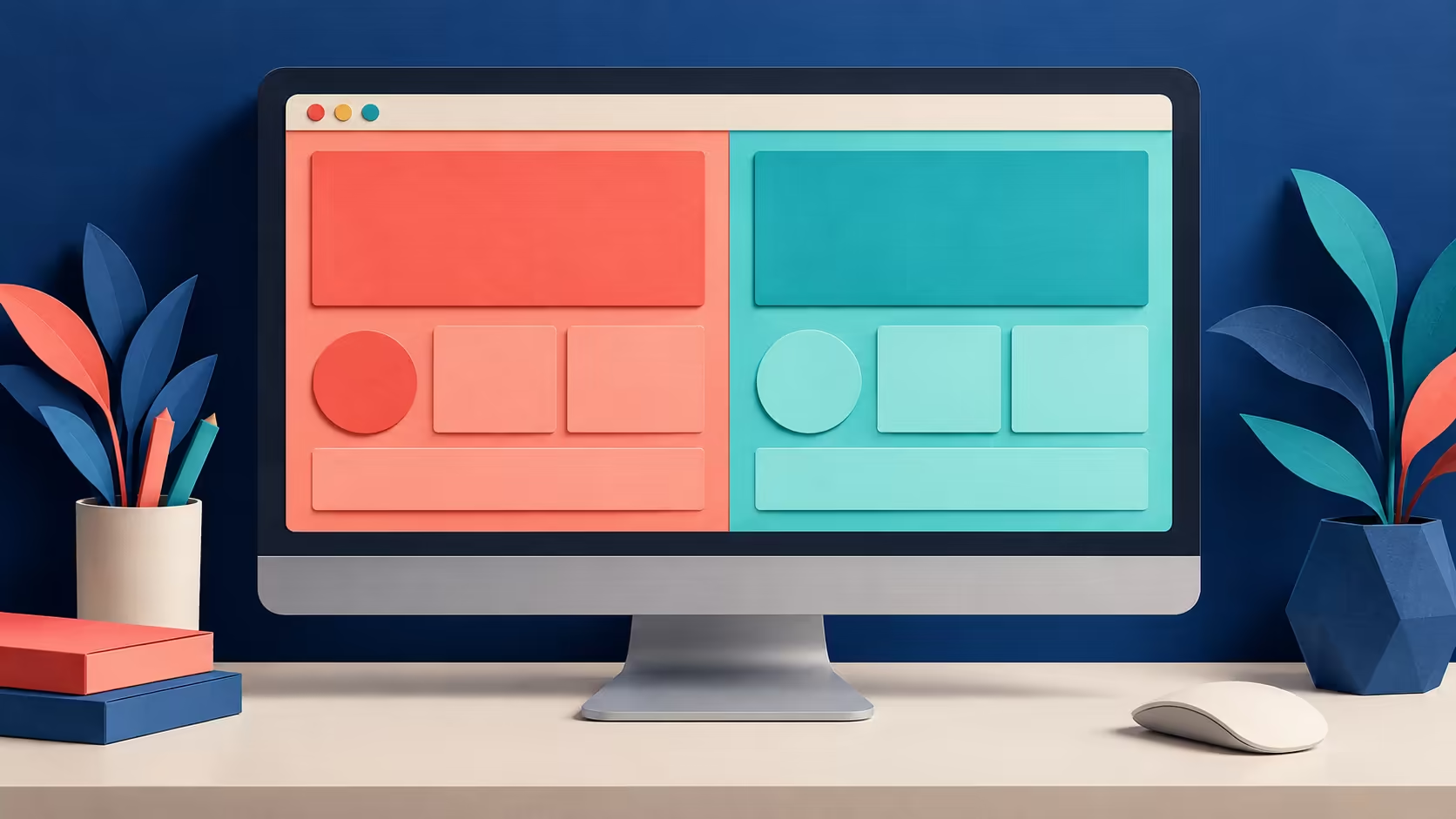
Comparing two product specifications often means repeatedly losing your place while switching tabs. Edge split screen can put the pages beside each other inside one browser tab. It is useful when both tasks are websites, provided each pane remains wide enough to read comfortably.
Quick Answer
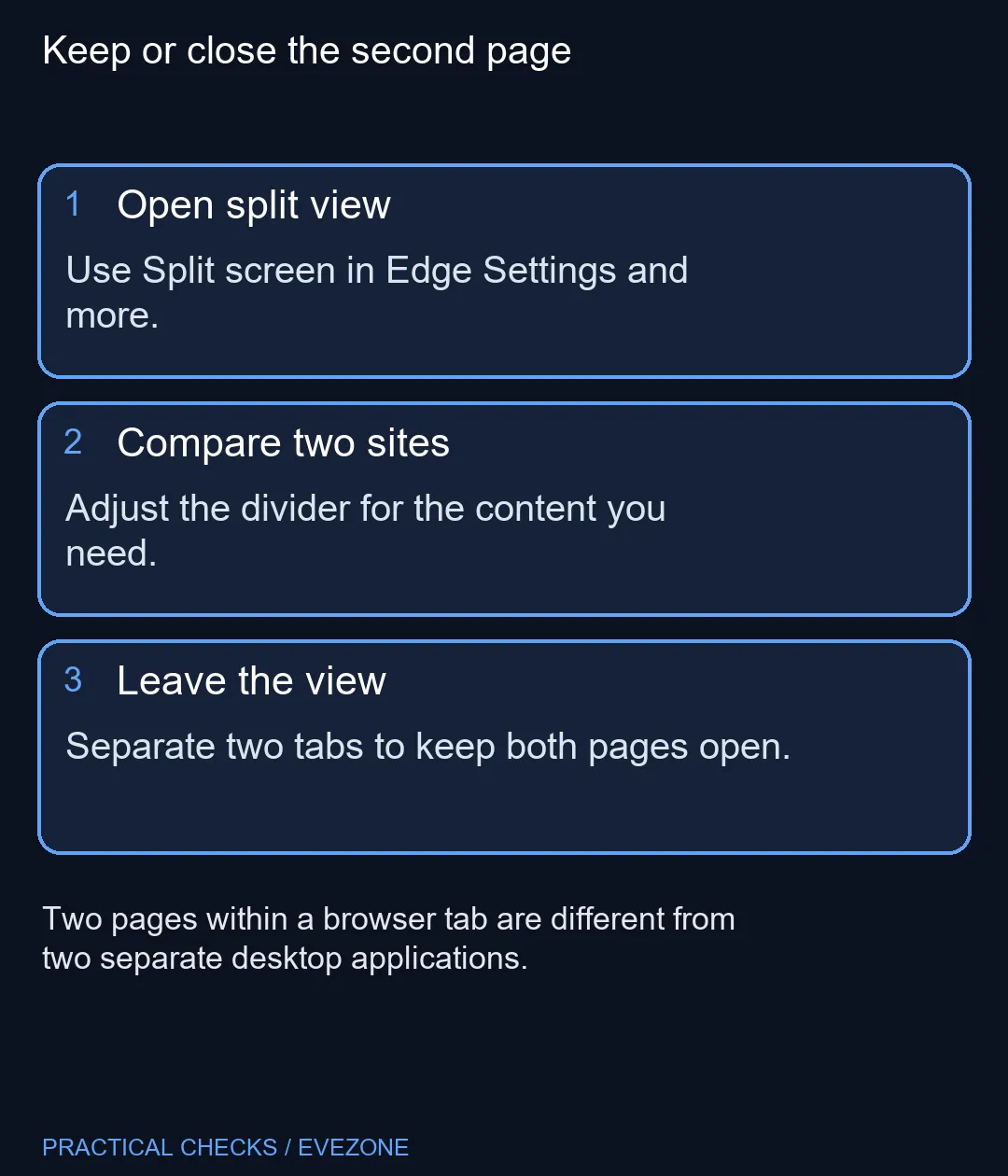
Open Settings and more in Edge and select Split screen where the feature is available. Microsoft describes two websites per tab. Try this R0 workspace option before buying an extra monitor for occasional comparisons; if you want to leave while keeping both pages, choose Separate two tabs rather than closing a pane.
🪟 Choose two pages that belong together
Begin with the pages you actually need to compare, such as a specification list and your notes in a web application. Open split view and select the second website. Make sure you can still recognise which pane is active before typing into a form.
A pair of simple articles may work well, while two dense dashboards can become cramped. If both pages contain their own sidebars, check the remaining content width before deciding that the split layout is useful. The aim is fewer unnecessary tab switches, not fitting the greatest possible number of controls onto a small panel.
↔️ Adjust the comparison area
Use the divider to give the more detailed page the room it needs. Then check menus, tables and form buttons on each side. A page that looks fine at full width may arrange its controls differently inside a narrow pane, so test the whole task rather than just the first visible paragraph.
Browser zoom is a separate control and can affect readability. Do not shrink both pages until the text becomes uncomfortable merely to keep a split layout. Returning to ordinary tabs is often the better choice on a compact laptop when the content was designed for a wider view.
🚪 Leave without losing the second page
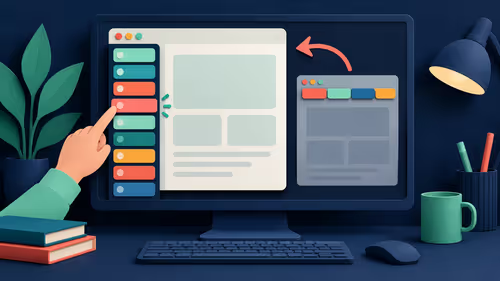
Microsoft distinguishes closing a split page from separating the two pages into tabs. To keep both, open the split-view More options control and choose Separate two tabs. Check that both pages remain available afterwards, particularly if one contains unfinished work.
Save important text in the normal way before rearranging a complicated session. A tab layout is not a backup mechanism, and it should not be relied on to preserve an unsaved form through every navigation or restart. Learn the exit action during a harmless test so that it is familiar when the work matters.
🖥️ Decide whether hardware space is still needed
This feature arranges websites inside Edge. Windows window snapping and an additional physical display address different situations, including tasks spread across separate applications. Identify which of those jobs is causing friction at your desk.
Compare gaming monitors when you need genuinely more visible physical workspace, considering viewing distance and the desk's dimensions. For someone who needs to carry the computer, all laptops on special involves another balance between screen size and portability. A browser comparison tool can help the current setup, but it does not make a small screen physically wider.
Frequently Asked Questions
How many sites fit in one split tab?
Microsoft describes two websites per tab for this feature.
Where do I start?
Open Edge Settings and more and select Split screen where available.
Can I keep both pages when leaving?
Use the split-view More options menu and choose Separate two tabs.
What does the pane's close button do?
It closes that split page. Use separation when you intend to retain both pages.
Is it the same as Windows window snapping?
No. Windows can arrange application windows; this feature arranges websites inside Edge.
Why is the option absent?
Availability can vary by version, device, market or managed settings. Do not assume a hardware fault.
Compare the pages before changing the desk
Try the two-page layout and compare Evetech displays only if the remaining workspace need is physical.