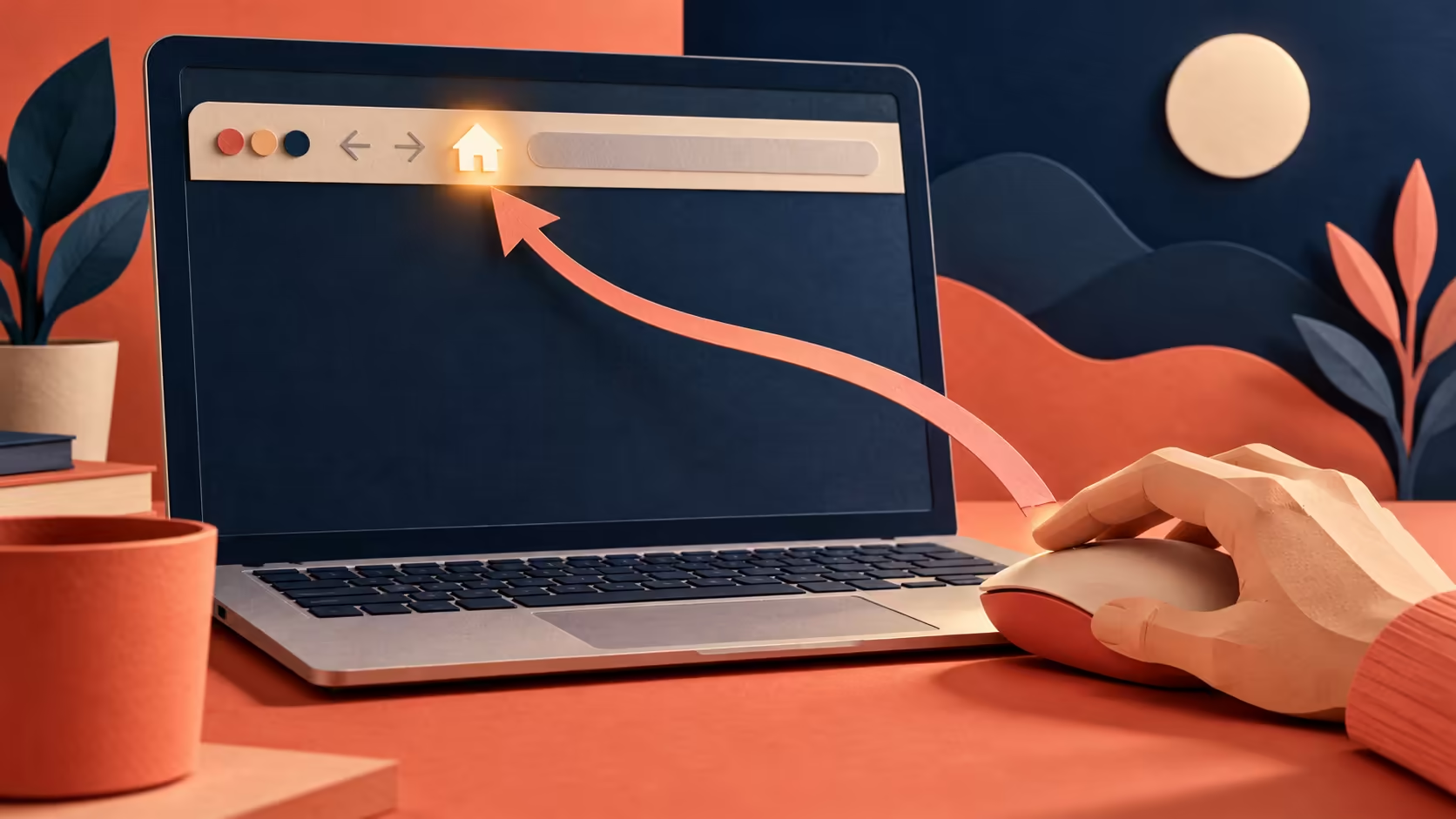
The browser can still open websites perfectly while one familiar shortcut has disappeared. Edge home button missing usually calls for checking the toolbar setting, not starting a browser rebuild. Restoring the icon and choosing what it opens are small, separate steps that are easy to test.
Quick Answer
Open Edge Settings, select Start, home, and new tab page, and enable Show home button on the toolbar. Choose the new tab page or enter the intended home-page address. This R0 toolbar fix does not require a replacement keyboard, and it is separate from the pages configured to open when Edge starts.
🏠 Restore the icon before changing its job
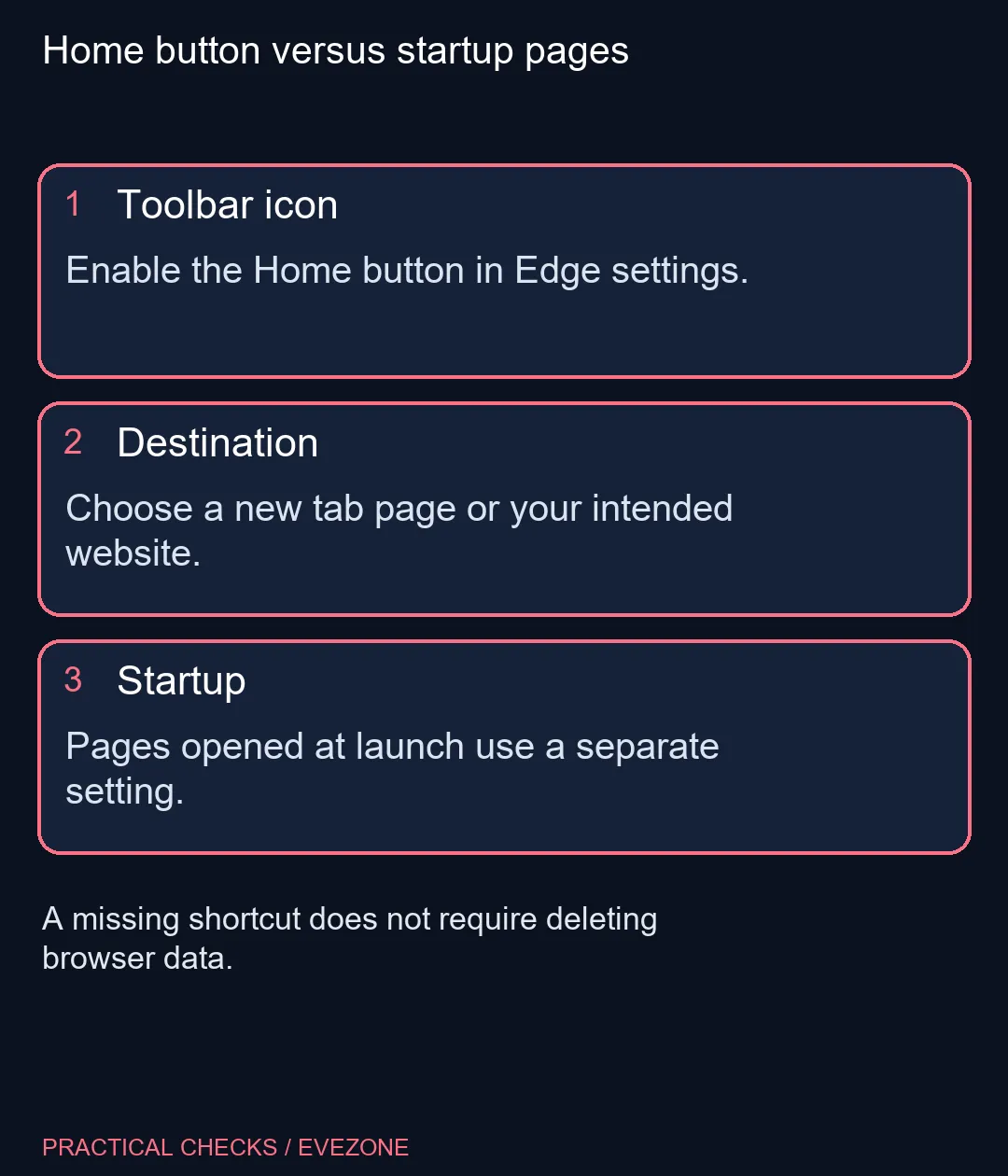
Find the Home-button option and turn it on. Check the toolbar immediately so that you know whether the visibility change worked. If you also want a different destination, set that afterwards and test the button from a normal browsing page.
Type the destination carefully and make sure it is the site you actually intend to visit. A bookmark may be a better choice if you need several regular destinations rather than one home page. Neither approach requires clearing browsing history, deleting saved sign-ins or removing extensions simply because the icon was hidden.
🚪 Keep launch behaviour separate
Microsoft distinguishes the home page from startup pages. Pressing Home follows the configured toolbar destination, while launching the browser follows its startup options. Changing one should not be assumed to change the other.
This matters on a shared family or study computer. Someone may prefer a single Home destination but several pages when a work session starts. Test the toolbar button without closing a set of unsaved tasks. If you later change startup behaviour, review that choice independently so that restoring one shortcut does not produce an unexpected group of tabs next time.
⌨️ Check navigation rather than buying an input device
The keyboard's Home key and the browser's Home icon are not interchangeable names for the same action. A key can move within a document, while a browser button follows its configured destination. First identify which control is missing or behaving unexpectedly.
If the mouse still clicks other toolbar controls and typing works normally, a hidden browser icon is not evidence of a faulty input device. Compare gaming keyboards for a genuine typing or layout need, and use all laptops on special when a portable computer is the actual purchase under consideration. A small visual preference should not be made into a hardware diagnosis.
🔒 Respect managed settings
Some computers have browser choices set by an organisation. If the switch is unavailable or repeatedly returns to a managed value, record that message and contact the administrator. Random registry edits make a simple preference harder to support.
Once the icon and destination are correct, stop. Keep a note of the settings section if other people use the PC. The useful result is one predictable shortcut, without disturbing saved browser data or the separate routine used to begin a session.
Frequently Asked Questions
Where do I restore the button?
In Edge Settings, open Start, home, and new tab page and enable Show home button on the toolbar.
What can the button open?
Choose the new tab page or enter the website you want to use as the home page.
Is Home the same as browser startup?
No. Home is the toolbar destination; startup settings decide what opens when Edge launches.
Must I clear cookies to restore it?
No clearing step is needed for the documented toolbar setting.
Why is the option locked?
An organisation may manage the browser. Ask its administrator rather than bypassing the policy.
Does it replace the Back button?
No. Back navigates the current tab's history; Home goes to the configured destination.
Restore the familiar shortcut
Check the toolbar setting first and compare hardware at Evetech only for a separate input or laptop need.