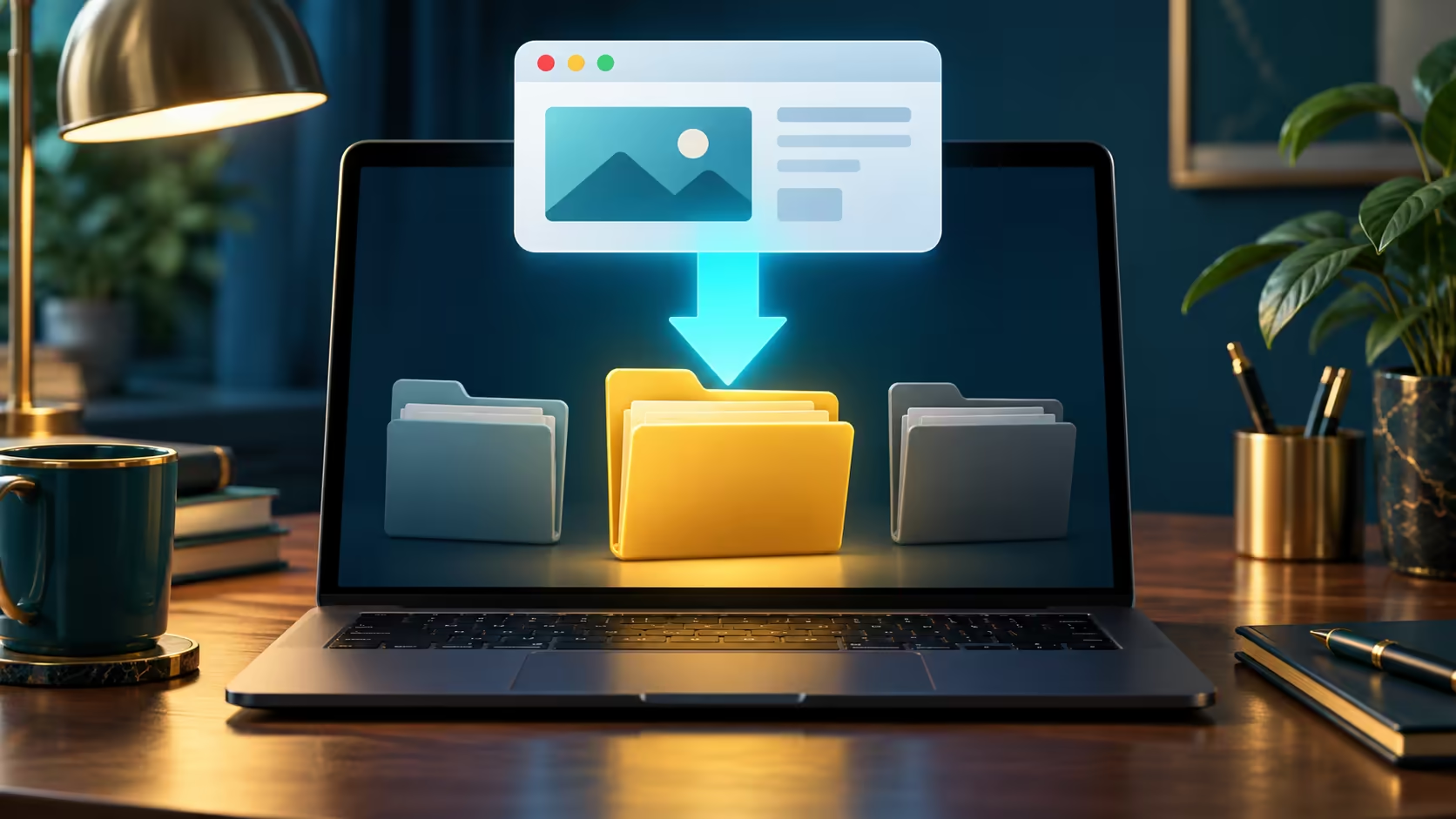
A successful download is not much use when you cannot remember where it went. Edge download location controls the destination used for new browser files, and it can be changed without reorganising the whole PC. First find a recent file, then decide where future downloads should land.
Quick Answer
Open Edge Settings, choose Downloads and select Change next to Location. You can also ask the browser where to save each file. This R0 organisation step does not create more storage, move existing downloads or set the destination used by every other application.
📂 Locate a file before changing the folder
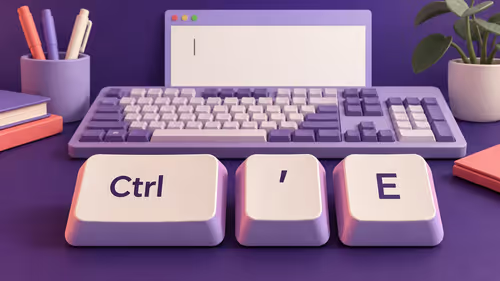
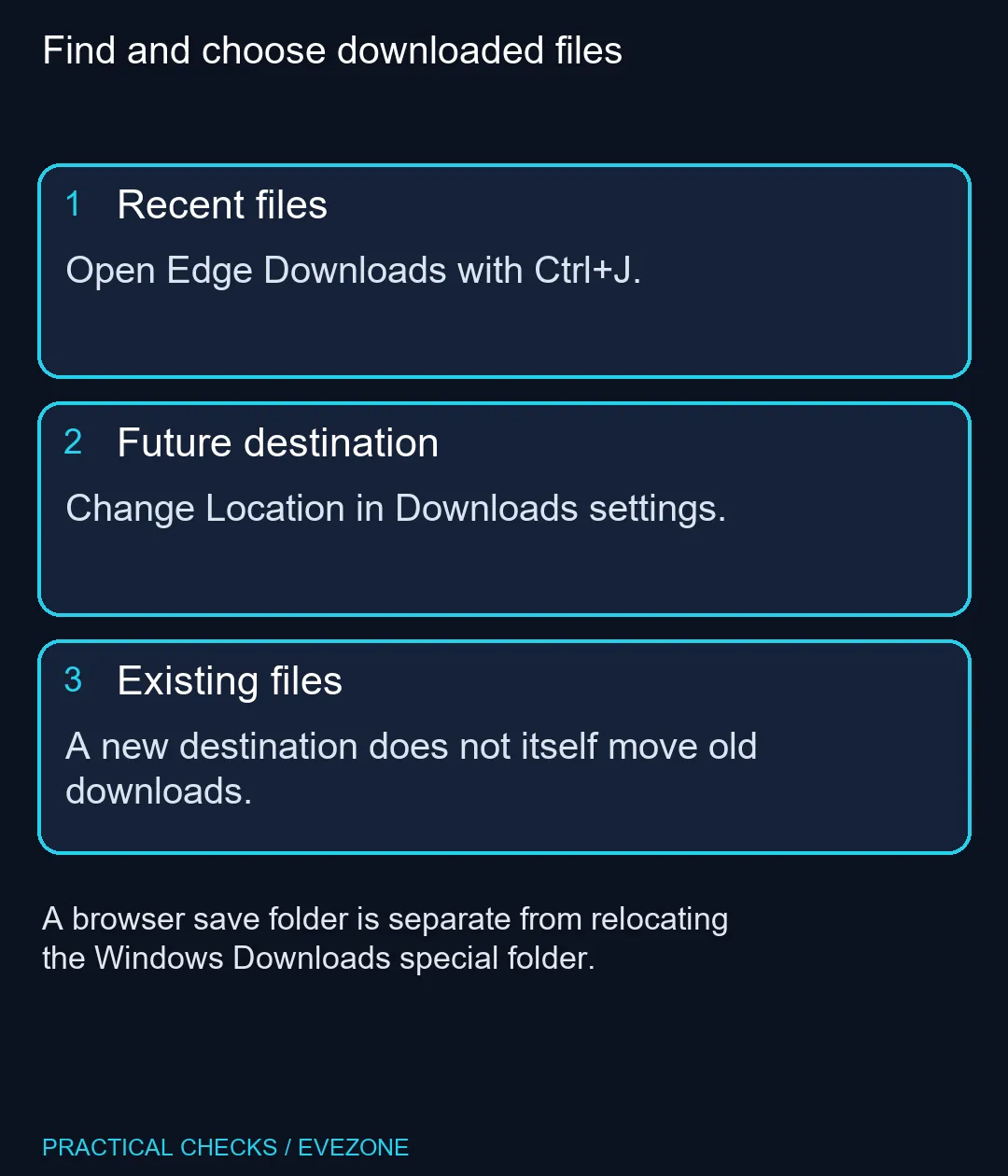
Press Ctrl+J while Edge is active to open its Downloads view. Identify the item you just saved and use the available file-location action if shown. This helps distinguish a completed download in an unexpected folder from a download that never finished.
Check the filename and extension rather than relying only on a similar-looking icon. Do not run an unfamiliar programme simply to confirm the destination. A harmless document from a trusted source is enough for a save-location test, and normal browser protections should remain enabled throughout.
💾 Select the destination for future files
In Downloads settings, choose Change and select the folder you intend to use. Make sure it is accessible under your normal user account. If you prefer to organise documents by project, the ask-where-to-save option may be more useful than sending everything to one new default.
Download a small safe test file afterwards and confirm its actual location. Existing items do not move merely because the default changes. If you want to reorganise those too, treat that as a separate file-management task so that you can verify what was moved and keep important documents easy to find.
🔌 Think about removable storage
An external drive can be a useful destination for large files, but it needs to be connected and available when the browser saves. A folder path on a disconnected device is not a reliable everyday default. Consider keeping a normal local destination and selecting the external drive only when the specific download calls for it.
For an SA storage purchase, compare external ssds by the connection and capacity your computer can actually use. If the internal drive is genuinely full, internal ssds may be relevant, subject to the machine's supported installation. Changing a folder name does not increase either drive's free space or establish that an SSD upgrade fits the device.
🧭 Keep browser and Windows settings distinct
Edge's destination is not the same operation as relocating the Windows Downloads special folder. Another application may continue saving to its own default even after the browser changes. Confirm each programme where it matters rather than expecting one switch to control the whole computer.
If a managed PC prevents destination changes, ask its administrator about the approved folder. Once the test file lands in the expected place, record that location and remove only the harmless test copy if no longer needed. There is no need to clear all browser data to make this setting predictable.
Frequently Asked Questions
Where is the destination setting?
Open Edge Settings, choose Downloads and select Change beside Location.
Can Edge ask me every time?
Yes. The Downloads settings include an option to ask where to save each file.
How do I see recent downloads?
Press Ctrl+J in desktop Edge or open Downloads from the browser menu.
Does this move files I already saved?
Choosing a new destination does not itself relocate existing files.
Will every application use the folder?
No. Other browsers and applications have their own save-location settings.
Should I disable a security warning to test?
No. Use a harmless file from a trusted source and keep download protections enabled.
Know where the next file will land
Set the destination first; compare storage at Evetech when capacity or connection speed is the separate problem.