A document button can appear broken because the browser stopped a new window, while an unwanted advert can appear inside the page without opening one. Edge block pop-ups works best when you identify which of those behaviours you are trying to change.
Quick Answer
Keep pop-up blocking enabled and add an exception only for a trusted site whose task requires another window. The browser control is a R0 hardware-cost check. It does not remove every advert, revoke notification permissions or prove that a frightening warning displayed by a website is genuine.
🪟 Identify a separate window
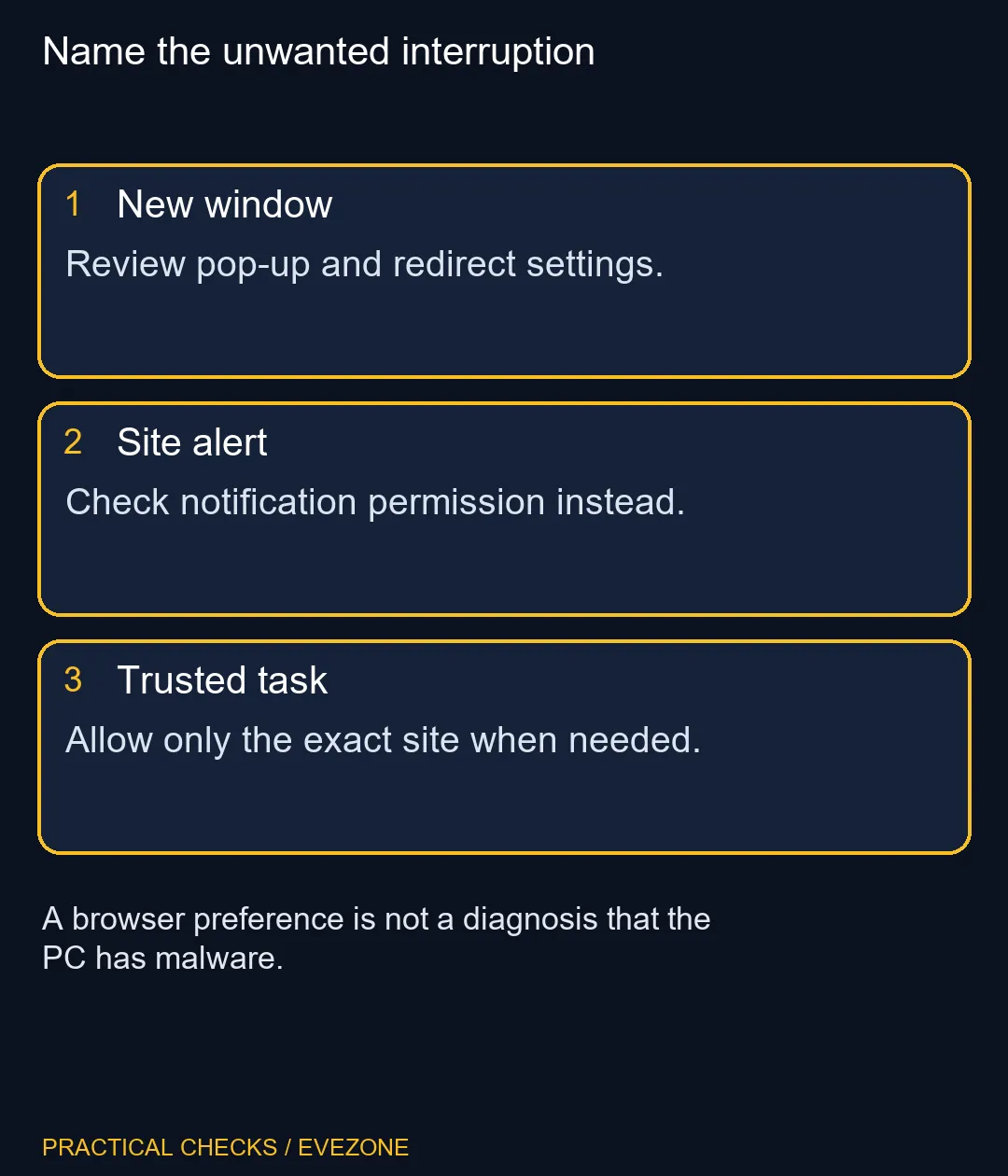
Watch what happens when the interruption appears. Does a new browser window open, does a banner arrive near the desktop clock, or does content cover the page you are already reading? Those observations point to different settings. Write down the originating website rather than choosing controls solely by the visual shape of the message.
Microsoft distinguishes pop-up blocking from general advertising controls. A site can show an advert as part of its own page. Blocking new windows will not necessarily remove that element. Likewise, permission to send site notifications needs its own review even if the pop-up switch is already enabled.
🛠️ Use the narrowest exception
Open Edge settings and locate Pop-ups and redirects through the settings search if necessary. Check the blocking control and the existing allowed-site list. Remove an exception you no longer trust or use. For a legitimate task that requires a new window, add the exact trusted site rather than broadly allowing every destination.
Return to that site and repeat the original action once. A page you actively click can open another window even with blocking enabled, so judge the specific task rather than expecting a total ban on all new windows. If the task remains broken, its own website or a different permission may need attention; repeatedly weakening unrelated protections will not isolate the cause.
🧭 Keep a browser symptom in context
An unsolicited warning is not a reliable diagnosis of the computer it appears on. Do not use its buttons to buy a supposed repair or grant remote access. Close the unwanted page and inspect the browser settings from a window you opened yourself. That keeps the troubleshooting action separate from the message demanding it.
For everyday browsing, all laptops on special provides hardware choices, but a pop-up preference is not a reason to replace a laptop. Check all memory (ram) only when there is a separate, measured capacity requirement. First confirm that the unwanted window has stopped and that your legitimate task still works with a limited exception.
Frequently Asked Questions
Will this remove every advert?
No. In-page advertising and pop-up windows are different mechanisms.
Why can a clicked link open a window?
Edge does not block every window you deliberately open by selecting a link or button.
Can I allow just one site?
Yes. Use a site exception rather than disabling blocking for all websites.
Are notification banners pop-ups?
They use a separate website permission. Check notifications when alerts appear outside the page.
Should I approve a scary warning window?
Avoid interacting with an unsolicited warning. Close the unwanted page and inspect its permissions separately.
Do I need a new computer?
Changing this setting costs R0 in new hardware. Unwanted browser windows alone do not establish a PC performance problem.
Sorting browser behaviour before an upgrade?
Use Evetech to compare hardware only after the page and permission checks identify an actual machine limitation.