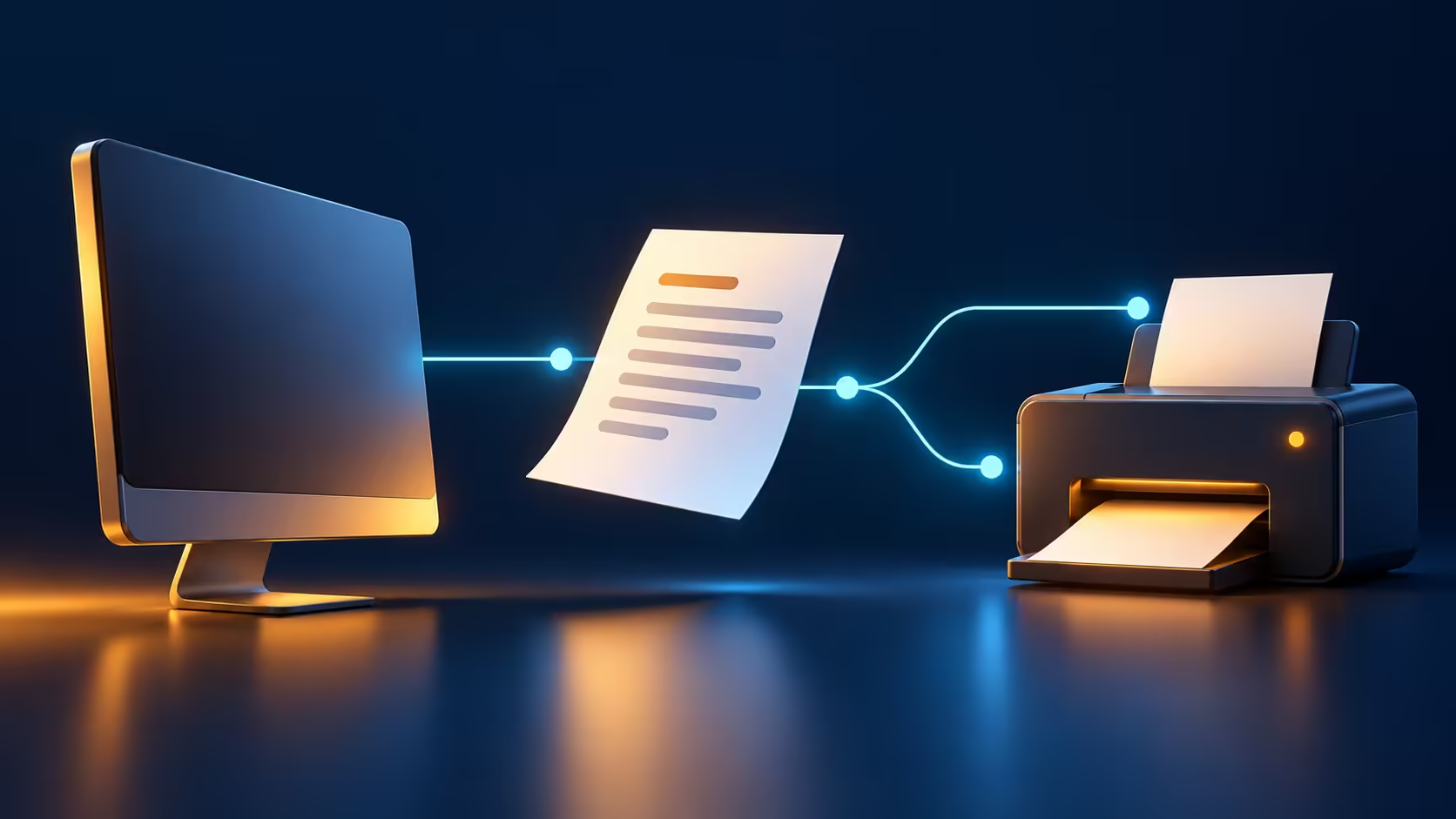
A failed preview does not yet tell you whether the website, browser or printer is responsible. Edge print preview failed becomes easier to diagnose when you keep the destination fixed and change one part of the test at a time.
Quick Answer
Try another simple webpage, confirm the chosen printer, then test printing from a different application. Those checks costR0 in replacement hardware and help narrow the cause. Use the result to decide whether to investigate the original page, Edge itself or the wider printer connection and driver.
📄 Start with a small, repeatable job
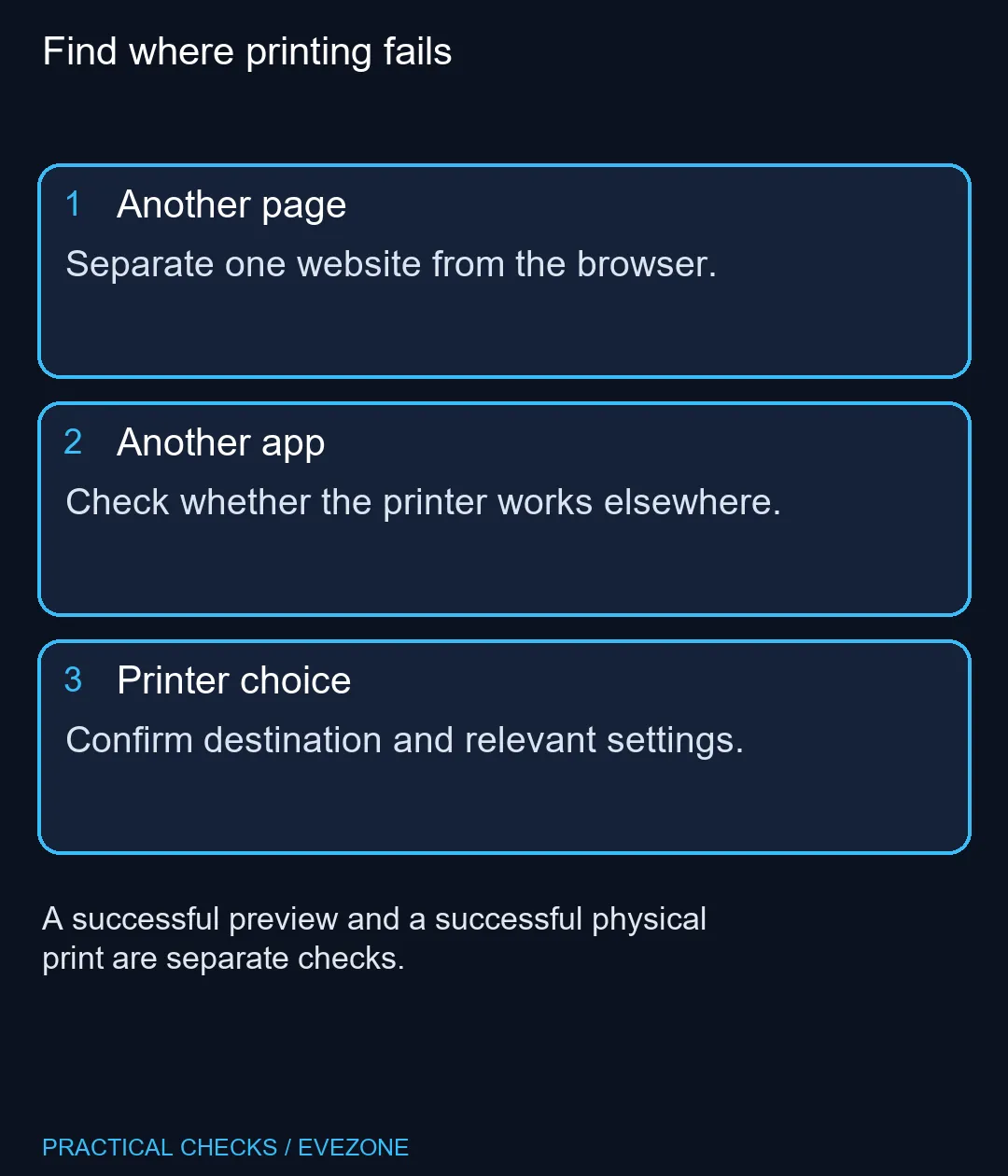
Open a second page with straightforward content and press Ctrl+P. Check the destination, page range and preview before sending a job. Repeatedly submitting a long document makes the queue harder to understand and can waste paper if the connection suddenly recovers. A short test is easier to recognise at the printer.
If the second page works, return to the original page and examine its layout or printable view. Some content does not translate cleanly to paper. Microsoft suggests a reading view where the page supports it, but not every site is eligible. A missing reading option is therefore not evidence that the printer itself is broken.
🖨️ Compare the same printer in another app
Use a small document in another installed application with the same printer selected. If that also fails, the investigation has moved beyond one browser page. Check the printer's state, the connection and the manufacturer's driver instructions. Do not assume the correct printer is selected just because its name resembles the one used previously.
When other applications work but Edge does not, a browser-specific issue becomes more plausible, although driver behaviour can still differ between applications. Cancel an open print dialog, restart Edge after saving browser work, and retry the controlled test. Keep any exact error text; it is more useful than describing every failure as the page refusing to print.
🧾 Review options before buying parts
Edge also provides a route to the Windows system print dialog. It can expose printer preferences relevant to paper or quality, but it does not magically repair an unavailable device. Review the destination and settings again when changing dialogs. A preview that appears successfully and a page physically emerging are separate results worth recording.
For reading and document work, compare monitors on special around screen size and comfort. For a new portable system, all laptops on special offers a different purchase decision. Neither category should be treated as the default solution to a single print-preview error. Let the scope tests identify an actual hardware limitation before allocating money to a replacement.
Frequently Asked Questions
What should I test first?
Try a simple second webpage using the same printer and settings. That checks whether the first page is the problem.
What does another app tell me?
If other applications also cannot print, investigate the printer, driver or connection beyond Edge.
Which shortcut opens printing?
Ctrl+P opens the Edge print dialog on Windows. Review the destination before sending anything.
Can I use the system dialog?
Yes. Edge documents a system-dialog option, with Ctrl+Shift+P as the Windows shortcut.
Should I print the whole document repeatedly?
Use preview and a small test to avoid wasting paper or producing a long duplicate job.
Is a new printer the first fix?
No. Initial settings and scope checks haveR0 hardware cost and may identify a page or software issue.
Planning a better document workspace?
Compare Evetech screens and laptops for your workflow after the print test identifies the source of the fault.