An alarming desktop banner may come from a website you once allowed to send messages. Edge website notifications lets you stop that origin without silencing the rest of the computer, which is useful when legitimate calendar or system alerts still matter.
Quick Answer
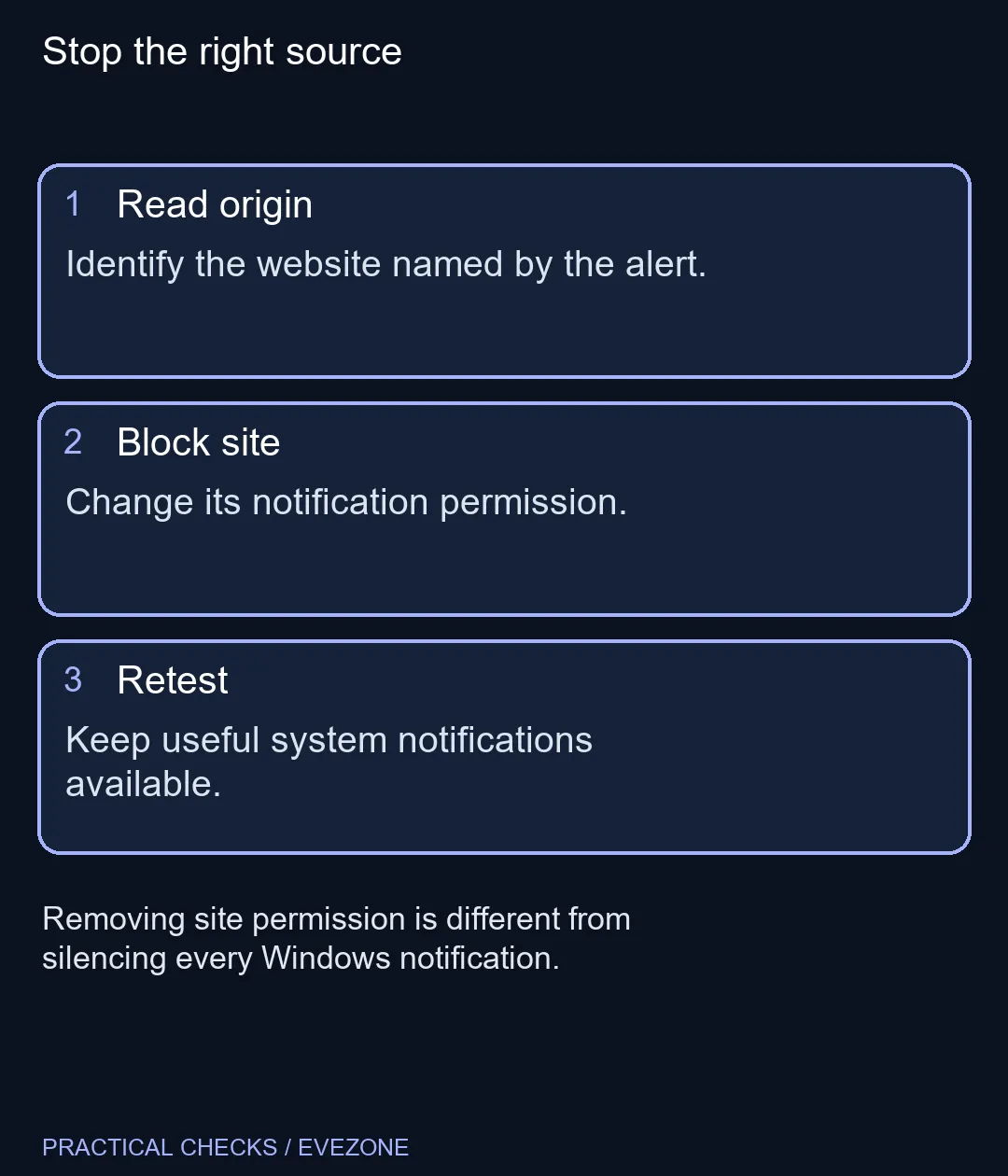
Identify the website named on the alert, then block its notification permission in Edge settings. This is a R0 hardware fix to try before purchasing anything. Notification permission is separate from the pop-up blocker, and a banner's claim about your PC should not be accepted as a real diagnosis.
🔔 Read the source before responding
Look for the site address associated with the notification. The wording inside the message is written by the sender, so a familiar logo or urgent warning is not enough to establish trust. Do not follow an alarming alert to buy software, call a supplied number or provide access to the machine.
Open the browser settings yourself and search for notifications or site permissions. That gives you a route independent of the unwanted message. If the alert names a different browser or application, check that source instead; changing Edge will not remove permission stored in another app.
🚫 Block the unwanted origin
Review the list of websites allowed to notify you. Find the exact origin and choose its blocking option when you no longer want requests or alerts from it. Removing an allowance can return a site to asking permission later, while blocking expresses a refusal. The precise menu labels may change with browser updates, so follow the site's permission entry rather than an old screenshot's position.
Keep useful sites separate. A broad Windows notification switch can hide reminders from unrelated applications without addressing why the browser accepted the website in the first place. After the change, continue normal browsing and check whether the specific interruption has stopped. Avoid granting permission again when the site repeats its request.
🖥️ Preserve the alerts you need
Notifications and webpage adverts have different controls. If a panel remains inside a tab, it may be page content rather than a desktop notification. Record where it appears and which application is shown. That small observation is more useful than toggling every privacy option at once.
A clearer screen can make work easier, but browsing interruptions are usually a settings question before a display purchase. Compare monitors on special for workspace needs such as size and resolution, not as a cure for website permission. Likewise, evaluate all laptops on special against your applications only after the unwanted alert source is understood. A successful result is specific: the unwanted site stays quiet while the messages you rely on remain visible.
Frequently Asked Questions
Where should I start?
Read the website origin shown by the notification, then review that site in Edge permissions.
Should I mute all Windows alerts?
That can hide useful system messages. Block the unwanted website first when it is the source.
Is this the pop-up blocker?
No. Website notifications use a separate permission from pop-up windows and redirects.
Can a site ask again?
Removing permission and blocking permission can behave differently. Choose Block when you want to refuse that site.
Does an alert prove there is a virus?
No. A website can put alarming text into a notification. Treat its claims as untrusted.
What does the setting cost?
No new hardware is required, so the hardware cost is R0. Normal data charges are separate.
Making a calmer workspace?
Review the browser permissions first, then compare Evetech laptop and monitor choices for the work you actually do.