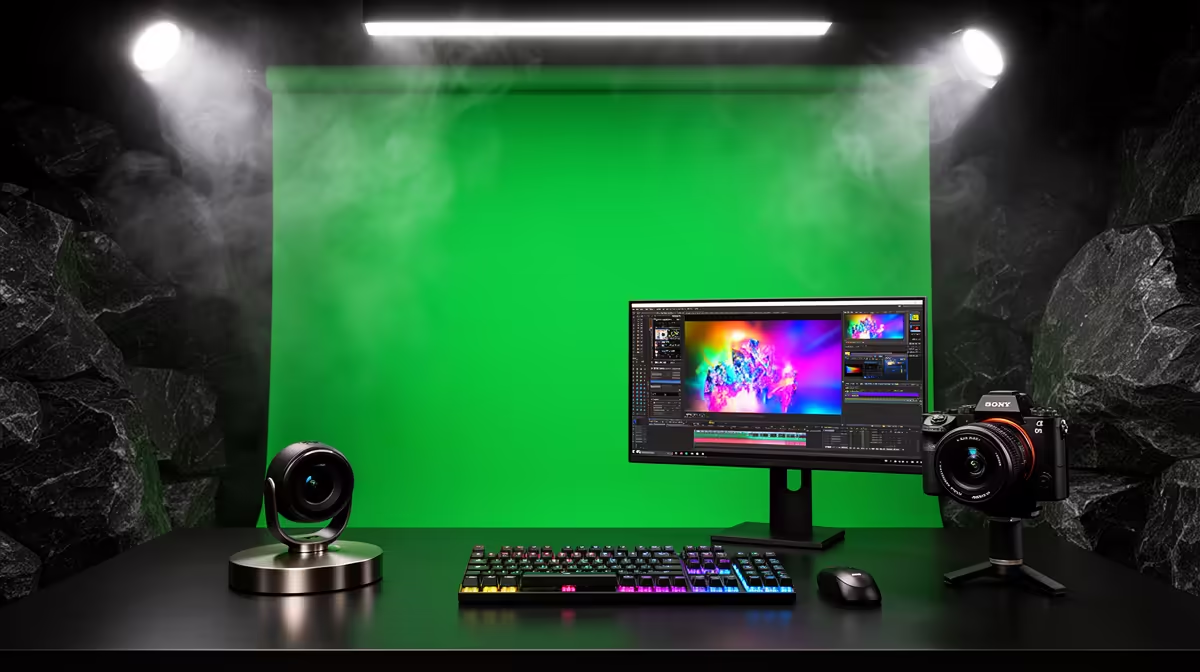
The boxed webcam cutout is one of the most visible markers of an entry-level Twitch stream. Viewers have been conditioned by years of high-production content to expect streamers who sit inside the gameplay scene rather than floating beside it in a rectangle. Professionalising a Twitch stream with green screen compositing removes that box entirely and drops a clean, edge-accurate cutout of you directly over the game layer, which is a significant presentation upgrade that the hardware for it costs far less than most streamers assume.
Quick Answer
The core setup is a flat-lit muslin green screen, two softboxes aimed at the screen, a webcam or capture camera facing you from about 1.5m forward of the screen, and OBS with the built-in chroma key filter applied to your webcam layer. Even screen illumination matters more than camera quality -- a noisy, unevenly lit green cannot be cut cleanly regardless of the software used.
🟩 Why a Physical Screen Beats Software Background Removal
Every major streaming platform and most streaming tools now offer AI-based background removal that does not require a physical screen. It looks functional in demos. In practice, several limitations show up under the conditions of a live Twitch stream that are hard to mitigate without a real screen.
Fast movement is the first. Background removal algorithms sample each frame and compare it to an estimated background model. Sudden motion -- leaning forward, gesturing quickly, turning your head -- outpaces the model update and creates trailing artefacts or incomplete cuts that flicker in real time. Viewers notice.
Hair and fine edges are the second. Software removal simplifies complex edges. A lit green screen lets the keyer operate at the pixel level, preserving hair texture and fabric edges that a model-based approach blurs or clips. The difference is most visible in high-resolution streams and on viewers with larger monitors.
Consistent performance is the third. A physical green screen delivers the same key quality in every session, regardless of GPU load or background algorithm version updates. Model-based removal varies with software updates, hardware load, and ambient conditions in ways you cannot fully control.
💡 Lighting the Screen: The Variable That Matters Most
Flat, even illumination on the green surface is the technical requirement the rest of the setup depends on. If the screen is brighter in the centre than at the edges, the keyer must either fail to cut the darker zones or overcorrect and pull in similarly toned elements from your subject layer. Neither result is usable.
Two softboxes aimed at the screen from either side, positioned so their output overlaps in the centre, produce the even wash the keyer needs. The lights should be angled slightly inward -- not firing straight at the screen face, but converging toward the middle of the surface from their respective sides. This geometry fills the edges without creating a dual hotspot in the middle where the two beams overlap.
Check the result visually before you commit to a stream. In OBS, set your webcam layer's chroma key filter to show the matte preview (the black-and-white mask). The green area should appear uniformly black, with no lighter patches or gradients. Your subject area should appear uniformly white. Any grey on the green means the illumination is inconsistent and the keyer is struggling to make a definitive cut.
Stand distance from the screen
Sit about 1.5 metres in front of the green screen, not closer. This distance serves two functions. The shadow your body casts from the subject key light falls at a low angle and misses the screen face, so it lands on the floor behind you instead. And the green light reflecting off the screen surface does not reach your shoulders and hair at that distance, which is what causes the green colour fringe around subject edges that gives away an amateur setup.
🎮 Setting Up OBS for Streaming
OBS Studio handles chroma keying well without any additional plugins. Add your webcam as a video capture device source, then right-click on it in the source list and add a filter. Select Chroma Key. The key colour defaults to green, which is correct.
The two sliders to adjust are Similarity and Smoothness. Similarity controls how broadly the keyer searches for the target colour. Start with the slider lower than you think you need and raise it slowly until the backdrop cuts cleanly. Going too high on Similarity pulls in similar greens from your clothing or skin, so stop as soon as the backdrop is gone. Smoothness controls the edge softness of the matte. A small amount of smoothness prevents a hard jagged edge without blurring fine detail.
If you can still see a faint green tinge on your hair or shoulder edges after the backdrop is cut, the screen illumination is spilling onto your subject. Increase the distance or add a card or V-flat on the sides to block reflected green light from reaching your position.
Pro Tip ⚡
In OBS, arrange your scene layers with the webcam layer above the game capture layer and set the webcam layer's blending mode to Normal. The keyed area becomes transparent, showing the game capture layer beneath it. Adding a slight edge feather in the chroma key filter settings produces a more natural composited look on fast motion.
Frequently Asked Questions
What is the actual visual difference between a green screen and a software background removal key?
A green screen key, when properly lit, preserves accurate fine edges -- individual hair strands, fabric texture at the shoulder line, glasses frames. Software removal simplifies these edges to an estimated outline, which appears clean in a thumbnail but shows trailing and softening artefacts during movement in a live stream. For streams viewed at 1080p by viewers on full-size monitors, the difference is visible.
How far from the green screen should I sit while streaming?
About 1.5 metres. This separation keeps your subject shadow from landing on the screen, removes your body from the path of reflected green light, and gives the keyer enough visual distinction between your edges and the backdrop to make a clean cut. Closer than 1m, green spill on hair and shoulders becomes a persistent problem regardless of how well the screen is lit.
Does OBS handle the chroma key or do I need a plugin?
OBS includes a built-in chroma key filter that handles a well-lit green screen reliably. Apply it to your webcam source via the Filters menu. The plugin ecosystem adds more advanced options for very fine edge control, but for the majority of Twitch streams the built-in filter is sufficient if the backdrop lighting is set up correctly.
Why does my stream key look jagged or rough around the edges?
Rough edges in the matte almost always originate in uneven backdrop illumination. If the green screen has bright and dark patches, the keyer applies a single threshold to an inconsistent surface, which produces a ragged cut. Flatten the screen illumination with two softboxes first. Once the lighting is even, the OBS Smoothness slider handles any remaining edge softness.
Can I get away with a budget webcam for a green screen stream?
The keyer's output quality depends more on the consistency of the green and the frame exposure than on the webcam's overall image quality. A mid-range webcam shooting at 1080p in a well-lit scene produces a keyable image. The areas where camera quality visibly matters are low-light performance and dynamic range -- in a properly lit three-point setup these are less of a constraint than they are in an uncontrolled ambient environment.
Ready to remove the webcam box and key yourself cleanly into your stream?
Browse the green screen and studio lighting range at Evetech and build the setup that makes your Twitch overlay look like it belongs there.