


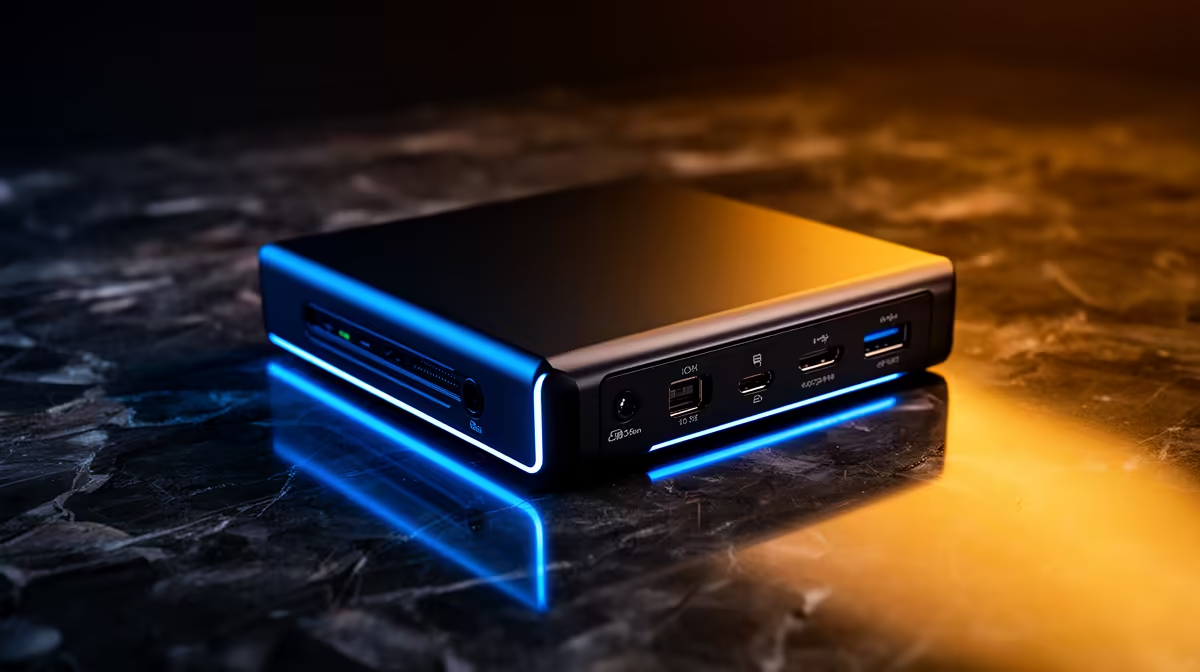
Setting up a 4K60 capture card for next-gen console recording is straightforward once you know the cable routing and the single setting that kills most installs before they start. The hardware connection takes under two minutes. The common failure point is not cables or software -- it is a copy-protection flag that the console enables by default and that completely blocks the capture signal until you switch it off.
Quick Answer
Connect the console HDMI out to the card's IN port, run the card's HDMI OUT to your TV for pass-through, then link the card to your PC with USB-C 3.1. Before recording anything, disable HDCP in the console's system settings. HDCP blocks the capture signal entirely and produces a black screen.
🔧 Physical Connection: Getting the Routing Right
Three cables handle the entire setup. The first runs from your console's HDMI output into the port labelled IN on the capture card. This is the signal the card reads and records. The second cable carries the pass-through feed from the card's HDMI OUT port to your television or monitor. Your display receives the raw signal through this route, which is how the card achieves near-zero on-screen lag while still encoding footage in the background. The third cable, USB-C 3.1, connects the card to your PC.
The order of ports matters. Plugging the console into the OUT port instead of IN is a common first-time mistake that produces no signal in the capture software. Label both ends of your cables before threading them behind a TV stand or entertainment unit to avoid confusion during future changes.
USB-C 3.1 specifically, rather than an older USB-A connection, is required for sustained 4K60. The bandwidth demand at that resolution exceeds what USB 3.0 can reliably carry, and most 4K60 capture cards communicate this in the spec sheet. Use the cable supplied with the card. Generic USB-C charging cables cap at lower speeds and will stall or drop the 4K60 feed.
⚡ HDCP: The Black Screen That Catches Everyone Once
HDCP is a copy-protection scheme built into every PS5 and Xbox Series X by default. It encrypts the HDMI signal to prevent unauthorised recording. The capture card is not in the approved playback device list, so the encrypted signal hits the IN port and the card cannot decode it. The result in OBS or your capture software is a completely black preview window despite everything else being connected correctly.
On PS5, navigate to Settings, then System, then HDMI and set Enable HDCP to off. On Xbox Series X, open Settings, then General, then TV and display options and ensure 4K streaming is permitted under capture settings. The console restores HDCP automatically after certain streaming app launches because those apps require it. If your recording stops working after you close a streaming session, this is the first setting to check.
Note that disabling HDCP on PS5 prevents the console from running some first-party streaming services. For most people focused on gameplay recording, this is an acceptable trade. Re-enable it when needed and disable it again before the next recording session.
🎯 Software Setup and Resolution Targets
With the hardware connected and HDCP off, open OBS Studio and add a Video Capture Device source. Select the capture card from the device list, then set the resolution to 2160p and the frame rate to 60. OBS will show a live preview of the console's feed.
For the recording path, set OBS to record at 4K60 with a bitrate between 60 and 100 Mbps using H.265 if your CPU or GPU supports it. H.265 at 60 Mbps produces cleaner results than H.264 at the same bitrate and creates smaller files for long recording sessions. A 500GB NVMe at 100 Mbps gives you roughly 80 minutes of footage before needing to offload.
Many cards support downscaling to 1080p120 at the capture level. For titles that run at 120fps on PS5 or Xbox Series X, capturing at 1080p120 records the smoother motion rather than the higher resolution. Fast-paced competitive games often benefit more from the higher frame rate capture than 4K at 60fps.
Pro Tip ⚡
Set OBS to record to a dedicated NVMe that the OS does not also boot from. When Windows page files, temp folders and game installs all live on the same drive as your recording target, write speed dips under load and produces frame drops that look identical to a hardware problem. A separate recording drive removes this as a variable.
Frequently Asked Questions
Why does my capture card show a black screen with the console connected?
HDCP is almost certainly the cause. Both PS5 and Xbox Series X enable this copy protection by default. It encrypts the HDMI signal in a way the capture card cannot process. Disable HDCP in the console's system settings and the feed will appear immediately. If the screen remains black after disabling HDCP, check that the HDMI cable is in the IN port of the card, not the OUT port.
Does the pass-through HDMI connection add any lag to gameplay?
No measurable lag. The pass-through path on a 4K60 capture card forwards the incoming signal to your display before the card's encoding process begins. This separation is what makes simultaneous play and record possible. Your display receives the signal in under 1ms, which is indistinguishable from plugging directly into the TV.
Can I use the same capture card for both PS5 and Xbox Series X?
Yes. Both consoles output at up to 4K60 over HDMI 2.0, and any HDMI 2.0 capture card accepts both inputs without reconfiguration. Simply plug in whichever console you want to record. The card does not need to be told which device it is receiving from.
What bitrate should I use when recording next-gen console footage?
For 4K60 with detail-heavy open-world games, 80 to 100 Mbps in H.265 or 80 to 130 Mbps in H.264 captures fine texture without visible compression artifacts. For competitive titles with fast motion, prioritise higher frame rates over resolution. 1080p120 at 50 to 80 Mbps retains motion clarity better than 4K60 for games running at 120fps modes.
Which recording software works best with a 4K60 capture card?
OBS Studio handles 4K60 capture reliably, is free, and works with every major capture card through its Video Capture Device source. It supports both H.264 and H.265 encoding via software or hardware GPU paths. The only configuration required is selecting your card as the capture device and setting the resolution and bitrate in the output settings.
Ready to capture next-gen console footage in full 4K60? Browse the capture card range at Evetech and find the card that handles your console's output with pass-through and zero lag on screen.










