


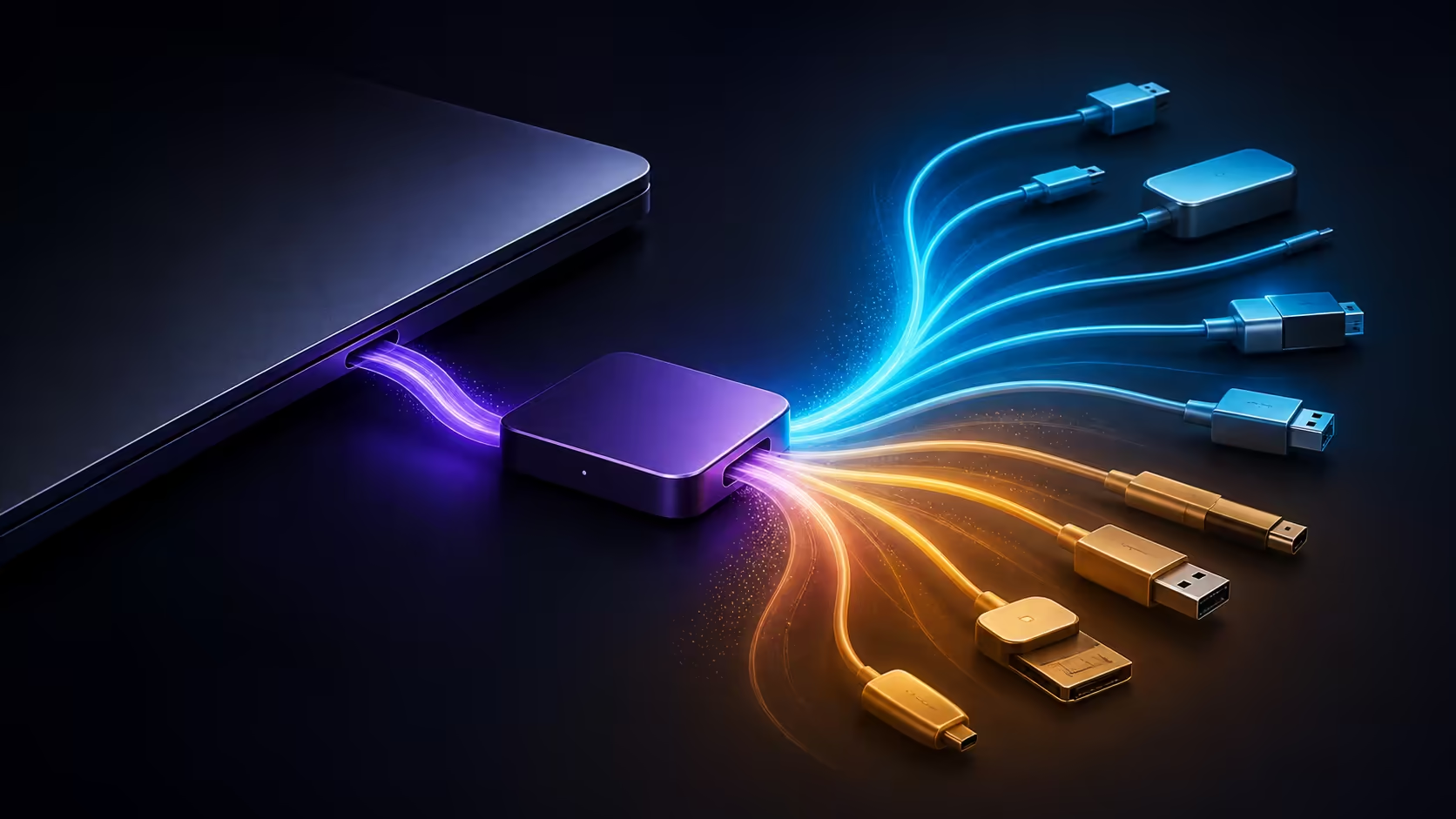
A thin chassis can still anchor a capable desk if the connection plan is designed around real devices. Solving limited laptop ports with a USB-C hub means allocating data, video and power deliberately instead of plugging every accessory into the first adaptor that fits.
Quick Answer
Choose a hub by listing the displays, storage, network and input devices it must serve, then match their combined bandwidth and charging needs. Keep high-speed storage or demanding video on a separate path when possible. MSI's Modern 14S AI+ G3MG is the compact R29,199 reference for this setup. It combines Core Ultra 7 355 with 32GB RAM, while the SSD holds 1TB.
📝 Inventory devices by function
Make four columns: video, data, power and low-speed input. Put each accessory into its primary column and note any secondary need. An external monitor consumes display bandwidth, an SSD needs sustained data throughput, and a keyboard uses very little. This prevents a hub with many sockets but weak internal sharing from looking more capable than it is.
Count connections at home and in the travel bag separately. A permanent desk may justify a powered dock with monitor, Ethernet and charging. A small mobile hub might only need one display output, a card reader and a USB socket. One oversized adaptor is not automatically better for both places.
⚡ Plan charging before convenience
Pass-through power is shared between the hub and the computer. The adaptor consumes some energy and may advertise an input figure larger than the amount delivered upstream. Use a power source appropriate to the computer and allow headroom for connected devices.
Cable quality matters for power as well as data. A cable intended for basic charging may not carry the display or speed required by the desk. Label known-good cables by job and avoid tight bends near the connector, particularly when the hub hangs from the side of a raised machine.
Browse Evetech's AI laptop finder for mobile hardware and use the Intel laptop selection to compare complete systems by processor, memory and storage.
🖥️ Give displays a stable route
Start with one monitor at a common resolution and 60Hz. Once stable, raise its mode or add a second screen. High resolution, high refresh and rich colour formats consume more link bandwidth together, so a hub that drives one premium display may not drive two at their maximum settings.
Keep one direct display option in mind for critical work. A dedicated output or separate capable USB-C route can remove the monitor from competition with storage and network traffic. Arrange Windows displays only after the physical link is reliable, then set primary screen, scaling and orientation.
MSI puts the Modern 14S AI+ G3MG in the 14-inch class for R29,199. Its 32GB RAM can support a substantial application load and Core Ultra 7 355 supplies the processing. The external desk experience depends on the hub architecture built around it.
🧪 Prove the hub in stages
Connect power and one display first. Add keyboard and mouse, then network, audio and storage. Copy a large file while the monitor is active and watch for disconnects. Put the computer to sleep and wake it several times. The staged sequence reveals whether the problem is bandwidth, power or device negotiation.
If one accessory triggers instability, move it to another port or route. External drives and capture devices are stronger candidates for direct connections than keyboards or mice. Firmware and driver updates can improve hub behaviour, but apply them one at a time and repeat the same test after each change.
Plan for desk recovery
Keep a simple fallback that bypasses the hub. A direct charger, one direct monitor cable and a free connection for essential storage can keep work moving if the adaptor needs attention. The fallback also separates the computer from the hub during diagnosis, which makes the cause easier to locate.
Review sleep and wake settings after the physical layout works. A hub that is stable during use but loses devices after sleep may need current USB, graphics or dock software. Test several cycles with the same peripherals and allow the system time to settle before adding another change.
Finally, keep the hub ventilated. Compact adaptors can become warm while moving display, network and storage traffic and passing charging power. Place the unit on a hard surface, avoid covering it with papers and support its weight independently from the laptop connector.
Place frequently removed devices where they can be reached without disturbing the upstream cable. Repeatedly twisting the hub to access a card reader can loosen the display and charging route. A short extension for a low-speed accessory may improve reliability because the core connection remains still.
Frequently Asked Questions
Is a USB-C hub the same as a powered dock?
Not necessarily. Hubs range from small bus-powered adaptors to desktop units with their own power supply. Choose by capability and workload rather than the label.
Can a hub slow down an external SSD?
Yes. Several ports may share one upstream data link, and simultaneous network or video activity can affect throughput. A direct high-speed route is better for demanding storage work.
Why does the laptop charge slowly through the hub?
The power source may be too small, the hub may reserve some input, or the cable may limit delivery. Match the whole charging chain to the computer's needs.
How many ports are enough for travel?
Enough for the devices carried on a normal trip, plus one practical spare. A compact adaptor with the right ports is more useful than a large unit filled with unused sockets.
Does a R29,199 system need an expensive hub?
Price alone does not decide it. The R29,199 MSI reference has strong core resources, but the hub should be sized for the displays, storage and power used at the desk.
Ready to turn one compact connection into an organised workspace? Choose your Evetech laptop for the mobile workload, then build a hub plan that protects display stability, charging headroom and the devices that move the most data.











