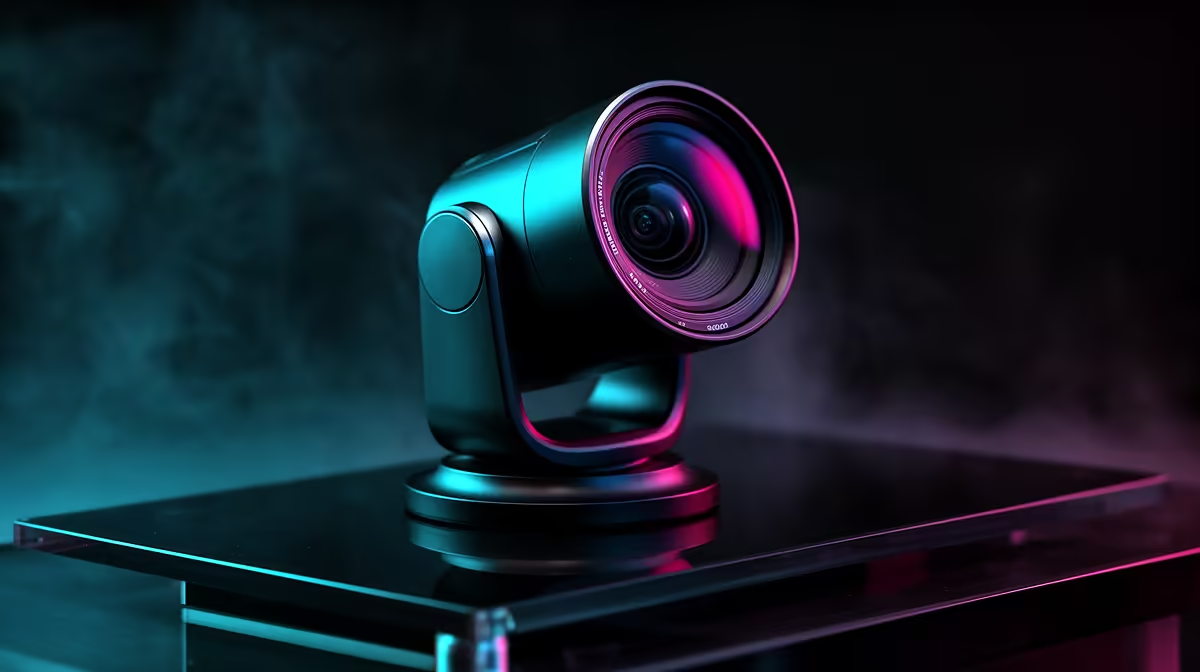
One camera, two completely different video formats. The shift from landscape to portrait webcam capture sounds trivial until you try to do it mid-session and realise your entire mount and software pipeline needs to cooperate. With the right rotating mount and a few minutes of software configuration, a single webcam can feed a widescreen YouTube setup and a vertical Shorts or TikTok format without you buying a second device.
Quick Answer
Rotating a webcam 90 degrees on a ball-head mount physically switches the sensor to portrait orientation, producing a 9:16 frame for Shorts and Reels instead of the standard 16:9. You also need to enable rotation in your streaming or recording software so the output appears upright rather than tilted sideways. One camera and one mount handles both formats.
🔧 The Mount: What Makes Quick Rotation Work
The mount is the practical bottleneck. Most webcams ship with a basic clip that attaches to a monitor bezel, which holds the camera in fixed landscape orientation. Rotating 90 degrees on a clip mount either puts the camera at the wrong height, conflicts with the monitor bezel, or leaves it unstable.
A ball-head tripod mount with a quick-release plate solves all three problems. The ball joint allows smooth rotation to any angle and locks firmly once set. The quick-release plate lets you detach and reattach the camera in seconds without losing your previous position settings. For a creator who switches between landscape recording sessions and portrait social content sessions across the same day, this workflow takes less than 30 seconds per transition.
For desks where a floor or desktop tripod is impractical, a webcam arm with a ball-head attachment point achieves the same rotation flexibility while keeping the camera mounted at monitor level. The arm also makes height adjustment effortless, which is useful for aligning the lens correctly at eye level in both landscape and portrait modes, since rotating the camera also shifts its effective height geometry slightly.
⚡ Software Setup for Portrait Output
Physically rotating the sensor is only half the job. A webcam sensor is fixed in its housing, so when you rotate the camera body 90 degrees, the sensor captures a frame that is actually the scene viewed from a 90-degree angle. Without software correction, your streaming app sees a sideways 1080p landscape frame, not an upright 9:16 portrait.
In OBS, the fix is a filter on the video capture device source. Add a Rotate or Flip transformation and set it to 90 or 270 degrees depending on which direction you rotated the physical camera. The preview output shifts to vertical orientation, and your scene canvas set to 1080 by 1920 pixels captures the full portrait frame correctly.
For native phone-based recording or apps with built-in rotation support, some handle the physical orientation automatically by reading the accelerometer if the camera supports it. Check your specific software, but assume manual configuration is needed rather than relying on automatic detection.
Save your OBS scene collection or scene configuration as a separate profile for portrait mode so switching back to landscape is a single profile change rather than rebuilding the transform settings each time.
🎯 What Portrait Capture Changes About Resolution
Rotating a 1080p sensor to portrait orientation does not give you a full 1080 by 1920 frame by default. The sensor is physically 1920 by 1080 pixels in landscape. When rotated, the output is 1080 by 1920, meaning the 1920-pixel dimension now runs vertically while the 1080-pixel dimension runs horizontally. The short dimension of the sensor becomes the width of your portrait frame.
For Shorts and Reels viewed on a phone, 1080 pixels wide is the standard full-width resolution and looks sharp on any current mobile display. There is no visible quality loss compared to a native 9:16 camera at 1080p width.
A 4K webcam rotated to portrait gives 2160 pixels of vertical resolution, exceeding the display resolution of most current phones and providing useful oversampling after Shorts encoding. If maximising portrait resolution is the goal, rotating a 4K webcam is better value than buying a separate vertical camera.
Frequently Asked Questions
How do I physically rotate a webcam from landscape to portrait?
Mount the camera on a ball-head tripod or monitor arm with a ball-head joint. Loosen the ball joint, rotate the camera body 90 degrees clockwise or counter-clockwise until the lens faces the scene in portrait orientation, then lock the joint. The sensor now captures a vertical field of view. You will need to configure a 90-degree software rotation in your recording or streaming application to correct the output to an upright 9:16 frame.
Can a single webcam genuinely cover both YouTube and Shorts production?
Yes. A rotating mount lets you switch between 16:9 landscape for YouTube videos and 9:16 portrait for Shorts without a second camera. The trade-off is the time required to physically rotate, relatch, and switch software scene profiles, which takes about a minute once the process is set up. For a solo creator shooting both formats in the same session, this is far more practical than owning two separate cameras and managing two recording chains.
Does rotating orientation require new software settings each time?
Not if you save separate OBS scene profiles or software presets for each orientation. Configure the portrait rotation transform once, save it as a named scene collection or configuration preset, and switching orientations becomes a profile load rather than a manual rebuild. Most streaming applications support multiple profiles or scene collections that you can switch between in a few clicks.
Will portrait mode deliver full resolution on a 1080p webcam?
In portrait orientation, a 1080p sensor outputs a frame 1080 pixels wide and 1920 pixels tall, which is the standard full-resolution format for mobile social content. The horizontal pixel dimension of the sensor becomes the width of the portrait frame. This is the correct resolution for Shorts and Reels and looks sharp on any current smartphone display. A 4K webcam rotated to portrait produces a 2160 by 3840 pixel frame, which gives additional vertical resolution useful for cropping or maintaining quality after Shorts encoding.
Does AI auto-framing still work in portrait orientation?
On webcams with software-driven auto-framing, yes. Once the 90-degree rotation is applied in your software, the auto-framing system tracks the subject within the corrected portrait frame rather than the raw sideways capture. The tracking keeps the subject vertically centred in the 9:16 output, which is important because portrait framing leaves little margin above and below the head compared to landscape. Check that your webcam's control software applies auto-framing after the rotation rather than before it, as some implementations process in sensor orientation.
Ready to produce Shorts and YouTube content from a single camera setup? Browse the webcam range with ball-head mount compatibility and find the model that fits your landscape-to-portrait workflow.