Treat this as a diagnosis, not a shopping trip. Below is an ordered, South African gaming checklist for the symptom in the heading, written so each step is something you can verify yourself before booking a repair or buying a replacement.
Quick Answer
Treat this as a diagnosis, not a shopping trip. This usually comes down to drivers, a hot NVMe drive or background load rather than a faulty AM5 motherboard. Run a fixed 20-minute test after each change and keep the one that holds at a steady frame rate or a stable temperature under 85C.
Driver and BIOS hygiene
Roll the GPU driver back to the last stable release, then do a clean reinstall using DDU so leftover files do not clash. Check that a recent Windows feature update did not swap your tuned driver for a generic Microsoft one overnight.
NVMe and disk checks
Move the boot drive off a shared lane if a second M.2 device steals bandwidth from the GPU slot. Check SMART data for a failing 1TB or 2TB SSD that is silently retrying reads.
PSU and connector checks
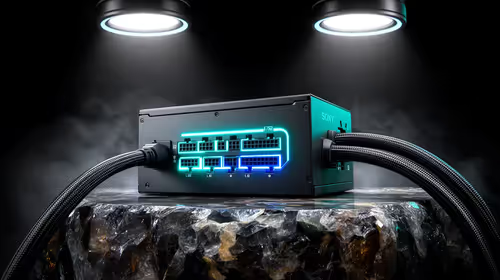
Set the Windows power plan to High performance so the CPU is not parked at low clocks during games. Verify the PSU wattage matches the load; a high-end card wants real headroom, so a 1000W unit is a sensible floor for top builds.
FAQ
How do I know it is not the GPU driver?
Run DDU in safe mode and install one clean driver. If the symptom vanishes you found it; if it returns, move on to heat, power and memory checks.
Will a BIOS update fix this on its own?
Sometimes, but flash only the latest stable release and reset to defaults afterwards. A fresh BIOS plus a clean chipset driver clears a surprising share of post-update stability faults.
Can a single bad cable cause this?
Yes. A half-seated 8-pin or a marginal DisplayPort cable can trigger shutdowns, flicker or stutter that look exactly like a dying component, so reseat and swap cables before spending anything.
Pro Tip
one variable per test: adjust a setting, re-run the same 20-minute load, then decide.