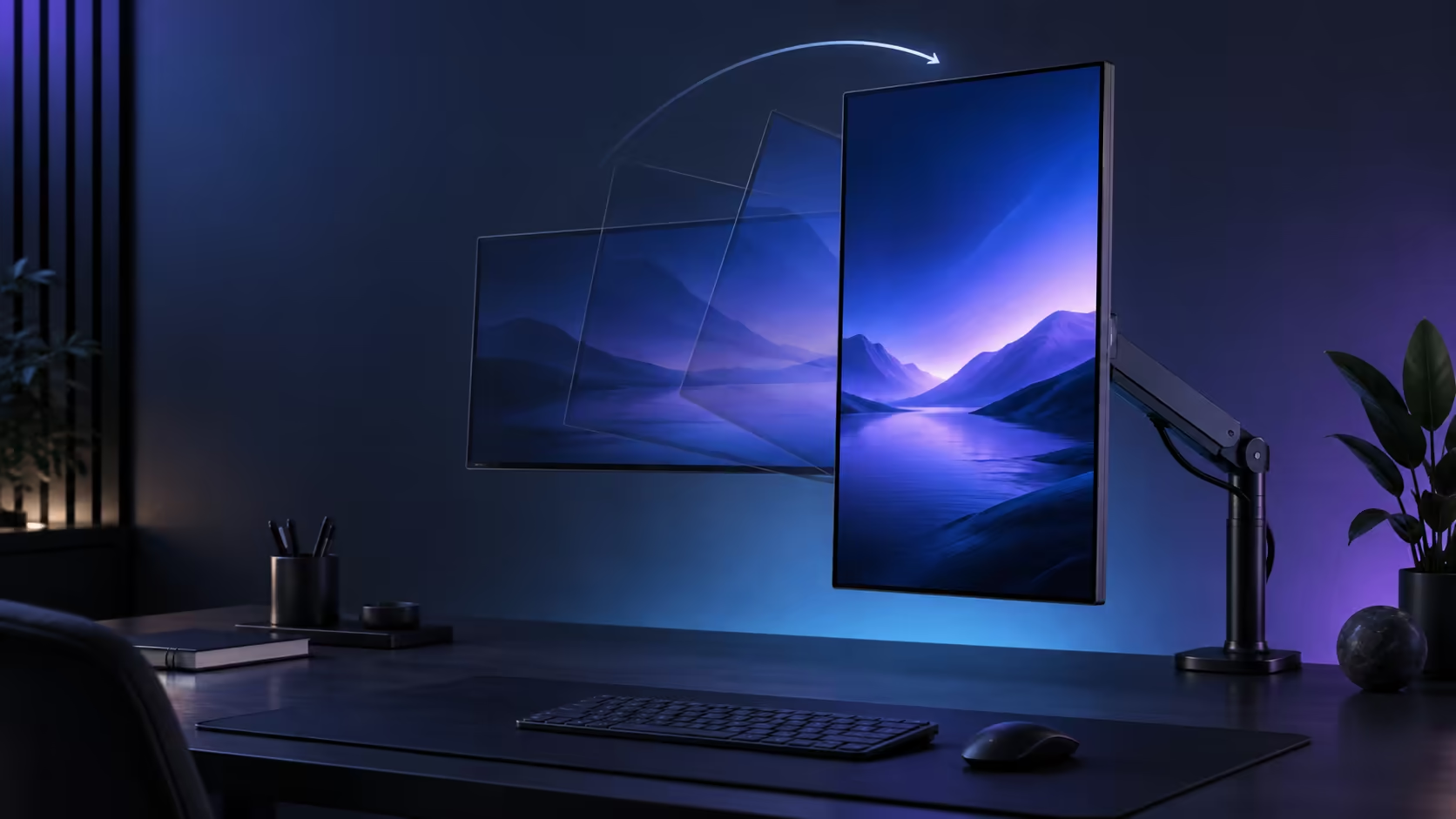
Setting up AOC monitor portrait mode requires a physical rotation and a software change. Windows can turn the desktop vertically, but that does not mean the supplied stand can pivot safely. Some AOC models include adjustable stands, some need a separate VESA arm, and portable models may use their own orientation software.
Quick Answer
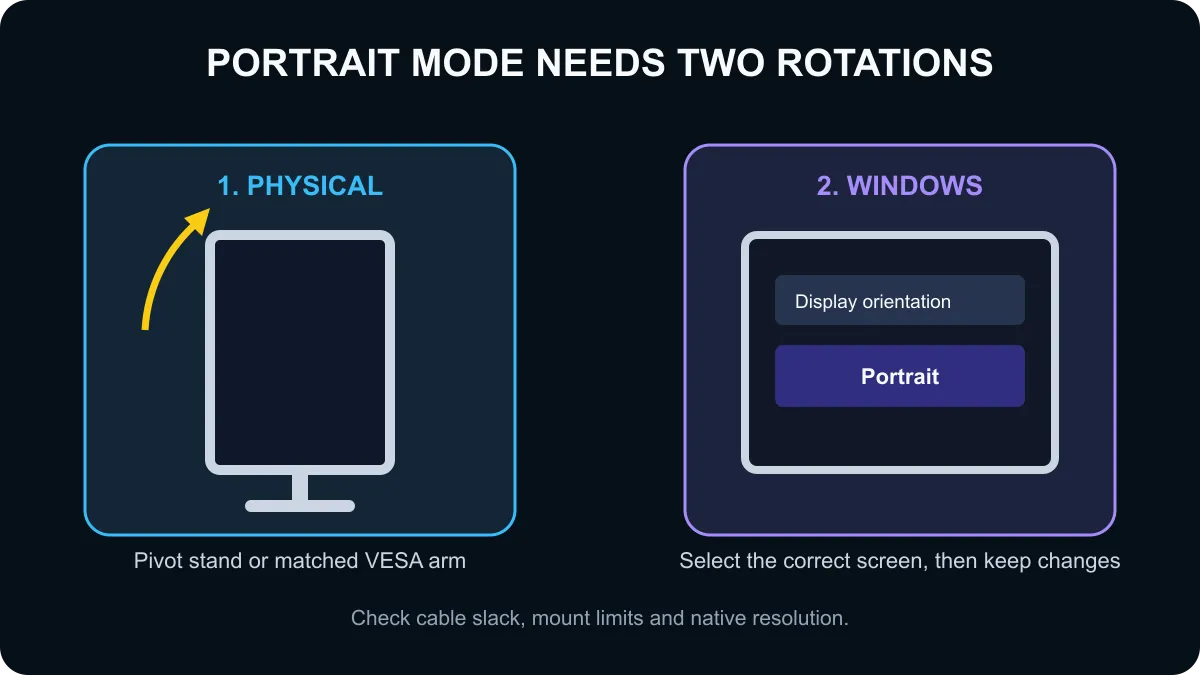
Check the exact AOC model manual for pivot or VESA support before moving the screen. Rotate it only on a supported stand or arm, leave slack in the power and display cables, then open Windows Settings, System, Display. Select the correct monitor and choose Portrait under Display orientation. If the stand does not pivot, do not force it.
🖥️ Confirm the screen can rotate physically
Look at the product specification for the supplied stand. Words such as height adjustable do not automatically mean pivot. The stand must explicitly support rotation, or the monitor must have a VESA mount that matches a compatible arm. Remove a stand only by following the model manual and supporting the panel on a clean, soft surface.
AOC's AS110D0 arm is one example of the limits buyers must check. It supports 75 x 75 mm and 100 x 100 mm VESA patterns, screens up to 32 inches and a maximum load of 9 kg, with 360-degree pivot. Those figures apply to that arm, not every mount. Match the screen's weight without its stand, size, VESA spacing and mounting screws to the arm you actually use.
Before rotating, check cable slack through the whole movement. A tight DisplayPort, HDMI or power cable can pull on the socket as the panel turns. Keep ventilation openings clear, and make sure the base or desk clamp remains stable when the monitor's centre of mass changes.
⚙️ Change the Windows orientation
Right-click the desktop and open Display settings, or use Settings, System and Display. If you have more than one monitor, press Identify and select the AOC screen in the layout. Under Scale and layout, open Display orientation and choose Portrait. Confirm the change only when the picture and pointer move correctly.
Portrait flips the desktop clockwise, while Portrait (flipped) turns it the opposite way. Choose the one that places the monitor controls and cables sensibly. If Windows changes the wrong screen, select the intended display tile and repeat the setting.
Arrange the display tiles so their edges match the physical desk layout. This controls where the pointer crosses between screens. Then review scaling and resolution. Use the monitor's recommended native resolution where possible; a rotated low-resolution mode can make text look soft.
📐 Choose the right AOC and mounting path
The live AOC snapshot included a 15.6-inch portable model at R2,299, a 23.8-inch gaming monitor at R2,299 and several larger QHD options. One active Q27G4Z listing described a fully adjustable ergonomic stand, but the exact pivot feature still needs confirmation in the model specification before purchase. Prices and stock were current only at capture time.
Browse current AOC monitors, compare monitor accessories, and review gaming monitor options. If portrait use is essential, filter the shortlist by stand and VESA details before refresh rate or styling.
Portrait orientation is useful for long documents, code, chat and vertical media, but it is not ideal for every panel. Viewing angles, subpixel layout and curve can affect comfort. Test text clarity and neck position at the intended height. The top edge should not force you to look upward for long periods.
Frequently Asked Questions
How do I set an AOC monitor to portrait mode?
Rotate the supported stand or VESA arm, then open Windows Display settings and choose Portrait for that screen.
Can every AOC monitor rotate vertically?
No. Physical pivot depends on the supplied stand or a compatible VESA mount, so check the exact model manual first.
Where is display orientation in Windows 11?
Open Settings, System, Display, select the correct monitor and change Display orientation under Scale and layout.
What if the AOC stand does not pivot?
Use a compatible VESA arm only if the monitor has the required mount pattern and stays within the arm's size and weight limits.
Why does my mouse move the wrong way after rotation?
Windows is still using the old orientation or the wrong display was selected. Set Portrait on the rotated screen and keep changes.
What should I check before rotating the panel?
Check stand stability, VESA support, cable slack, ventilation and whether controls remain reachable without straining the ports.
Planning a vertical setup? Compare AOC monitors and verify pivot or VESA support on the exact model before ordering.
Treat portrait support as a physical specification. Confirm the stand, VESA pattern, weight and cable path before changing Windows orientation.