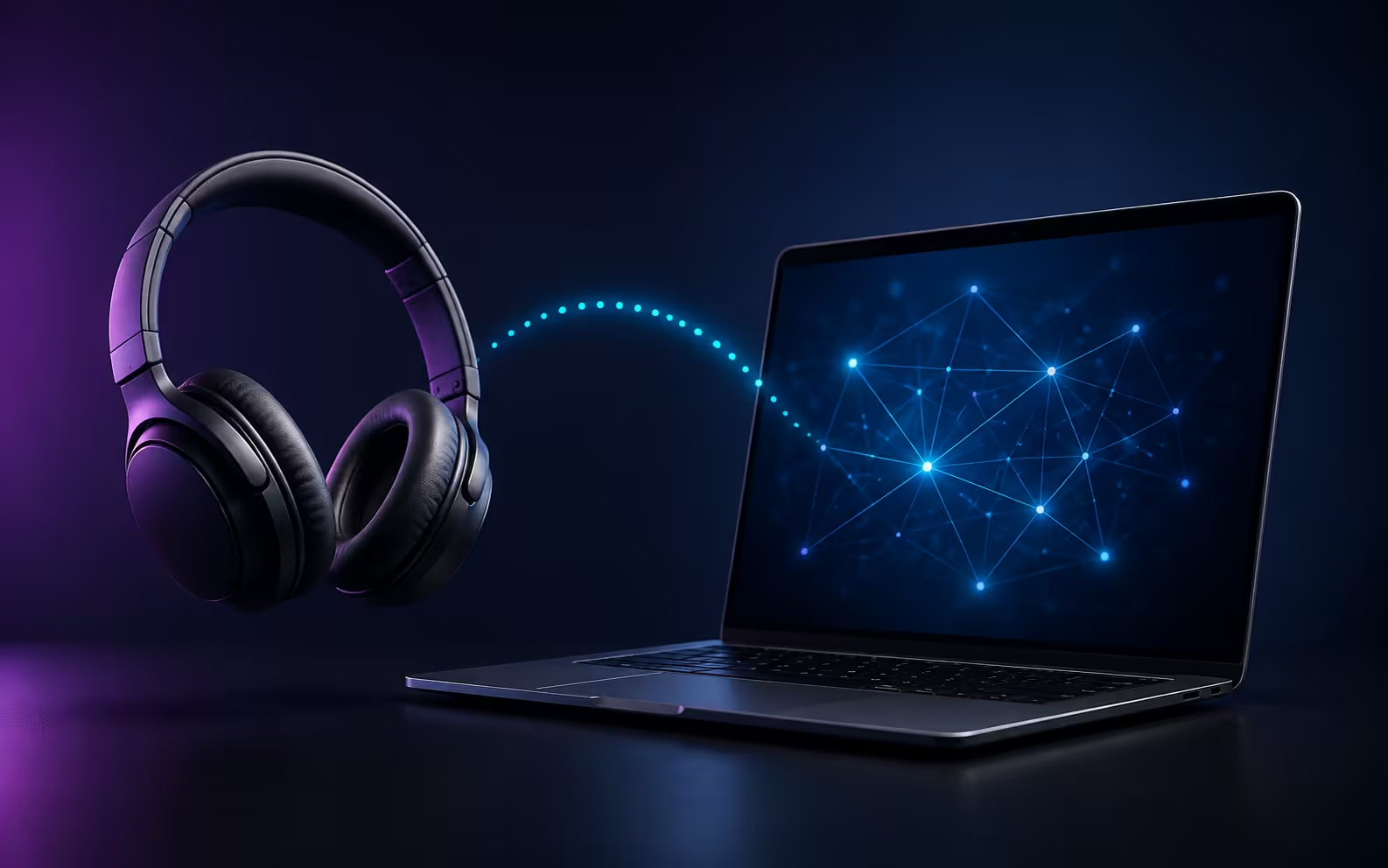
Knowing how to connect Bluetooth headphones to laptop hardware in Windows 11 takes only a few steps when both devices are ready. Put the headphones into pairing mode, open Bluetooth and devices in Settings, then add the headset. Most failures come from the headphones already connecting elsewhere, low battery, expired pairing mode or an old Windows pairing record.
Quick Answer
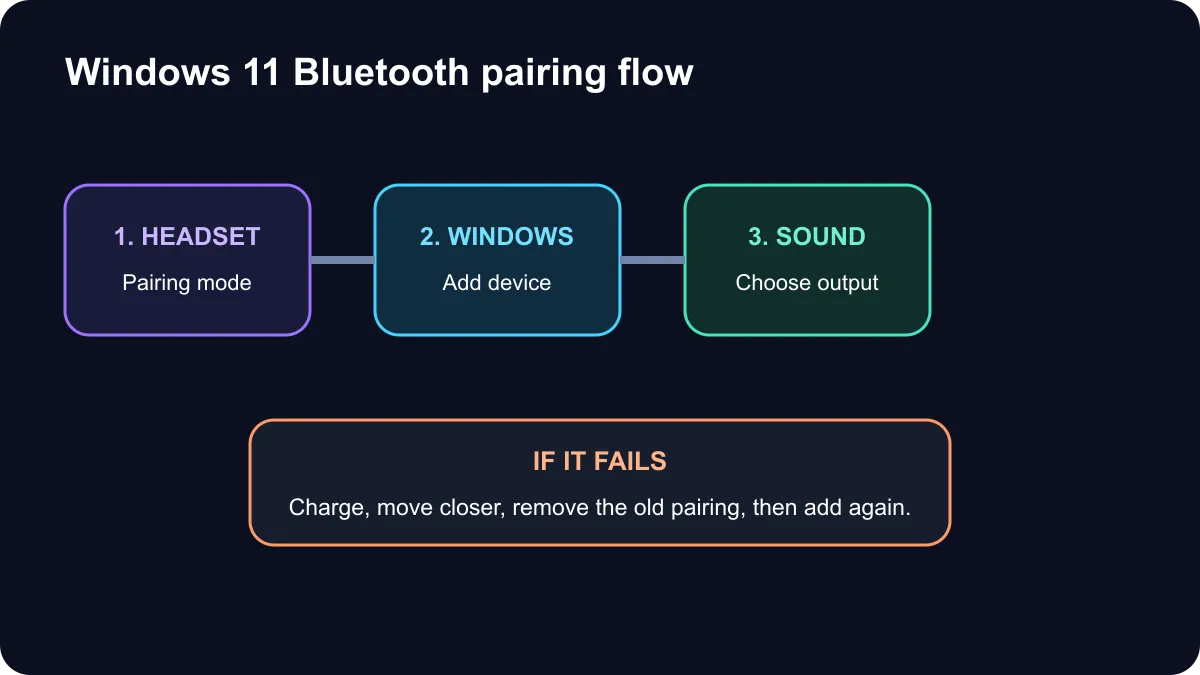
Charge the headphones and hold their pairing button until the indicator follows the maker's pairing pattern. In Windows 11, open Settings, choose Bluetooth and devices, select Add device, then Bluetooth, and choose the headset. After connection, use the taskbar sound selector to make the headphones the output. If the device does not appear, remove any old entry and pair again.
🎧 Put the headphones in pairing mode
Turning headphones on is not always the same as making them discoverable. Many models need a longer press on the power or Bluetooth button, especially after they have already been paired with a phone. Follow the model's manual and watch or listen for the pairing signal.
Temporarily switch Bluetooth off on a nearby phone or tablet if the headphones keep reconnecting to it. Keep the headset close to the laptop during setup and make sure it has enough charge. Pairing mode often ends after a short period, so restart it if Windows takes too long to find the device.
On the laptop, confirm Bluetooth is enabled. If no Bluetooth control appears, check Device Manager and the laptop specification. A desktop or older laptop without built-in Bluetooth may need a compatible USB adapter and driver.
🪟 Add the headset in Windows 11
Open Settings, select Bluetooth and devices, then choose Add device. Select Bluetooth and wait for the headphones' model name. Choose it once and wait for Windows to confirm the connection. Avoid selecting an unknown similarly named device.
Open the sound output selector from the taskbar and choose the headphones. If you need the built-in microphone, open Sound settings and select the headset as the input device. Confirm that the calling or recording app has microphone permission.
Some headsets expose different audio modes. A high-quality stereo output may be separate from a hands-free mode that activates the microphone. Bluetooth bandwidth can reduce playback quality during a call, so a headset's 2.4GHz USB receiver or wired mode may sound better for gaming and meetings.
🔧 Recover a failed connection
If the headset appears but will not connect, select it under Bluetooth devices and remove it. Restart the headphones and laptop Bluetooth, then repeat pairing from the beginning. This clears a stale pairing key that can remain after firmware updates or pairing with several devices.
Run the Windows Bluetooth troubleshooter, install current laptop Bluetooth drivers and restart Windows. Check that Airplane mode is off. Interference and distance can also matter, so test close to the laptop before blaming the headset.
The captured live catalogue started with Promate Takt Bluetooth headphones at R349. It also included Marvo Pulz 70W headsets at R499 with Bluetooth 5.3, 2.4GHz wireless and wired modes. A multi-mode headset can be useful when Bluetooth microphone quality or latency is not suitable for a game.
Browse current headphones, compare Bluetooth headsets, and review wireless headsets before choosing the connection method that suits your laptop.
Frequently Asked Questions
How do I pair Bluetooth headphones in Windows 11?
Put them in pairing mode, open Settings, choose Bluetooth and devices, select Add device, then choose the headphones.
Why are my headphones not appearing?
Confirm pairing mode, charge the battery, move closer, disable pairing on another device and toggle laptop Bluetooth.
Why do the headphones connect without sound?
Open the taskbar sound output selector and choose the headphones instead of the laptop speakers.
How do I use the headset microphone?
In Sound settings, select the headset microphone as the input device and confirm the app has microphone permission.
Should I remove an old pairing?
Yes, if reconnecting fails. Remove the device in Bluetooth settings, restart the headphones, then pair again.
What if my laptop has no Bluetooth?
A compatible USB Bluetooth adapter can add support, provided Windows 11 has the correct driver.
Ready for a wireless audio upgrade? Compare Evetech Bluetooth headsets and choose the connection modes your laptop supports.
Choose the wireless mode that fits your laptop.
Compare Bluetooth and multi-mode headsets when calls, games and music need different connections.