Reopening the same project folder every morning is a small nuisance that adds up. File Explorer restore previous folders refers to the Windows preference for bringing folder windows back at logon. It can help with that routine, but it should be tested as a convenience rather than trusted to preserve an entire work session.
Quick Answer
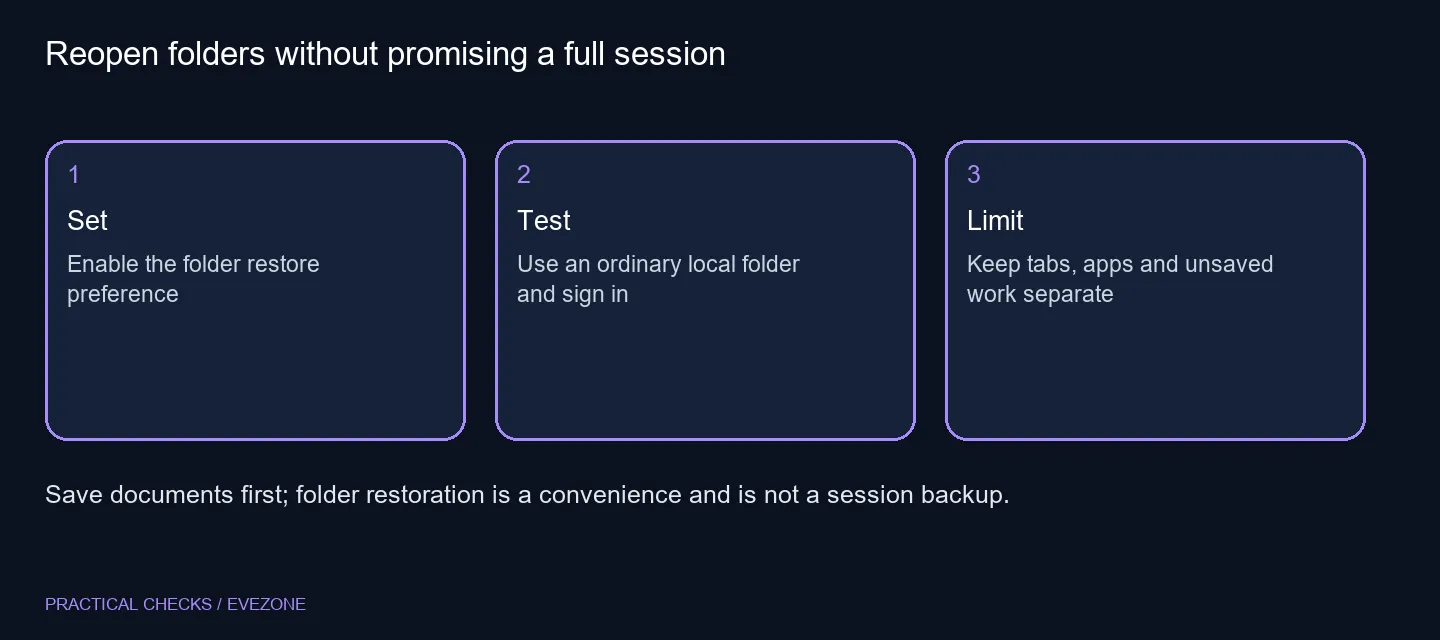
Open File Explorer Options, select View and enable Restore previous folder windows at logon under Advanced settings. Save your work and test one ordinary local folder at your next planned sign-in. This R0 check does not restore unsaved documents or guarantee that every tab, application and window arrangement will return.
📂 Set the preference in the right place
In Windows 11, open Explorer and use the three-dot menu to reach Options. Choose the View tab and scroll through Advanced settings until you find the folder-window restoration option. Tick it, then apply the change. It is separate from the preference that chooses whether a new Explorer window starts in Home or This PC.
Avoid resetting all folder settings just to reach this control. Make the one change you intend and note its previous state. That makes it easy to undo if the result is not useful and prevents unrelated layout preferences from changing during your test.
🔄 Test a normal sign-in without risking work
Save open documents before signing out or restarting. Leave a simple local folder open and note its path. At the next sign-in, check whether that folder window returns. Starting with a local folder avoids confusing this test with an unavailable network location or a device that has not reconnected yet.
Do not interrupt work merely to see a window reopen. Fit the test around a restart or sign-out you already planned. If you normally use several tabs, establish basic folder-window behaviour first, then test the particular layout you rely on. A successful simple case is useful evidence, but it is not a promise about every session.
🧭 Keep the feature's limits explicit
Microsoft-hosted support cases describe different results across Windows systems and configurations. That is why an enabled checkbox alone is not proof that the behaviour works on your PC. Record the Windows version and what actually happened after the test, including whether the folder was local and accessible.
Folder restoration also differs from applications reopening after sign-in. It does not save a document, preserve an unfinished edit or guarantee the return of a browser tab. Keep ordinary file saving and your backup routine in place even if Explorer usually returns exactly where you left it.
🛠️ Ask for targeted help if nothing returns
If the preference has no effect, provide a short repeatable example: the option is enabled, one local folder was open, and that folder did or did not return after sign-in. That is a better starting point than immediately editing the registry, changing power settings or repairing Windows.
Additional capacity from internal ssds is unrelated to whether this preference is honoured. Likewise, browse mini pcs for a separate compact-desktop requirement, not as a fix for a folder that stays closed after logon. Keep a shortcut to an important working folder as a practical fallback while the session behaviour is investigated.
Frequently Asked Questions
Where is the folder restore option?
Open File Explorer Options, choose View and look under Advanced settings for Restore previous folder windows at logon.
Does the setting restore unsaved work?
No. Save your documents before signing out or restarting. Reopening a folder is not the same as recovering an application session.
Will it preserve every tab layout?
Do not assume so. Windows versions and configurations differ; test the actual windows and folders you depend on.
How should I test it?
Save work, leave one ordinary local folder open and check its return after your next planned sign-in.
Should I change registry values first?
No. Use the supported Folder Options control and record the result before considering broader support or repair steps.
Can more memory guarantee restoration?
No. This is a Windows session preference. The initial setting check costs R0 in additional hardware.
Keeping your workday organised?
Try the Explorer preference and keep dependable shortcuts; choose Evetech storage or a new PC for a separate hardware need.