A pointer can disappear into a large spreadsheet or a second screen without actually disconnecting. Windows find pointer with Ctrl describes the built-in locator that briefly draws attention to the arrow's current position. It is a small change that can save repeated searching across a busy desktop.
Quick Answer
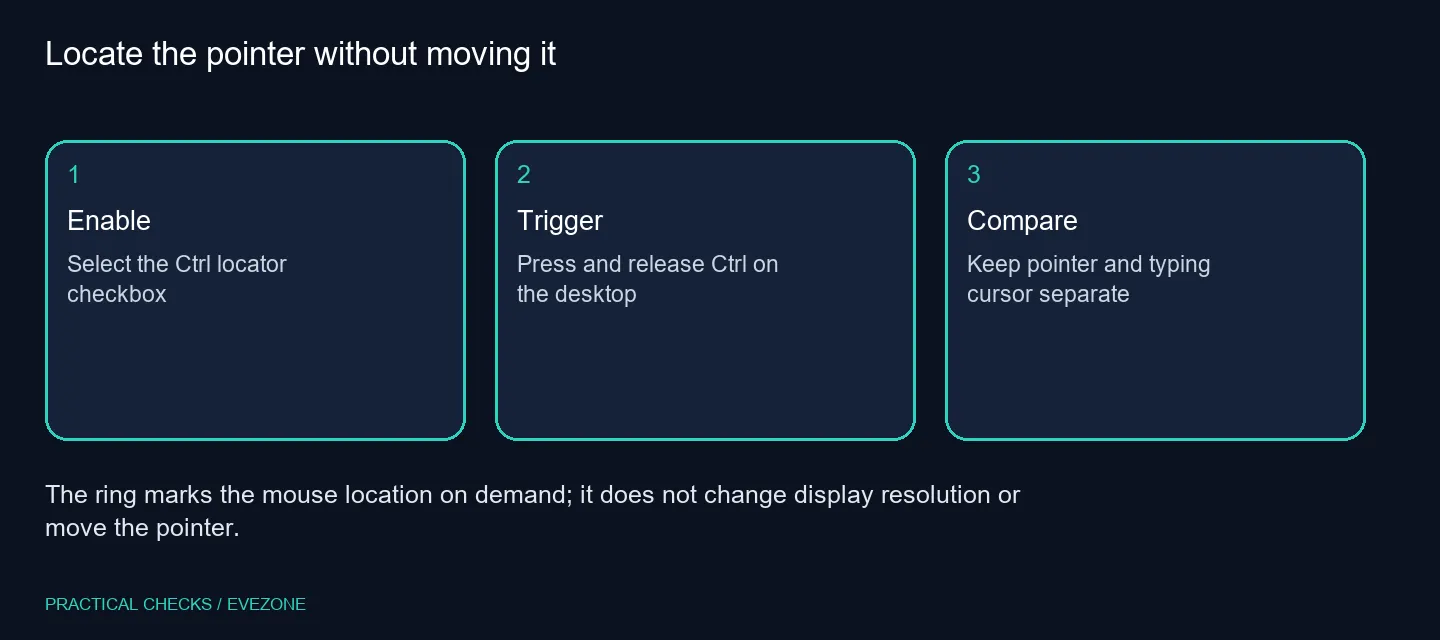
Open Mouse Properties through Additional mouse settings, select Pointer Options and enable Show location of pointer when I press the CTRL key. Save the option, then press Ctrl on the desktop to find the pointer. The setting costs R0 in extra equipment and does not change your monitor resolution or the place where the pointer sits.
🔎 Enable the locator in Mouse Properties
On Windows 11, go to Settings > Bluetooth & devices > Mouse, then open Additional mouse settings. Choose Pointer Options in the separate properties window. Under Visibility, tick the option that mentions the CTRL key and select Apply or OK.
Try it with the pointer on an uncluttered part of the desktop first. Then move the arrow into the window where you usually lose it and try again. That simple comparison tells you whether an on-demand ring is sufficient before changing pointer size, colour or other desktop preferences.
🖥️ Test the screen arrangement you actually use
When several displays are connected, the pointer may be on a different screen from the one you are watching. Pressing the locator key can be more deliberate than making a large mouse movement and hoping the arrow arrives somewhere visible. Keep your normal desk layout during the test.
This is a visibility feature. If the pointer does not move at all, the problem needs a different check of the mouse, receiver or connection. Likewise, a ring does not correct a confusing display arrangement in Windows. Separate a pointer you cannot see from a device that is no longer responding.
⌨️ Distinguish the arrow from the typing marker
The arrow shows where the mouse is. The vertical insertion marker shows where typed text will appear. Windows offers separate controls for those two objects, and the Ctrl locator concerns the mouse pointer rather than the position of your next letter.
If the complaint occurs only while editing text, identify which object is missing before changing settings. A larger mouse pointer may help you find the arrow, while text-cursor visibility is a different adjustment. Making several accessibility changes together can leave you unsure which one addressed the original difficulty.
✅ Keep a useful aid or undo it cleanly
After a normal working session, decide whether the ring helps or becomes distracting. You can clear the same checkbox to remove the effect without resetting all your mouse settings. There is no need to install a pointer utility just to try this built-in option.
Consider monitors only when you have a broader reason to change screen size or workspace. A lost arrow by itself does not establish that your display is faulty. If a pointing device also has an independent connection or click problem, compare office mice after testing that symptom separately. Start with the smallest change that makes the existing desk easier to use.
Frequently Asked Questions
Where do I enable the Ctrl locator?
Open Additional mouse settings, choose Pointer Options and select Show location of pointer when I press the CTRL key.
Does Ctrl move the pointer?
The locator marks its existing position. It is a visibility aid rather than an automatic movement command.
Is this the text cursor indicator?
No. The mouse arrow and the insertion marker in a text box have separate visibility settings.
Will the ring stay visible all the time?
It is an on-demand location effect triggered with Ctrl. Test the behaviour on your desktop after enabling it.
Can I turn the circle off again?
Yes. Clear the same checkbox in Mouse Properties and save the change.
Does this require a new monitor?
No. Try the R0 Windows visibility setting before assuming the display needs replacing.
Making the current desk easier to use?
Try Windows visibility controls first, then compare Evetech monitors or mice only for a separate hardware requirement.