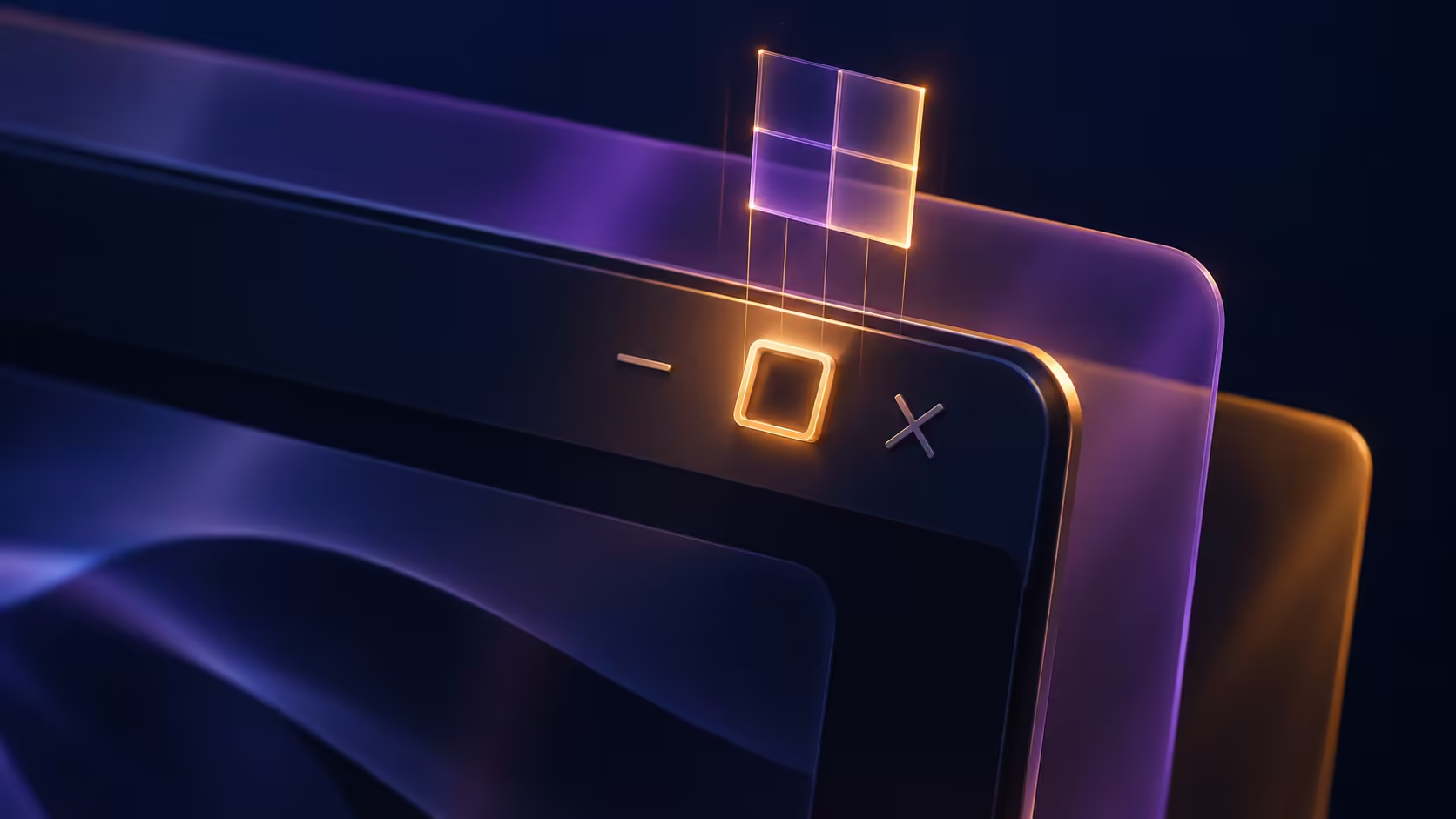
A small layout grid appearing beside the close button can be helpful until it interrupts a familiar movement. Windows Snap layout popup behaviour has its own control, so you do not need to abandon window snapping or assume the mouse is misbehaving. Start by identifying exactly which gesture brings the menu onto the screen.
Quick Answer
Go to Settings, System, Multitasking, expand Snap windows and clear the maximise-button hover option. That is a R0 hardware-cost preference change. If the popup is missing in just one application, compare its title bar with another app before changing system settings or replacing a mouse.
🪟 Match the option to the gesture
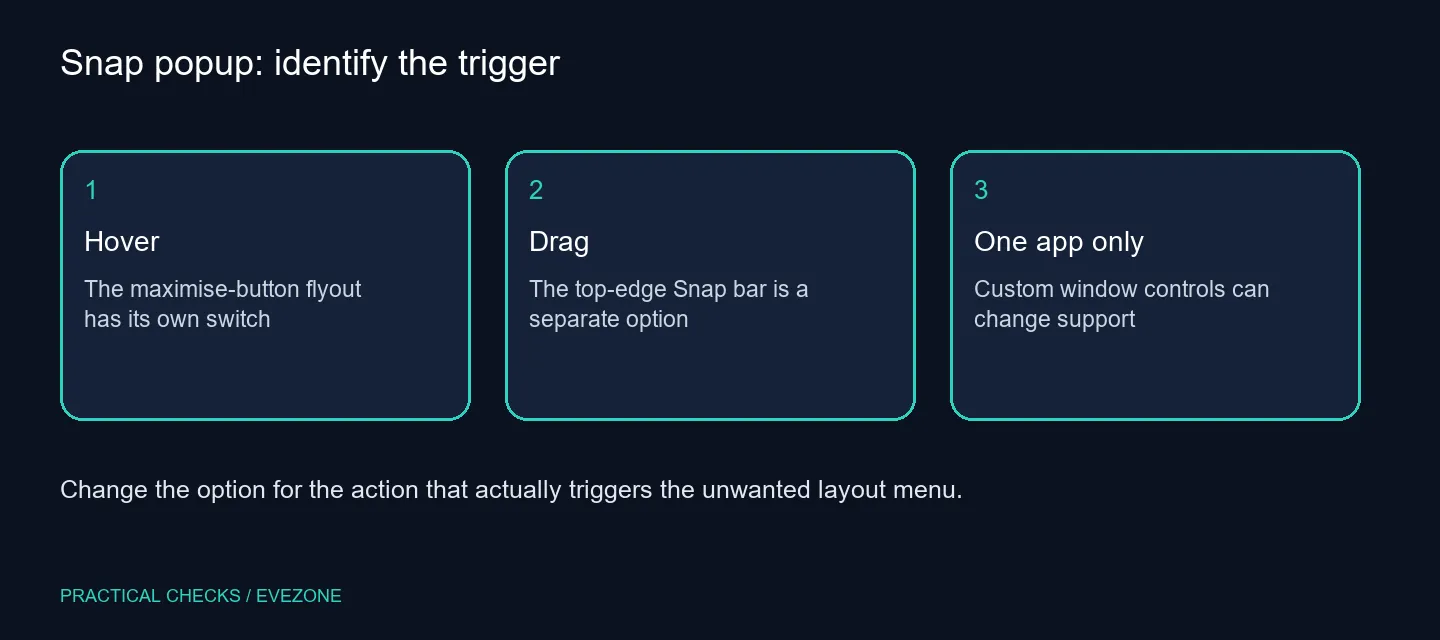
Hovering over maximise can open the Snap flyout. Dragging a window towards the top edge can open the Snap bar. These are separate triggers with separate entries in the expanded settings list. Change the hover entry when hovering is the problem, and leave other useful behaviour available.
Try the same movement in two ordinary desktop applications after making the change. Keep the window size and pointer movement similar. A repeatable test is more informative than switching off several controls and then being unsure which one solved the annoyance.
The existing Windows 11 Snap Layouts guide covers arranging windows. This task is narrower: removing a specific unwanted menu while keeping the rest of your working layout familiar.
🖱️ Separate one app from the whole desktop
Some programs draw their own caption buttons or title bars. The developer guidance explains that this can prevent the expected flyout from appearing. A single app behaving differently is therefore a reason to compare windows, not immediate evidence of a hardware failure.
Check for an application update through its normal channel if that one window remains troublesome. Avoid downloading a mouse utility solely to repair a menu that works everywhere else. For physical click faults, test the buttons separately from hovering before browsing gaming mice.
🧩 Keep the parts of snapping you use
After hiding the flyout, check a normal maximise click and the window placement you actually rely on. If you prefer the old preference, restore that one checkbox. Keeping a note of the original state makes the experiment easy to reverse.
Display size and resolution affect which arrangements are practical, but a larger screen is not required to suppress a hover menu. Compare gaming monitors when you need more workspace or a different panel, rather than using a monitor purchase to solve a preference. The useful outcome is a desktop that follows your movements predictably, with fewer menus you never intended to open.
Frequently Asked Questions
Where do I turn the hover popup off?
Open Settings, System, Multitasking. Expand Snap windows and clear the option for hovering over the maximise button.
Is the top-edge menu the same control?
No. The setting for dragging a window to the top of the screen is separate. Identify which action causes your popup.
Does one failing app prove the mouse is broken?
No. Apps with customised title bars can handle the maximise region differently. Compare another normal window first.
Can I still maximise normally?
The hover flyout preference does not turn the maximise button into another function. Test a normal click after changing it.
Should I edit the registry for this?
The documented Settings controls are the first approach. A normal preference change does not need a registry workaround.
Does disabling the popup cost anything?
There is R0 additional hardware cost for changing the built-in option. It is a preference test, not a performance upgrade.
Make the desktop match your habits?
Adjust the hover behaviour first and compare new input or display hardware only when your needs go beyond the setting.