An underlined letter in a menu is a useful hint, not a spelling error. Windows underline access keys can make supported keyboard actions easier to discover when a mouse is inconvenient. The value is in seeing what the current app actually supports, rather than memorising a shortcut list that belongs to another program.
Quick Answer
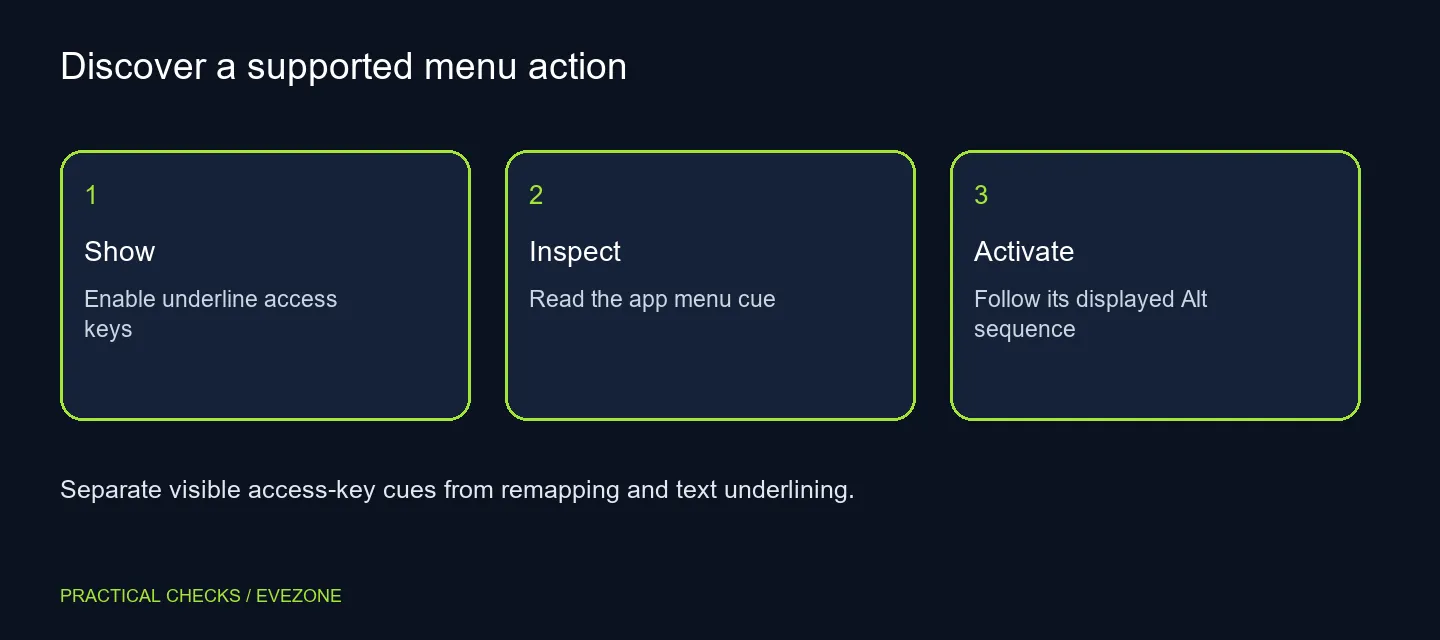
Open Windows Settings, Accessibility and Keyboard, then enable Underline access keys. Inspect a supported app menu and use the displayed Alt cues or sequence for the action you need. This changes interface hints, not document formatting or key assignments. A normal keyboard is sufficient; the Logitech K120 was R129 in the catalogue on 13 October 2026, and a programmable keyboard is not required for these cues.
⌨️ Turn on the hint rather than remapping keys
Find the access-key option in keyboard accessibility settings. On older Windows versions the surrounding page can have different wording, so search Settings for the named control if necessary. Change that one option and return to the app you intend to use.
The switch does not redefine the physical keyboard. It helps expose actions the interface already provides. If a particular key is not registering at all, that is a separate input problem. Keep a visibility preference distinct from hardware testing, keyboard layout selection and custom macro software.
🧭 Read the current app's menu
Access keys are associated with interface controls and commonly use Alt plus displayed letters or numbers. The exact sequence belongs to the app. Look for its underlined letter or keytip rather than guessing from a different program's menu.
Try a harmless navigation action first, such as opening a menu without choosing a destructive command. This lets you learn the cue system while keeping the current document intact. If a screen shows several stages of keytips, follow them in order; pressing a familiar shortcut from another app can trigger a different action.
🪟 Expect differences between interfaces
Traditional menus and modern app controls can present keyboard cues differently. Some applications draw their own interface and may not expose every control through this Windows preference. A missing underline therefore does not prove that the keyboard is defective.
The feature is also separate from ordinary text underlining and from every Ctrl shortcut. Do not use a formatting command as a test of access-key visibility. Instead compare the app's own menu with the same option enabled and disabled, then consult that application's help for its supported keyboard navigation.
🛒 Choose hardware for a real requirement
Browse keyboards on special if the keyboard itself needs replacing, using layout, key feel and connection type as the buying criteria. The R129 K120 reference is a standard local keyboard example, not a fee for enabling accessibility. Extra programmable controls should serve a defined task rather than compensate for an undiscovered menu hint.
Use keyboard accessories for the separate physical items that fit the keyboard already chosen. They will not add missing access keys to an app. Keep a short note of the menu, displayed cue and successful sequence; that practical reference is more useful than changing several input settings and losing track of the original behaviour.
Frequently Asked Questions
Does this underline words in my document?
No. It changes supported interface shortcut cues. Document text formatting is controlled separately in the app.
Does it assign a shortcut to every button?
No. Applications provide access keys for supported controls. The Windows option cannot create missing app actions.
How do I find the setting?
Open Accessibility and Keyboard in Windows Settings, then locate Underline access keys. Older Windows wording may differ.
Are access keys the same as every Ctrl shortcut?
No. Access keys navigate supported interface actions, often through Alt cues. Other keyboard shortcuts may use different combinations.
Must I buy a programmable keyboard?
No. A standard keyboard can operate supported access keys. The Logitech K120 was R129 on 13 October; extra macro hardware is not required.
Why does one app look different?
Apps can implement their own menus and shortcut systems. Follow the cues shown in that app instead of assuming identical behaviour.
Let the menu show you its shortcuts.
Enable the cue, test a harmless action and choose keyboard hardware only for a separate physical need.