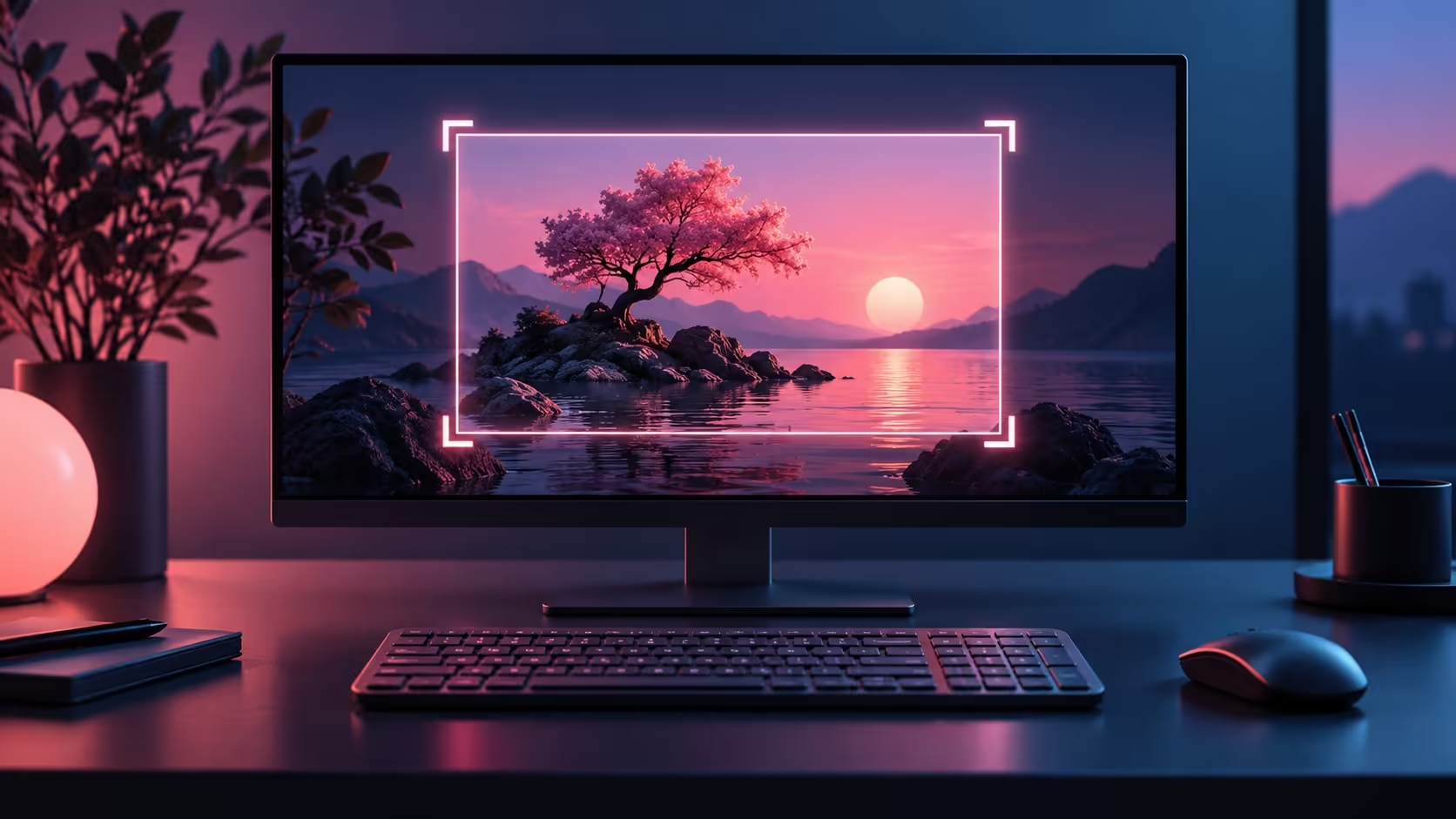
Pressing PrtSc and seeing a capture overlay can look like a changed or broken shortcut. Windows Print Screen opens Snipping Tool when that keyboard preference is enabled. Decide whether you want region selection, a quick clipboard capture or a saved image before changing the setting or assigning the key to another application.
Quick Answer
Inspect Settings, Accessibility, Keyboard and the option that uses Print Screen for screen snipping. Choosing the built-in behaviour costs R0. Test with a harmless screen, then confirm where the result goes; capturing to the clipboard and saving a file are separate parts of the workflow.
⌨️ Check the key assignment before the switch
Use the actual key combination you expect to press every day. Some keyboards place the command behind another function, so look at the layout and the device instructions if the key does not respond. A capture overlay is evidence that a command reached Windows, not proof that the keyboard switch is defective. Check the operating-system preference before changing a gaming profile or installing a remapping tool.
The range of gaming keyboards includes different layouts, but extra keys do not determine your preferred screenshot method. If another capture application is installed, check its shortcut assignment too. Two programs competing for a familiar shortcut can make the result confusing even when the physical key is working normally.
✂️ Choose what the screenshot needs to contain
Region capture suits a small part of a document, while a wider capture can include surrounding windows you did not intend to share. Select a blank document or harmless desktop while testing. Before sending a real screenshot, inspect its edges for account names, private messages and other unrelated information. A technically successful capture can still be the wrong image for the intended reader.
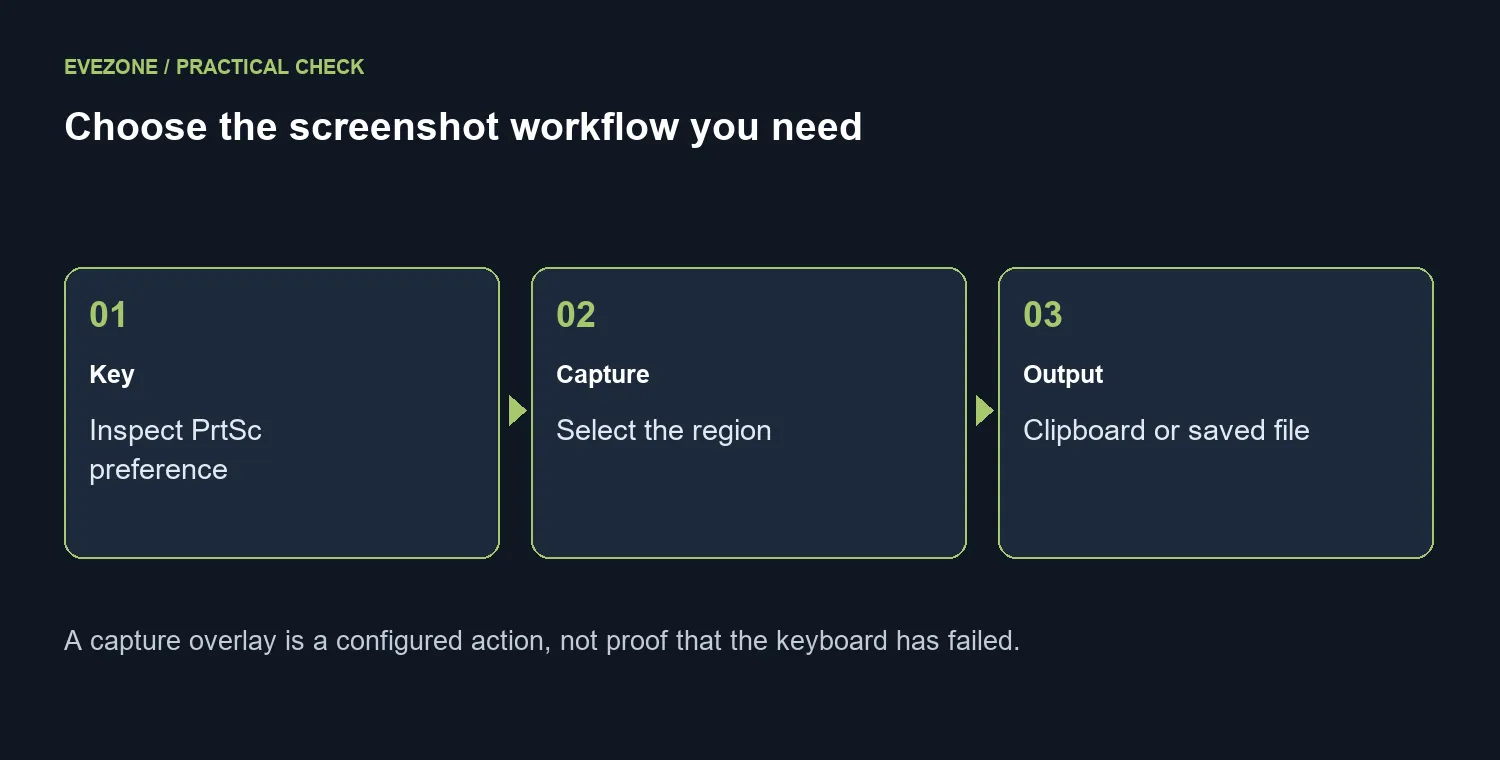
Open the captured result in the tool and check its content before saving or copying it. Do not assume that a visible capture has already been written to a familiar folder. Confirm the output route for the method you chose, especially when moving between a built-in tool and a third-party application.
🧪 Verify one complete capture routine
Choose the preference, take a test image and follow it all the way to the destination you need. Paste a clipboard image into a harmless document or save the file and reopen it. That short test separates key handling from capture and output problems. Compare input bundles only if other tests show a real keyboard limitation; replacing hardware is unnecessary when a R0 shortcut preference produces the desired screenshot consistently.
Frequently Asked Questions
Why does PrtSc open a capture overlay?
The screen-snipping preference assigns that key to the capture tool. Check the keyboard setting before blaming the switch.
Where is the Print Screen preference?
Go to Settings, Accessibility, Keyboard and inspect the option for using Print Screen to open screen snipping.
Will changing this remap every shortcut?
Do not assume it does. Test the exact shortcut and any third-party capture app separately.
Does a screenshot always become a file?
Clipboard capture and saving a file are different steps. Check your chosen tool and save location.
What should I capture while testing?
Use a blank document or harmless desktop. Keep private account details out of test images.
Is buying a new keyboard necessary?
The built-in preference costs R0. Investigate hardware only if the key still fails outside the capture workflow.
Choose the next step for your setup
Build a screenshot routine you can repeat. Choose the key behaviour and confirm the image destination before changing your keyboard.