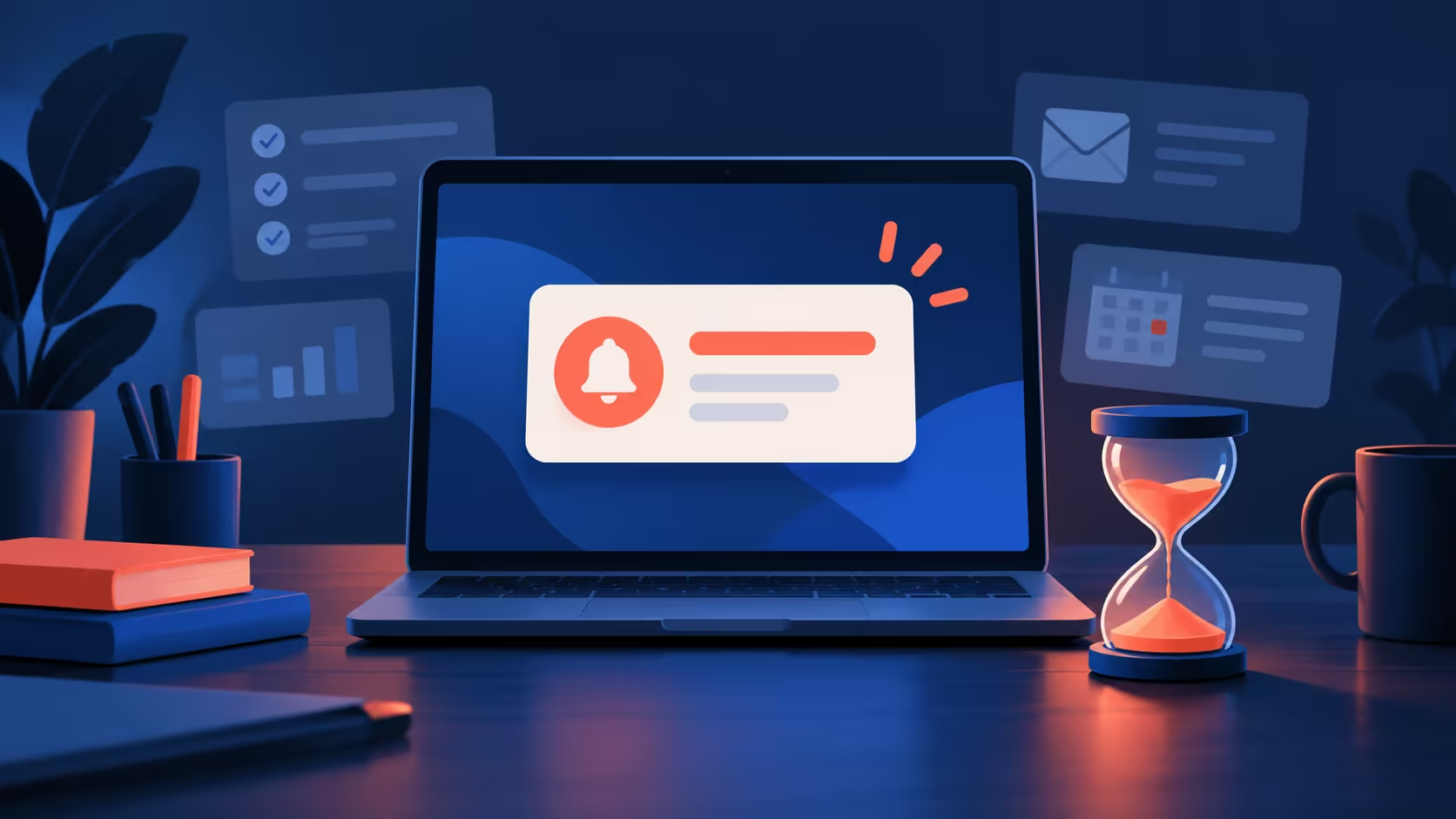
A banner can arrive correctly and still disappear before you finish reading it. Windows notification duration addresses that timing problem. It is worth separating a brief alert from one that never arrives, because the two symptoms lead to different controls and different tests.
Quick Answer
Open Settings, Accessibility and Visual effects, then choose the notification dismissal time that suits you. Test a real alert from the app you rely on. This does not grant app permissions or disable Do not disturb. The built-in timer requires R0 additional spending; hardware replacement is unnecessary when the problem is simply that a banner disappears too quickly.
⏱️ Identify an alert that actually appears
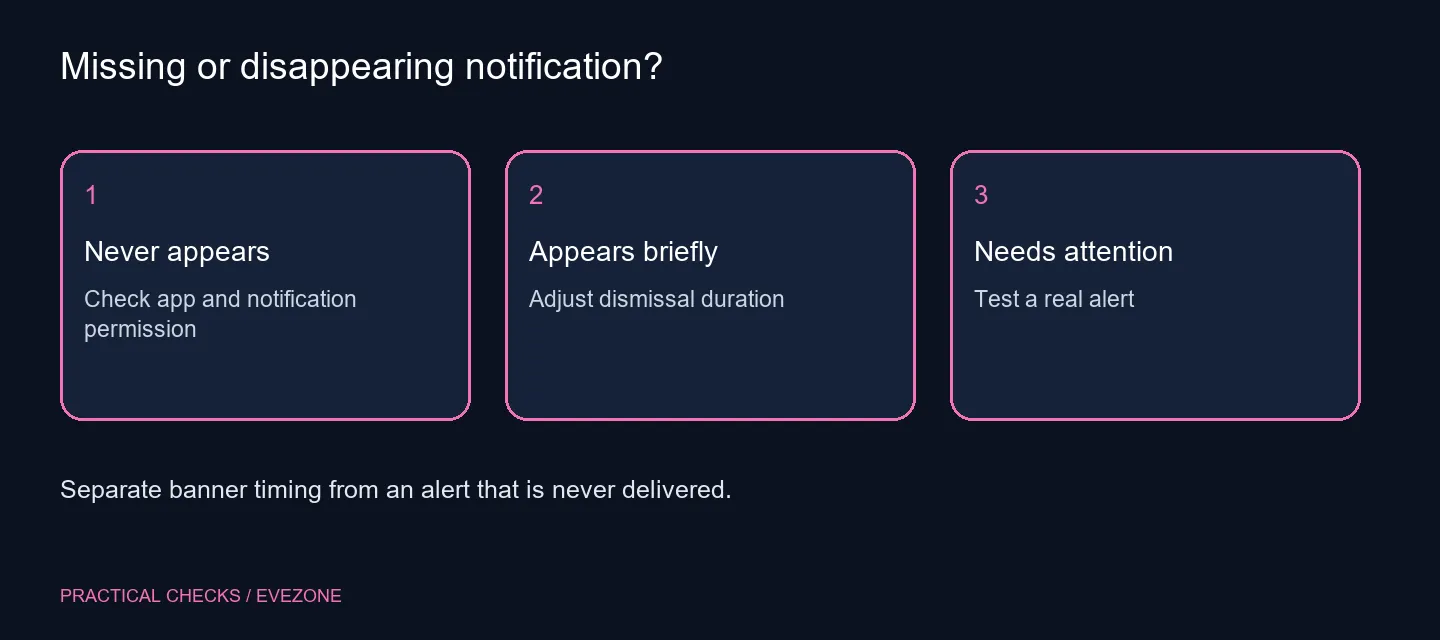
Use a familiar app and trigger an ordinary notification through its normal workflow. Watch whether a banner appears at all. If it appears and vanishes quickly, duration is a reasonable setting to investigate. If there is no banner, first check whether that app is allowed to notify you.
Record the app and the type of alert rather than simply saying notifications are broken. A calendar reminder, a chat message and an application's own floating panel may behave differently. The specific example gives you a repeatable test after the setting changes.
⚙️ Choose a comfortable dismissal time
In Visual effects, locate the menu that defines how long notifications remain visible. Pick an available duration that lets you read the message without leaving a distracting banner over other work. Note the original value so it is easy to restore.
Avoid changing animations, transparency and other nearby controls at the same time. Those settings can alter the appearance of Windows but do not answer the same timing question. A single change makes the result clearer and prevents an accessibility adjustment becoming a broad desktop redesign.
🔔 Keep permission and interruption controls separate
An app must be able to produce the notification before a longer timer can help. Its own preferences and Windows notification controls may affect that. Do not disturb is another separate layer. A duration change should not be described as an override of all the ways an alert can be suppressed.
Repeat the same alert after the adjustment and compare its visible behaviour. If only an in-app panel ignores the timer, consult that application's options. That result points to a more specific question than assuming the entire Windows notification system is failing.
🖥️ Match the fix to the reading problem
Compare gaming monitors only if display size or readability is independently limiting your work. Banner timing itself does not require a new screen. Likewise, monitor accessories may improve a physical setup but cannot decide how long Windows keeps an alert open.
Keep the free setting test first. Save a concise result showing the selected timer and the actual app behaviour; if the problem persists, support can distinguish an unreadably short banner from a notification that was never produced. For a shared PC, agree on a comfortable duration with the people who use the same account rather than repeatedly changing it without explanation.
Frequently Asked Questions
Where do I change notification duration?
Open Settings, Accessibility and Visual effects. Find the notification dismissal-time menu and choose a suitable available duration.
Will this allow a blocked app to notify me?
No. Banner duration does not grant notification permission or override the app's own alert controls.
Does it disable Do not disturb?
No. Do not disturb and notification timing are different choices. Check each control only when it matches the symptom.
Will every application follow the same timer?
Do not assume that. Apps can use their own in-app alerts. Test the actual notification you need to read.
Is a new monitor necessary?
No. The built-in banner timer can be adjusted with R0 additional spending. A display purchase serves a different need.
What should I record for support?
Note the app, whether the banner appeared, how the timing changed and whether the same alert behaved differently after the adjustment.
Give the alert enough reading time.
Adjust dismissal duration and test the same app before investigating permissions or purchasing display hardware.