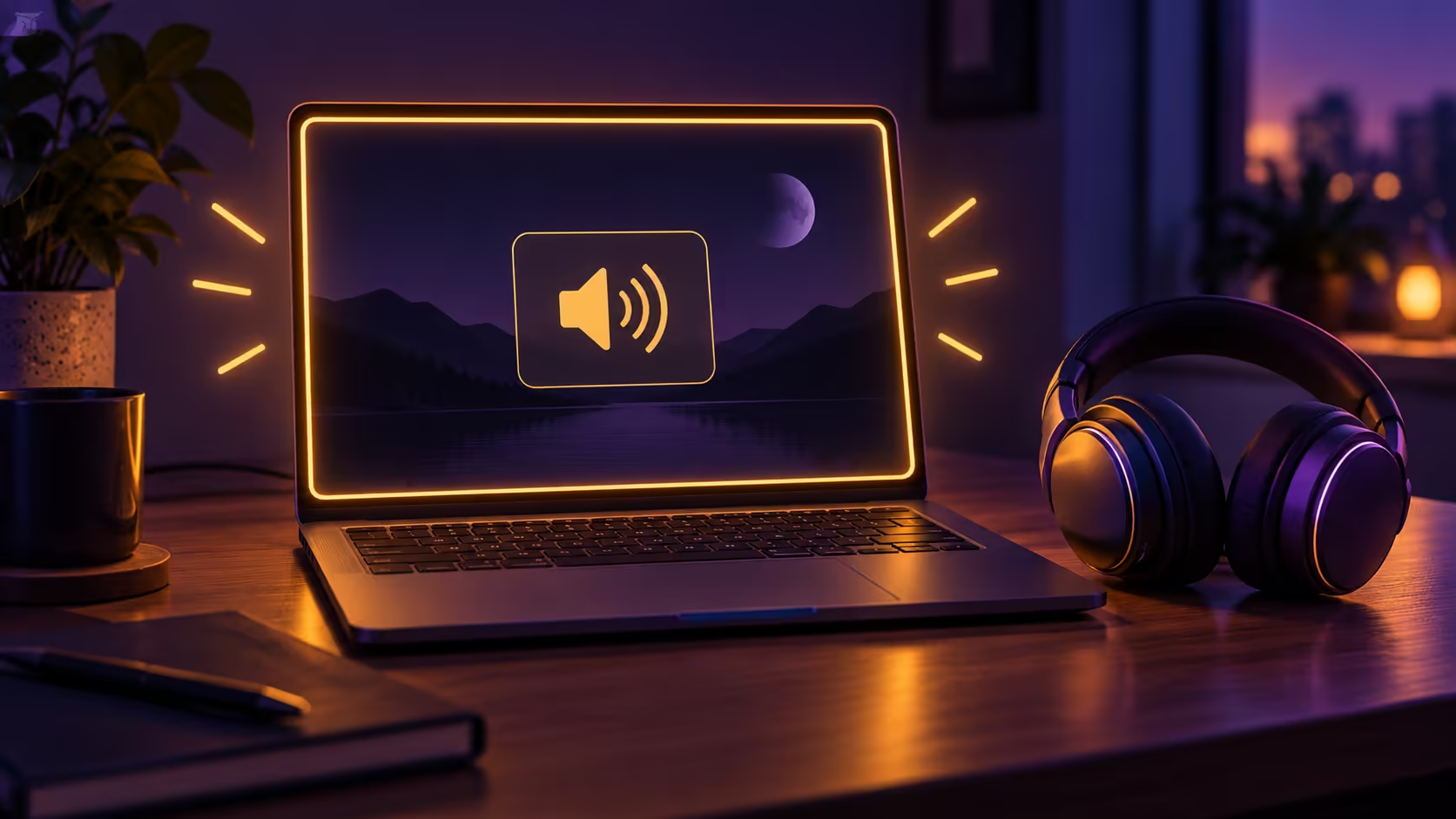
A flash timed exactly with a notification can be Windows trying to get your attention. Windows flash screen options provide a visual alternative to an audio alert. Check that relationship before treating the effect as proof of a damaged monitor or a graphics-card problem.
Quick Answer
Open Settings, Accessibility and Audio, then inspect the option for flashing the screen during audio notifications. Choose the available visual cue you prefer and test a familiar alert. This does not diagnose unrelated flicker or repair sound output. Changing this built-in preference costs R0 in additional purchases, so test it before budgeting for a monitor or an audio accessory.
👀 Match the flash to an event
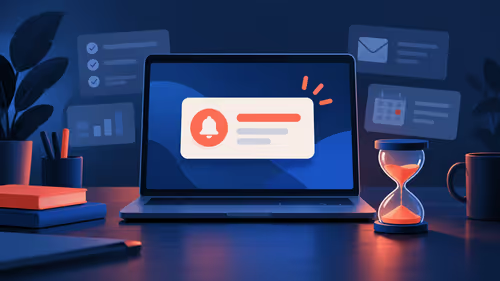
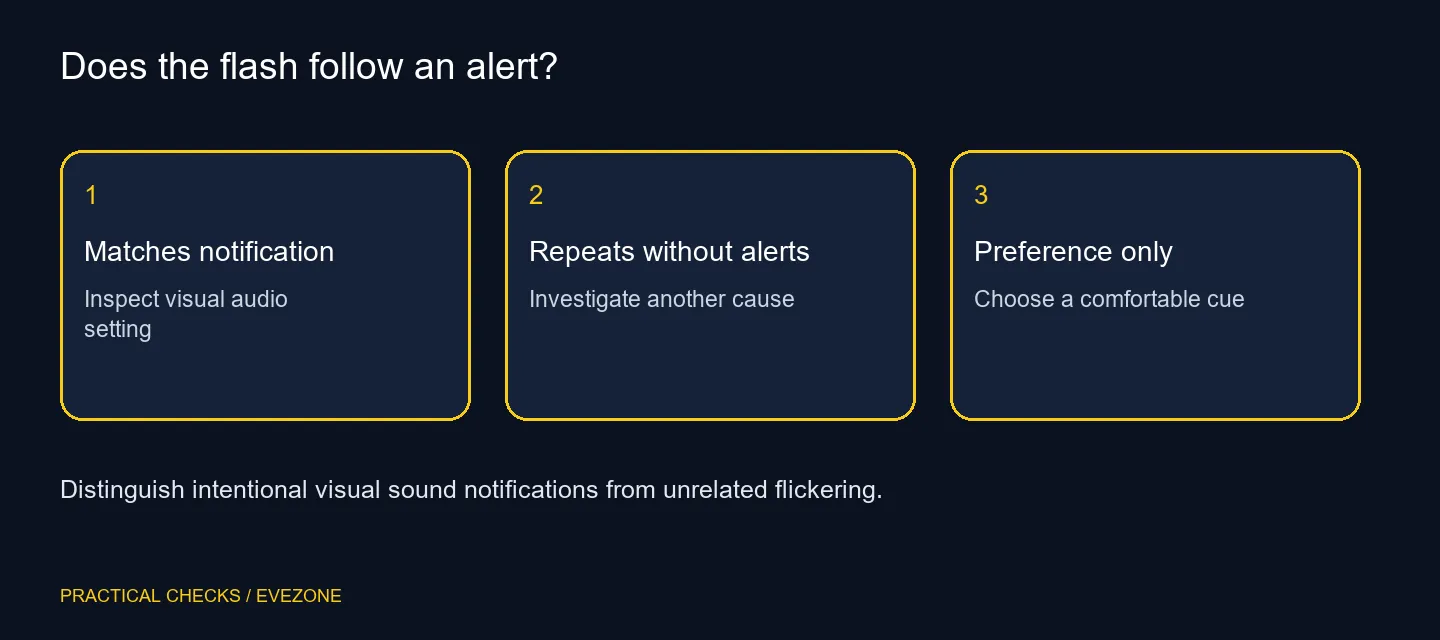
Notice whether the effect happens at the same time as an ordinary notification. Repeat a harmless alert through the app's usual workflow. A repeatable relationship gives you a useful starting point; a flash that appears during unrelated activity needs a broader description.
Do not label every bright change as the same symptom. A whole-screen signal interruption, an animation inside a game and a notification cue can look superficially similar. Record what remained visible, which app was open and whether the effect followed an alert before selecting a setting to change.
🔊 Inspect the accessibility preference
In Accessibility and Audio, find the visual audio-notification menu. Windows 11 describes flashing during audio notifications; older interfaces may use wording about showing audio alerts visually. Inspect the current choice and select a comfortable alternative when the cue is distracting.
Make a note of the previous setting. Visual cues can be useful when sound is difficult to hear or inappropriate in a shared room, so disabling one should be a deliberate preference. Test the new choice with the same alert rather than conclude from a few quiet minutes that the problem has disappeared.
🧪 Keep sound and display troubleshooting distinct
A visual notification is not an audio-output repair. If a headset has no sound, check its output selection and the application's volume through the relevant troubleshooting path. Browse headsets on specials only when there is a real reason to replace or add an audio device.
Likewise, a monitor that loses signal independently of alerts needs its own investigation. The accessibility switch cannot prove that a cable, panel or graphics driver is healthy. Compare gaming monitors for an established display need, not as an immediate response to a cue that Windows was deliberately drawing.
📝 Leave a useful before-and-after record
Write down the chosen visual-alert mode, the app used for the test and whether the flash changed with that mode. If it follows the setting, you have identified a preference. If it continues without notifications, that is useful evidence for the next diagnostic step.
Describe that result without assuming a failed component. A useful report states the observed effect, whether an audio alert accompanied it and whether the setting controlled it. It helps the next person reproduce the behaviour without replacing parts on a guess. Keep the diagnosis tied to the effect, then spend only when a separate hardware requirement has been established.
Frequently Asked Questions
Where is the visual audio-alert option?
Open Settings, Accessibility and Audio. Inspect the menu for flashing the screen during audio notifications.
Does it repair missing sound?
No. It supplies a visual notification cue. Audio output and volume problems require their own checks.
Is every screen flash caused by this option?
No. Check whether flashes align with notifications. Unrelated flicker or signal loss needs a separate investigation.
Does it change the video inside an app?
The option concerns notification cues. Do not assume it explains every animation, game effect or video change.
Must I buy a headset to remove the flash?
No. Changing the built-in visual-alert preference costs R0 in extra purchases. A headset serves a separate listening requirement.
How can I test without guessing?
Change the visual-alert preference, trigger a familiar notification and compare the result. Restore the original choice if it was useful.
Identify the cue before the fault.
Test the visual audio-alert setting and investigate unrelated screen behaviour separately.