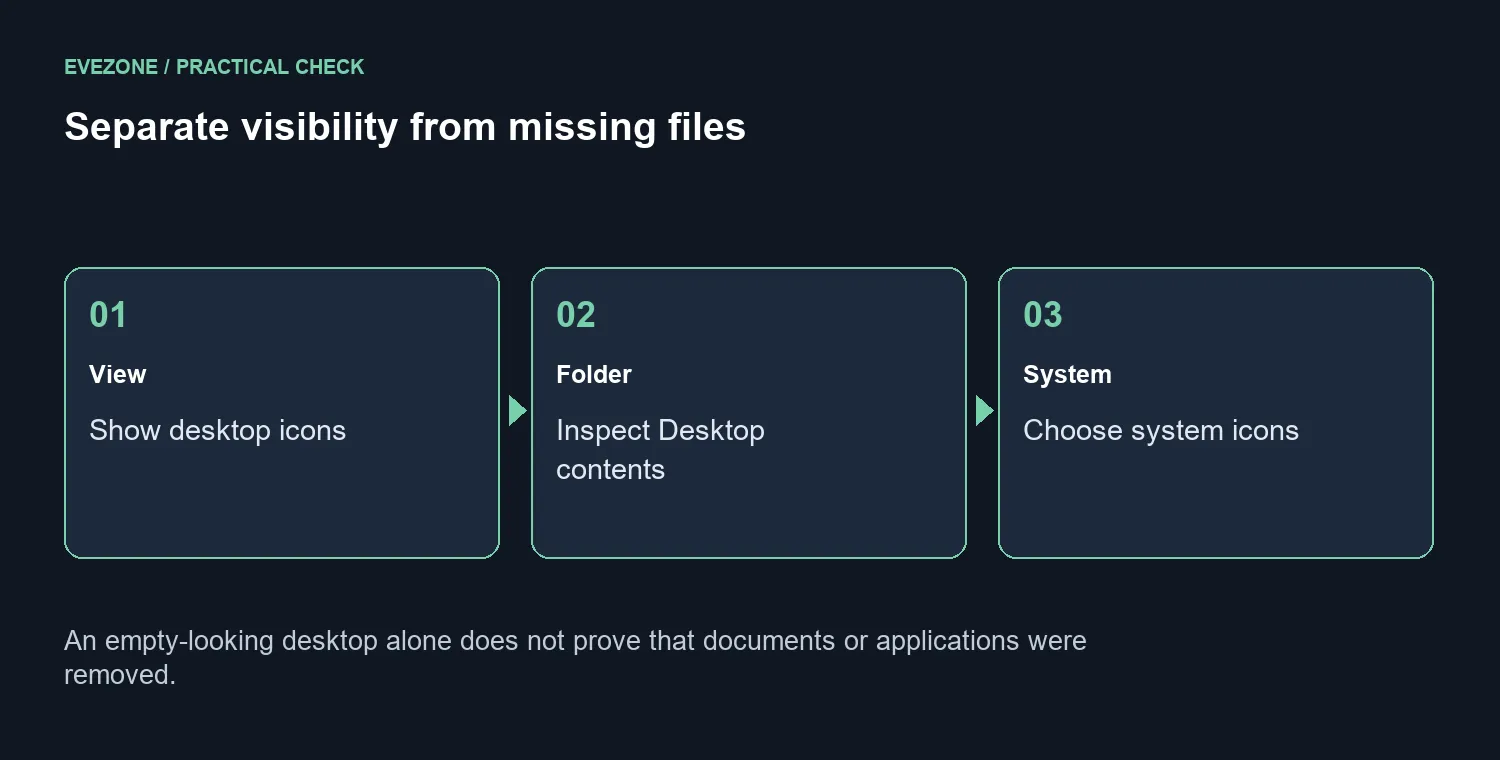
An empty desktop can be alarming when your shortcuts were there a moment ago. Windows desktop icons missing does not automatically mean the documents or applications behind them are gone. Start by separating the desktop's display preference from its folder contents and from the individual system icons Windows can show.
Quick Answer
Right-click an empty desktop area, choose View and check Show desktop icons. For icons such as This PC or Recycle Bin, inspect Desktop icon settings under Personalisation and Themes. These R0 checks should come before recreating shortcuts or assuming that storage has failed.
🖥️ Restore visibility before rebuilding anything
Check whether every desktop icon is absent or only one. When the entire group has disappeared, the Show desktop icons preference is a useful first check. Turn it on and wait for the desktop to redraw. If the expected icons return, the issue was visibility; creating replacements would only have added unnecessary copies.
Open the Desktop folder in File Explorer and inspect its contents without moving or deleting anything. The desktop display and the files in a folder are related but not the same observation. A new item from the monitor range cannot restore a hidden group of shortcuts, so leave display purchases out of this first check.
🗂️ Separate system icons from personal shortcuts
This PC and Recycle Bin have their own selection in Desktop icon settings. Open Personalisation, Themes and choose the system icons you want. That choice does not recreate every application shortcut you have ever placed on the desktop. If only one application link is absent, investigate that specific shortcut and whether its target is still available.
Avoid dragging a large batch of shortcuts from another folder until you know which Desktop location is relevant to the account you are using. Keep existing files in place while checking. If account or synchronisation behaviour is involved, note the folder path and the signed-in account rather than guessing which copy should replace another.
🔍 Confirm the result with a small test
After the visibility change, check a familiar shortcut and one system icon. Open only the item you recognise, then verify that it reaches the expected location. If a shortcut opens an error, that is a target problem to investigate separately from whether its icon is drawn. Monitor accessories can improve physical desk organisation, but they do not change Windows icon preferences. Restore the desktop view first, then investigate any genuinely missing individual item with the original files preserved.
Frequently Asked Questions
What is the first visibility check?
Right-click an empty area of the desktop, select View and make sure Show desktop icons is checked.
Are hidden icons the same as deleted files?
No. A display preference can hide icons while their files or shortcuts still exist. Inspect the Desktop folder.
How do I restore This PC or Recycle Bin?
Open Personalisation, Themes, Desktop icon settings and choose the system icons you want to show.
Should I recreate every shortcut immediately?
Check visibility and the relevant Desktop folder first. Recreating shortcuts too early can leave duplicates.
Will changing the monitor repair missing shortcuts?
A new monitor does not restore a visibility preference. The Windows checks cost R0.
What if only one shortcut is absent?
Investigate that particular shortcut and its target. An isolated missing icon differs from the entire desktop being hidden.
Choose the next step for your setup
Restore the desktop view before rebuilding shortcuts. Check each remaining missing item with its original folder contents preserved.