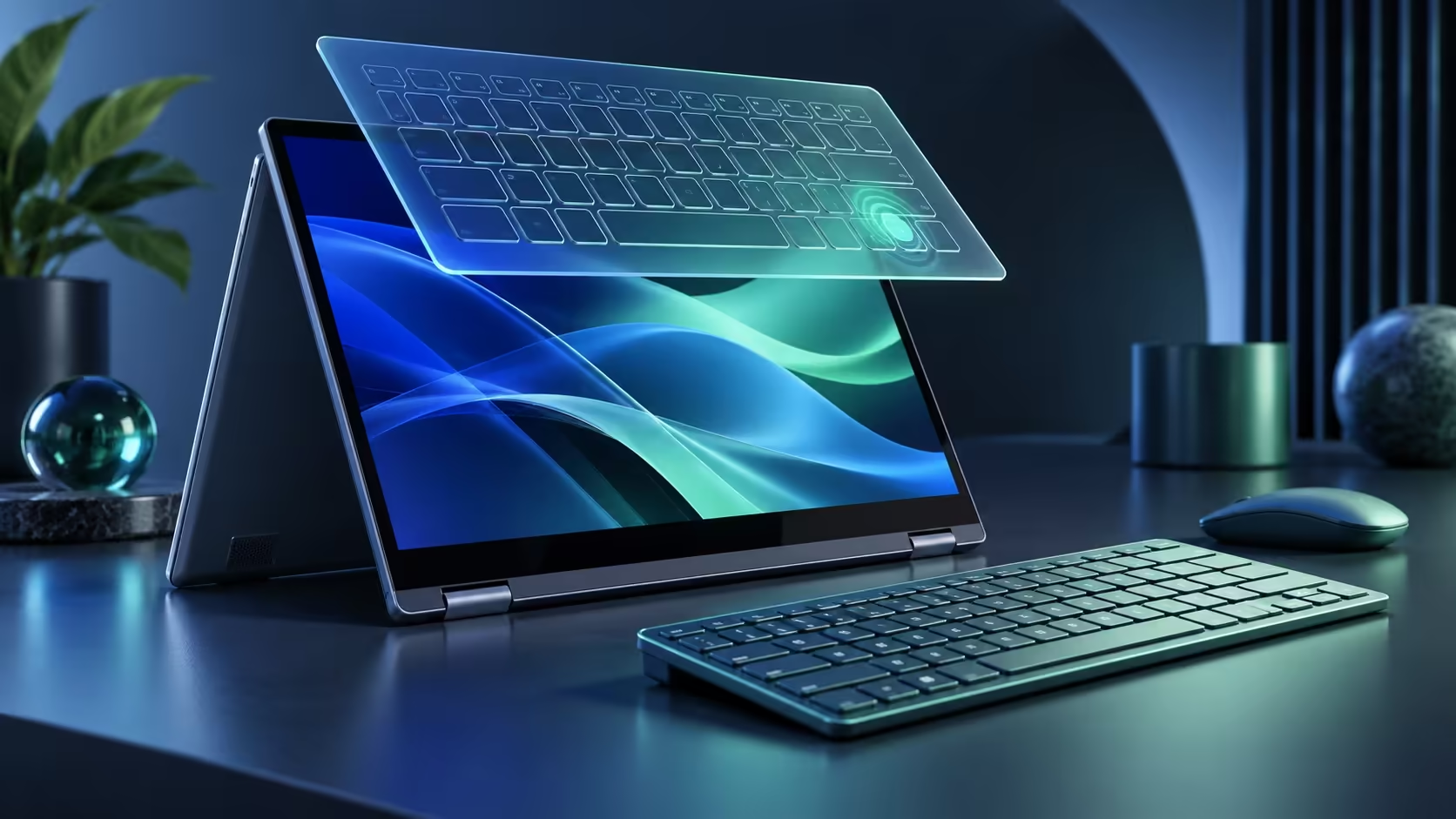
A keyboard overlay that appears at the wrong moment can cover the text you are trying to enter. Windows touch keyboard keeps opening needs a closer look at the input mode, especially on a convertible laptop. The taskbar icon, automatic touch-keyboard opening and the accessibility On-Screen Keyboard are different things to identify before changing anything.
Quick Answer
Review the touch-keyboard preferences and whether Windows detects the attached physical keyboard. Windows 11 changes tablet-mode behaviour automatically on supported touch devices. These R0 checks come before replacing a keyboard; keep a usable input method available throughout the comparison.
⌨️ Identify the interface that appears
Note what the overlay looks like and which action opens it. Does it appear when you tap a text field, when a keyboard is detached or only inside one application? That short description is more useful than disabling every touch feature. The accessibility On-Screen Keyboard has a different purpose, so make sure the setting you change belongs to the interface you actually see.
Inspect the taskbar touch-keyboard icon preference. Showing an access icon and automatically launching a keyboard are separate behaviours. If you normally type on a physical gaming keyboard, retain access to a working input method while checking the preference rather than removing input devices in bulk.
🔄 Compare attached and detached states
On a convertible device, save your work and test a harmless text field with the physical keyboard attached. Then, if the device supports it, compare its normal detached or tablet state. Windows 11 adjusts tablet mode automatically on touch-capable hardware, including changes related to keyboard attachment. Record the state that causes the unwanted overlay.
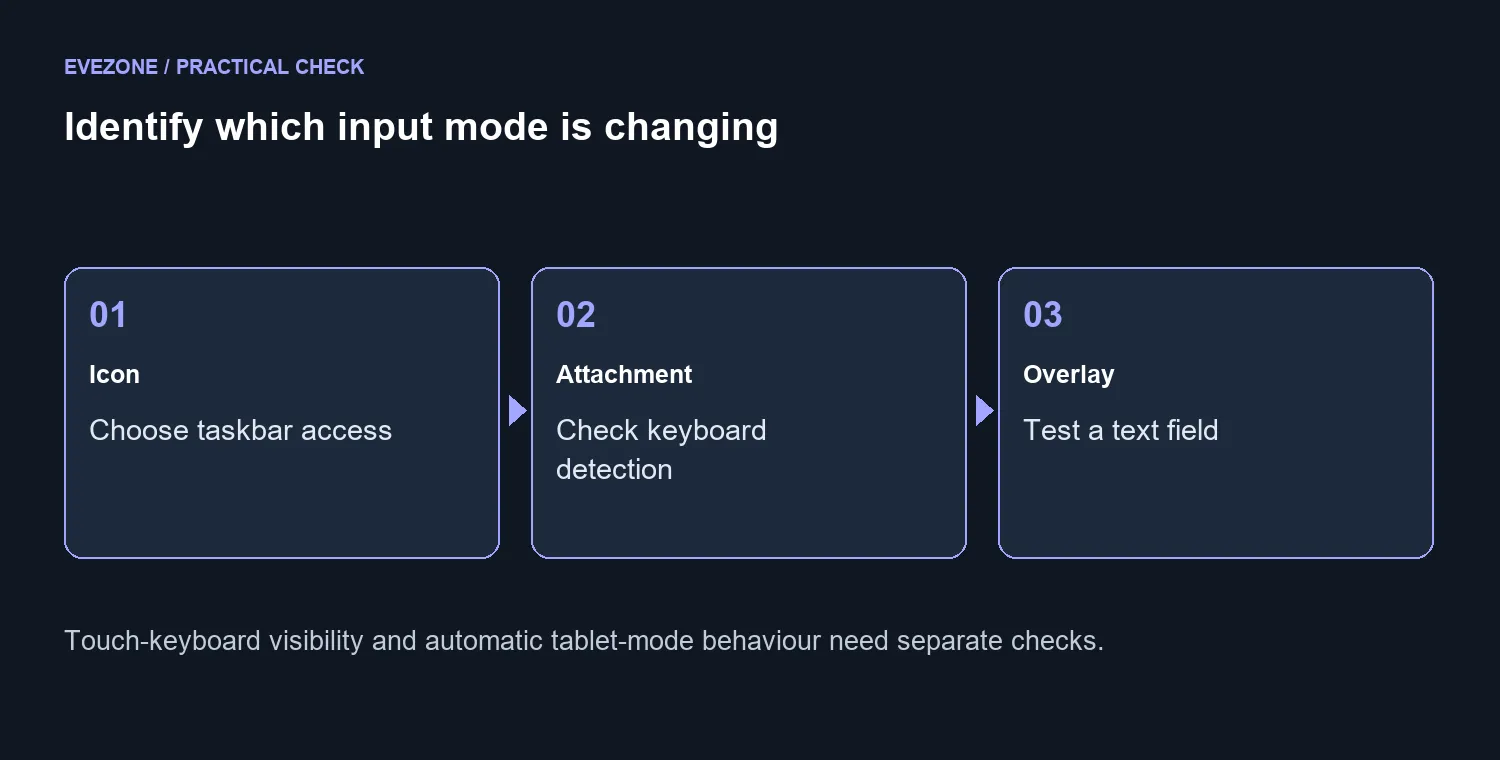
An attachment-detection problem and a chosen automatic-opening preference can produce similar-looking results. If a detachable keyboard is not detected, follow the device maker's connection guidance for that exact model. Do not start by disabling the touch screen, because that changes more than the keyboard overlay and may remove an input route you still need.
🧩 Retest the app where it interrupts you
After adjusting the relevant preference, return to the application and text field that first showed the problem. Check ordinary typing, the taskbar icon and the device's supported mode changes. A keyboard-and-mouse bundle can provide desk input, but buying one does not establish why an overlay appeared. If the keyboard still opens unexpectedly only in one app, record that narrow reproduction for support or Feedback Hub. Keep the fix focused on the observed behaviour instead of trading a small overlay annoyance for a broader loss of touch access.
Frequently Asked Questions
Is the taskbar icon the keyboard itself?
No. The icon opens the touch keyboard; showing that icon and automatically opening the keyboard are different choices.
What changes when a keyboard detaches?
A touch-capable Windows 11 device can change tablet-mode behaviour when the physical keyboard is detached.
Should I disable the touch screen?
Start with the documented keyboard preferences. Removing touch functionality is a much broader change than choosing when a keyboard appears.
How should I test a convertible laptop?
Compare attached-keyboard and detached-keyboard states in a harmless text field, then note which state triggers the overlay.
Is this the accessibility On-Screen Keyboard?
Treat that as a separate input feature. Identify which keyboard interface is opening before changing its settings.
Will a replacement keyboard always stop it?
No. First confirm physical-keyboard detection and the chosen touch-keyboard behaviour. Settings checks cost R0.
Choose the next step for your setup
Keep a dependable way to type in every mode. Test keyboard attachment and overlay preferences before changing your desk input equipment.