A grey automatic-zone switch and a wrong clock are two different clues. Windows set time zone automatically greyed out calls for checking location permissions and device policy before assuming a failing battery. Keep the date, clock time and selected zone separate while you work through the settings.
Quick Answer
Automatic time-zone selection uses Windows location services. Inspect that permission and any managed-device restriction, then choose the correct zone manually if permitted. These settings checks cost R0; synchronising the clock is separate from selecting the zone that displays local time.
🕒 Describe the error precisely
Note whether the displayed date is wrong, the minutes drift or the hours differ by a consistent amount. Also record the selected time zone. Those observations help avoid changing several unrelated settings at once. A computer can keep accurate time while displaying it in an unsuitable zone, and a disabled automatic-zone option is not by itself evidence of a hardware failure.
Open Date and time settings and inspect the available automatic controls. If you use a laptop between locations, consider whether the zone should change automatically or remain at a chosen home setting. Make that choice deliberately rather than treating every automatic option as mandatory.
📍 Review location and policy without bypasses
Windows explains that device location enables automatic time-zone selection. Check whether location services are available and whether you are comfortable enabling them for this purpose. If the device displays an organisation-management message, ask the administrator which settings are enforced. Do not copy a registry change intended for a different computer just to make a disabled switch clickable.
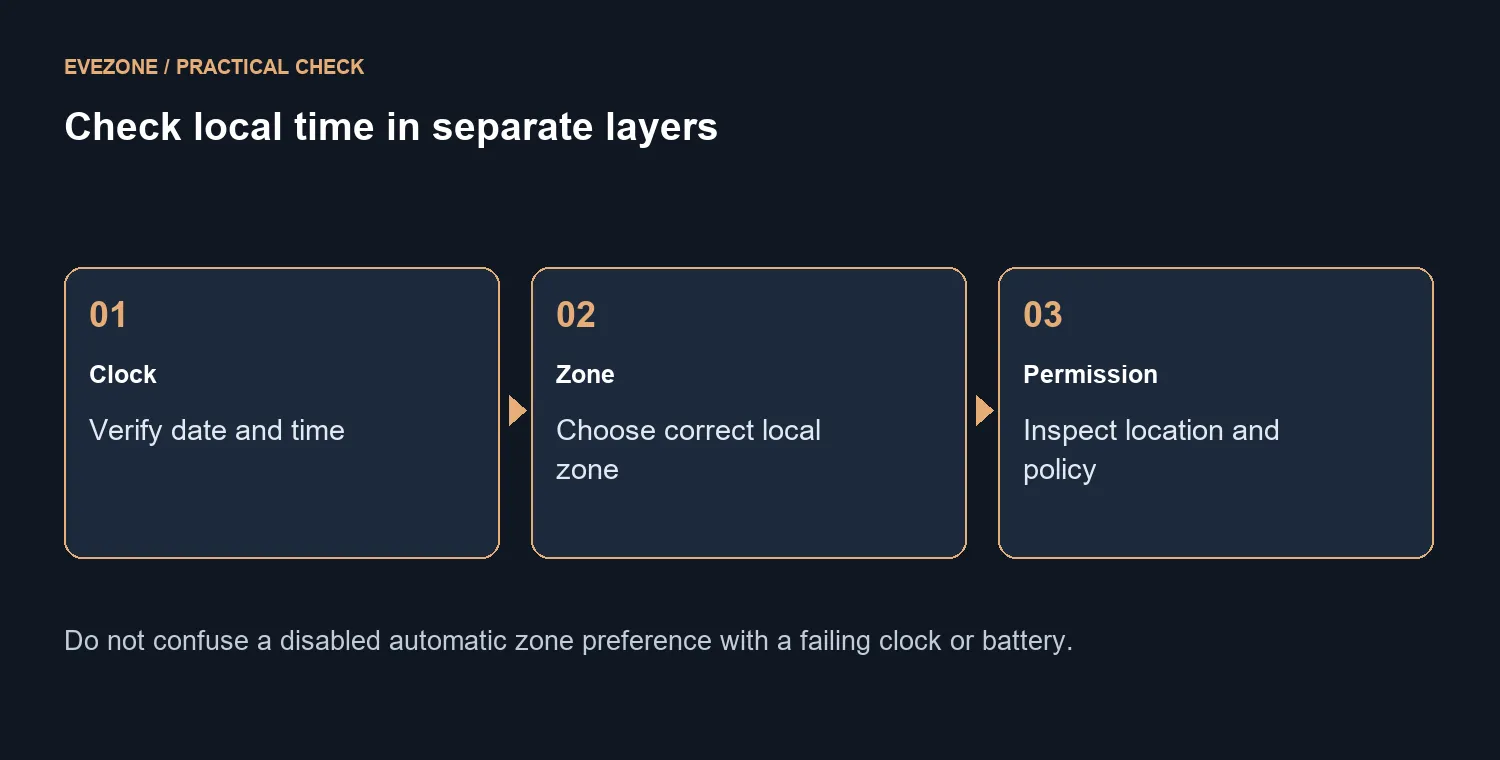
On a device that permits manual selection, choose the appropriate local zone and verify the displayed time against a trustworthy clock. Keep a record of the original preference. For a fixed South African desk, choosing the correct local zone may be all that is needed; location permission should remain an informed choice rather than a step performed without understanding its purpose.
🛠️ Seek repair only for the remaining symptom
Recheck the time after ordinary use and after restarting. If the clock value itself repeatedly becomes wrong, record what changes and when before seeking support. That is a different report from an unavailable automatic-zone preference. A mini PC and a notebook both need correct settings; replacing either is not a proportionate first response to a grey switch. Finish the R0 checks, preserve any managed policy, and bring the precise remaining symptom to the person responsible for the device.
Frequently Asked Questions
Why inspect location services?
Windows uses the device location setting for automatic time-zone selection. Review that permission before troubleshooting the clock.
Are time and time zone the same setting?
No. The clock value and the zone used to display local time are separate controls.
What if the PC is managed by work?
Ask the administrator about the enforced policy. Do not bypass restrictions or copy registry fixes from an unrelated device.
Can I choose a zone manually?
If the device permits it, select the correct zone in Date and time settings and verify the displayed time.
Do these settings require a purchase?
The built-in checks cost R0. A new laptop is not the first response to a disabled preference.
Does a wrong zone prove battery failure?
No. A timezone preference is distinct from a clock repeatedly losing its value. Record the exact symptom before seeking repair.
Choose the next step for your setup
Correct the local time with a clear symptom checklist. Keep location choices and managed-device rules in view while changing the settings.