A download called report can hide the part of its name that helps explain what it is. Windows show file extensions exposes that suffix in File Explorer without changing the file. It is a small view adjustment that makes ordinary downloads, document copies and exported images easier to identify before you open or rename them.
Quick Answer
Open File Explorer and choose View, Show, File name extensions. The built-in preference costs R0. Read the complete filename afterwards; changing a suffix such as .jpg to .pdf does not convert the contents, and a familiar extension alone does not establish that a download is safe.
📁 Reveal the part of the name you need
Choose a known document as a harmless test and enable the view option. Check that its ending is now visible beside the base name. File identity and default application are related questions, but changing which app opens a document does not require pretending it is another file type. If the expected program is wrong, investigate the default-app choice rather than renaming the original to force a different icon.
The setting also helps when copies accumulate on internal storage. A folder can contain a text document, an image and a spreadsheet with the same base name. Seeing their different endings makes that collection less confusing. Keep both the name and the suffix intact when describing a problem to support; an icon or a shortened label may omit the distinction that matters.
🔎 Inspect before renaming or opening
A file that appears to be a photo can have a longer name than the desktop view initially suggests. Read the whole ending and think about whether the source and file type match what you expected. The view preference gives you more information, but it does not scan the contents or approve the sender. Do not use a recognisable suffix as the sole reason to open an unexpected attachment.
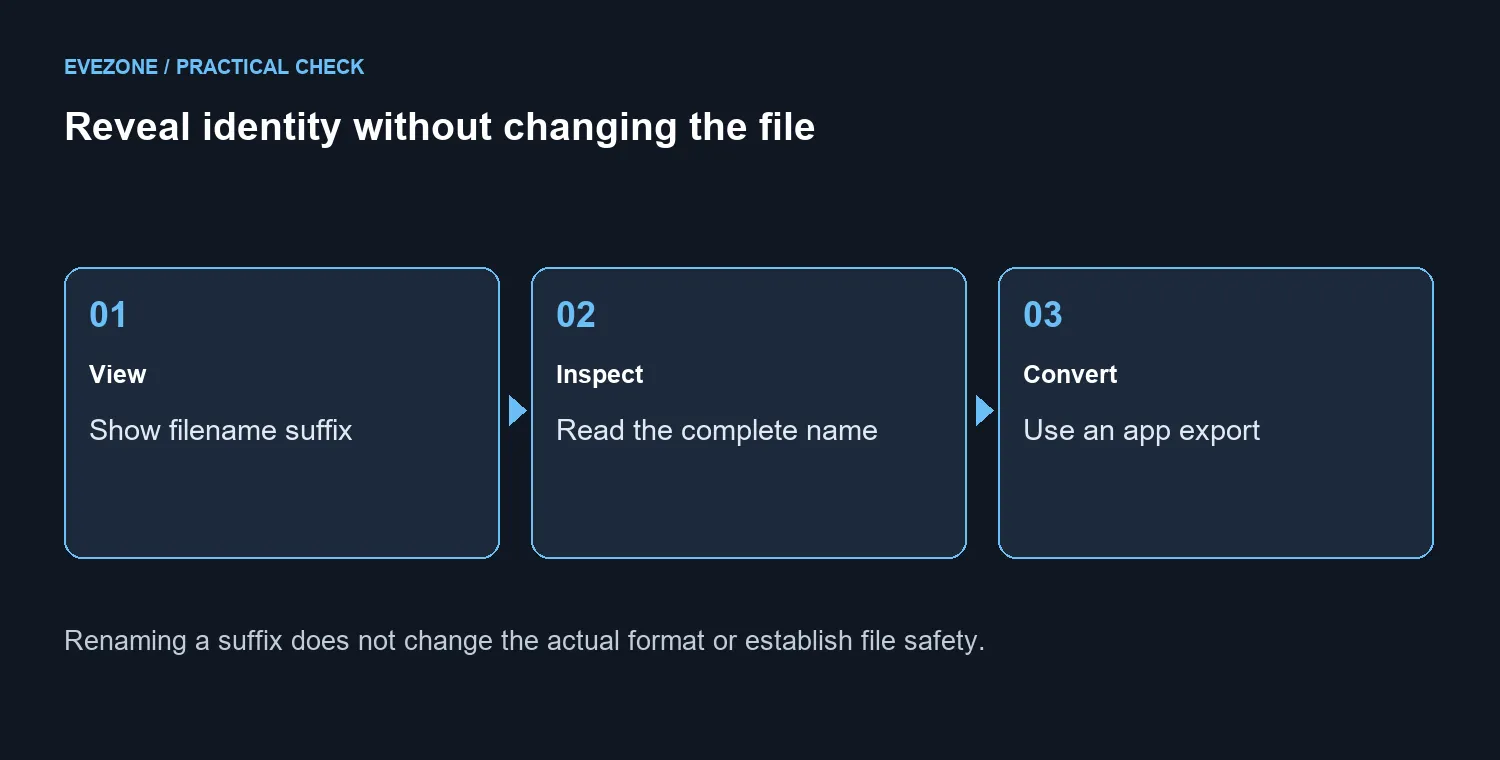
When conversion is the actual goal, open a trusted file in an appropriate application and use its export or save function. Test with a copy and confirm the resulting file opens correctly. A renamed suffix can confuse the next person without producing a usable conversion. It is also separate from showing hidden folders, so do not expect every invisible item to appear after enabling filename extensions.
💾 Keep experiments away from the only copy
Leave the original untouched while testing names and exports. Use a clearly separate folder for trial copies, then compare the result before replacing anything. If you keep a second copy on external SSD storage, check that it is the intended version rather than another renamed file. No hardware purchase is needed for the view change; storage becomes relevant when you need an independent copy, not because a suffix was hidden.
Frequently Asked Questions
How do I reveal a file suffix?
Open File Explorer, choose View, then Show, then File name extensions. Check a known file afterwards.
Does this cost anything to enable?
The built-in view setting costs R0. It does not require a new SSD or a paid cleanup tool.
Can I turn a photo into a PDF by renaming it?
No. Changing the extension changes the name, not the file format. Use a proper export or conversion function.
Does a familiar extension prove safety?
No. A suffix is one clue. Check where the file came from and whether you expected it before opening it.
Will extensions also show hidden folders?
Those are different view options. Revealing filename suffixes does not mean every hidden item becomes visible.
Should I edit the original file to test this?
Use a harmless copy when experimenting with names. Keep the original intact and retain its correct extension.
Choose the next step for your setup
Make the whole filename visible before handling downloads. Keep a separate copy when testing exports or renaming a document.