Dragging one window should not feel like losing the rest of your desktop. Windows title bar window shake can minimise the other windows when its gesture is enabled. Before treating that sudden change as a crash or a mouse fault, compare it with an ordinary drag and inspect the window-management preference.
Quick Answer
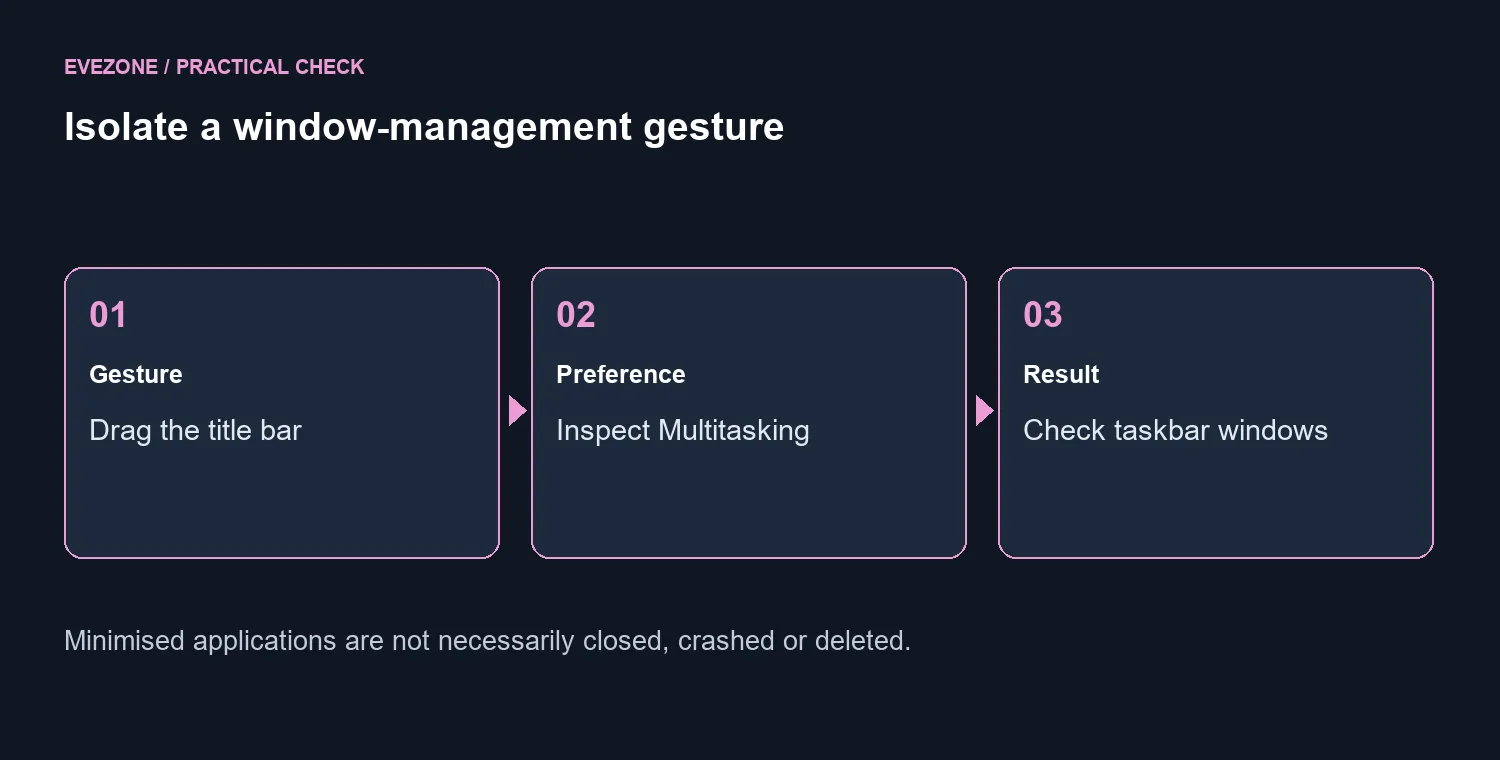
Check Settings, System, Multitasking for Title bar window shake and turn it off if the gesture is unwanted. This R0 change controls a Windows behaviour. Look on the taskbar for the minimised applications before reopening them or buying a replacement mouse.
🪟 Identify what disappeared
Save any open work, then use two harmless windows for the comparison. Drag one steadily by the title bar and note what happens. Next, compare that with the shake gesture while the setting is enabled. The important distinction is whether other windows have been minimised or their applications have actually closed. A window that is still on the taskbar can be brought back without launching another copy.
If a click or drag is unreliable in other tasks as well, make a note of those separate symptoms. Gaming mice vary in shape and controls, but a deliberate operating-system gesture is not evidence that the sensor has failed. Establish which behaviour is reproducible before turning a preference problem into a hardware order.
⚙️ Choose the window behaviour deliberately
Open the Multitasking page and inspect the named shake option. Pick the setting that fits your workflow, then repeat the same simple test. This preference is useful for someone who wants to clear surrounding windows quickly, while another person may find accidental activation disruptive. Neither choice requires changing display drivers or rebuilding a Windows profile.
Shake and Snap are different features. One affects the visibility of the surrounding windows; the other arranges windows into positions and sizes. If the complaint is that a dragged window snaps to an edge, investigate that behaviour separately rather than expecting a shake preference to control every part of window management.
🖱️ Retest the action you perform every day
After changing the preference, move an ordinary document between the positions you normally use. Confirm that surrounding windows remain as expected. Keep a note of the previous setting so you can restore it if you prefer the original shortcut. If you are also comparing keyboard and mouse combos, choose them for comfort and actual input needs, not as a presumed cure for a configured Windows action. A successful R0 preference change is a complete fix for this particular unwanted gesture.
Frequently Asked Questions
What triggers the shake gesture?
Shaking a window by its title bar can minimise the other open windows when the feature is enabled.
Where should I look for the preference?
Open Settings, System, Multitasking and inspect Title bar window shake. Choose the behaviour you want.
Have the other programs been closed?
Minimising is different from closing. Look on the taskbar or switch windows before reopening an application.
Is this the same as Snap layouts?
No. Shake changes which windows are minimised. Snap arranges window positions and sizes.
Should I replace a mouse first?
Try the R0 setting change and repeat an ordinary drag. A deliberate gesture is not proof of a faulty sensor.
How can I check the result safely?
Use two harmless windows, save your work, and compare dragging with the setting on and off.
Choose the next step for your setup
Keep your windows where you expect them. Set the gesture preference first, then choose input hardware for comfort and control.