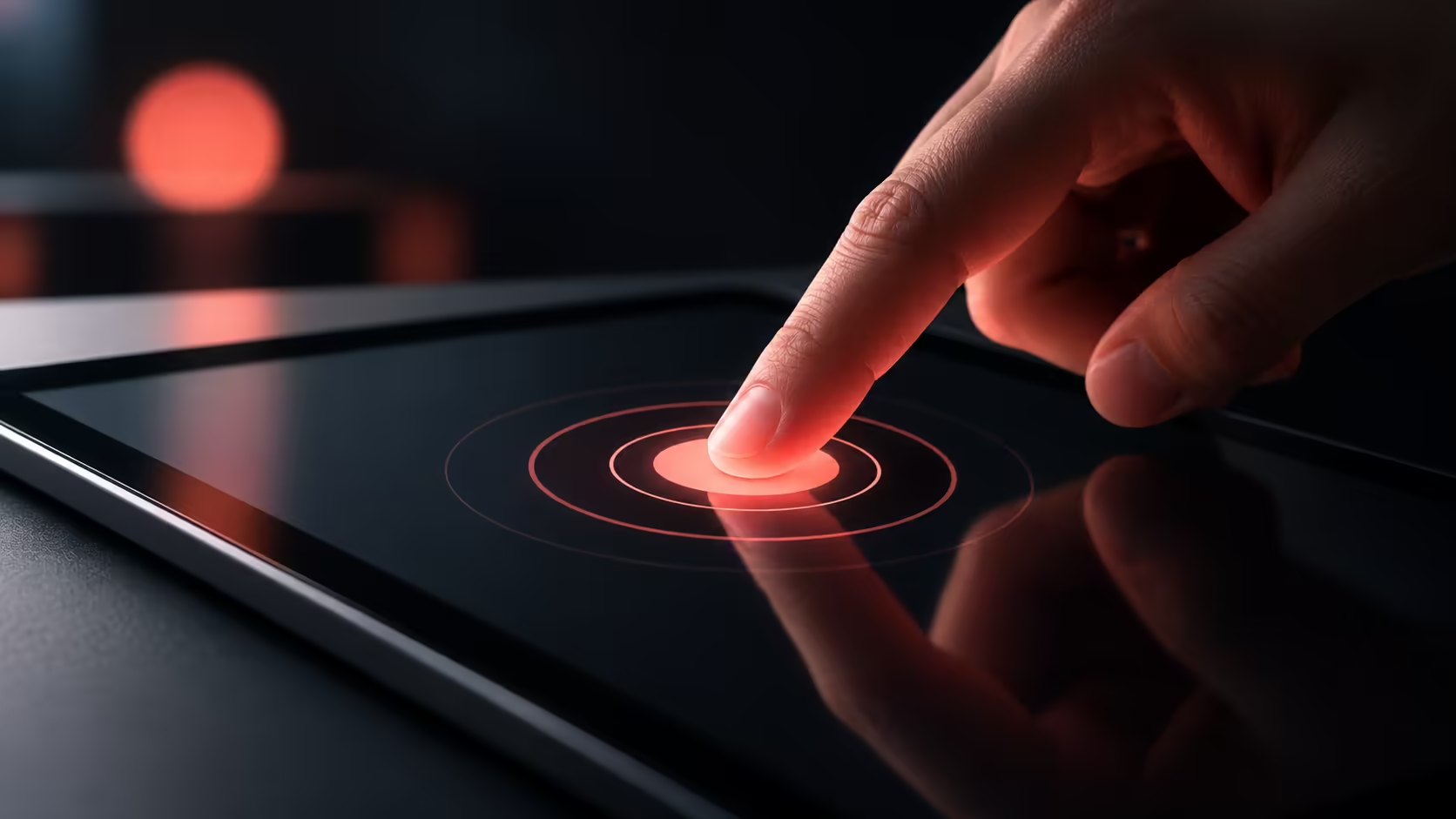
A visible ring beneath your finger can be an intentional cue rather than a damaged pixel. Windows touch indicator draws feedback where the screen is touched. Before treating a new circle as a display fault, check whether it follows your deliberate taps and whether the accessibility setting explains it.
Quick Answer
Open Settings, Accessibility, Mouse pointer and touch, then change Touch indicator. Its expanded options can make the circle darker and larger. That affects feedback, not the underlying accuracy of the touch device. The built-in preference costs R0 in additional purchases; replacing a display is a separate decision that needs evidence of an actual hardware problem.
👆 Observe exactly when the circle appears
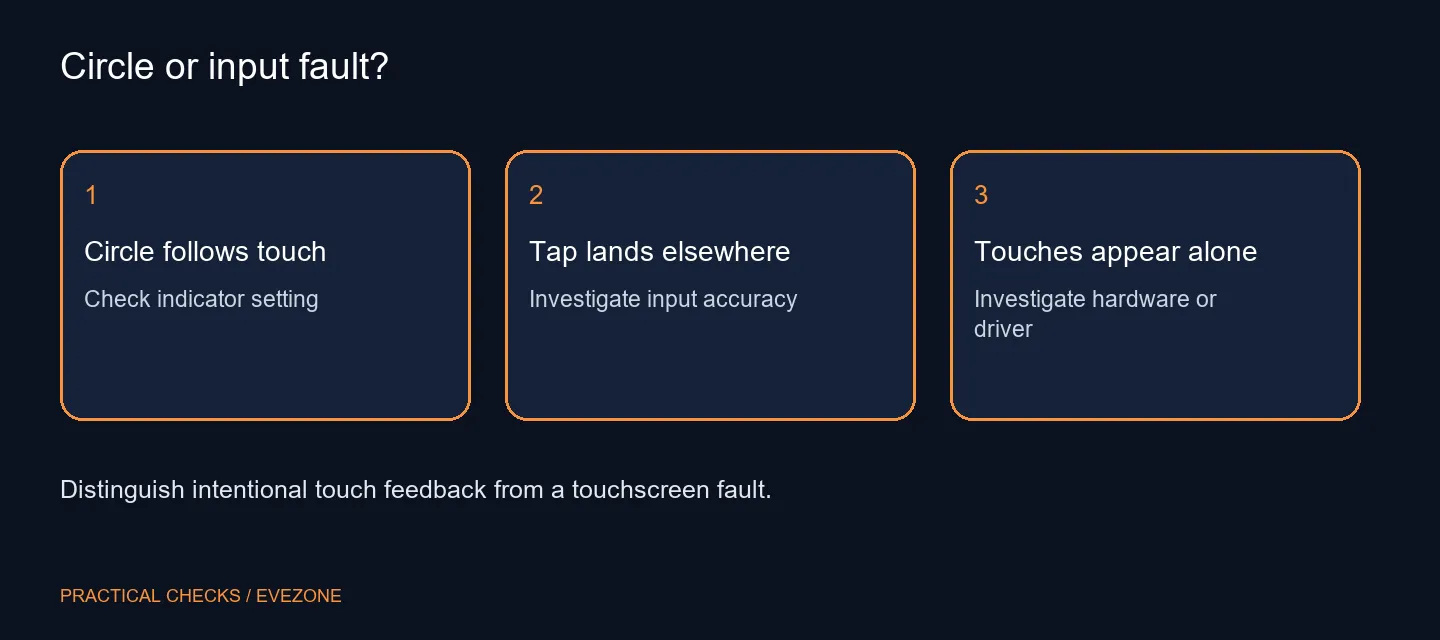
Place the device securely and make one deliberate tap on an ordinary control. Watch whether the circle appears at the same location. Repeat slowly in another app. A predictable marker following each touch is a different symptom from an input appearing while your hands are away.
Describe the observation before choosing a fix. A ring that is merely too large calls for a visibility adjustment. A tap that lands away from the intended target calls for investigation of input accuracy. Combining those two problems into a single claim about a broken screen makes support less precise.
⚙️ Change the feedback you actually want
Locate Mouse pointer and touch in Accessibility and inspect the Touch indicator control. Try the visibility option you prefer, then repeat the same tap test. If you want clearer feedback, the darker and larger circle option may be useful; if the marker distracts you, reduce or disable the visual cue.
Keep the change limited to this setting. Text cursor markers, pointer size and magnification have different purposes. Adjusting several accessibility controls together can make it difficult to identify which one changed the screen. Note the original position of the switch so you can restore it easily.
🖥️ Keep touch support separate from display quality
An external monitor is not automatically a touchscreen because Windows offers touch settings. Check the exact screen specification and required input connection. Compare gaming monitors for the display features needed, and monitor accessories for suitable connection or mounting equipment rather than assuming an adapter can add touch capability.
The setting also does not establish the cause of ghost touches, a cracked panel or an inaccurate digitiser. If input appears without a deliberate touch, record that behaviour and use the device maker's troubleshooting route. Hiding the marker could conceal the visual symptom while leaving the unwanted input unchanged.
🧾 Make a useful demonstration
For a presentation, check whether the circle helps viewers follow the action or covers small controls. Test with the actual app and screen arrangement. A setting that is comfortable on a tablet held nearby may be difficult to see on a shared display across the room.
Keep a brief before-and-after record: whether the marker followed deliberate taps, which indicator control changed and whether the actual input remained accurate. That separates a preference adjustment from a fault needing further attention. There is no reason to purchase a utility simply to expose a built-in switch.
Frequently Asked Questions
Where is the touch indicator control?
Open Settings, Accessibility, Mouse pointer and touch. Use Touch indicator to change the visual feedback.
Can I make the circle easier to see?
The documented options include making the circle darker and larger. Test the result on the apps you use.
Does hiding it turn off touch input?
The indicator controls visual feedback. It is not the same as disabling the touchscreen device.
Does a circle prove the panel is faulty?
No. A circle that follows a deliberate touch can be normal feedback. Unexpected input needs a separate investigation.
What does changing the indicator cost?
The built-in Windows preference needs no additional hardware or paid utility. Its extra purchase cost is R0.
Do all external monitors support touch?
No. Check explicit touch support and the required connection. A display cable alone does not establish touchscreen input.
Change the cue before changing the screen.
Test deliberate taps, adjust the touch marker and investigate unwanted input as a separate problem.