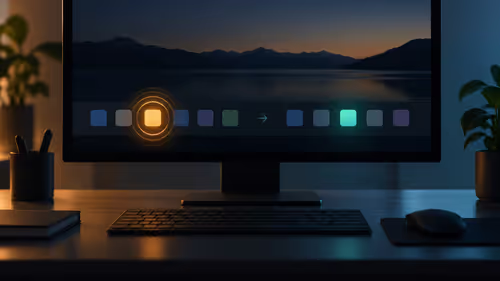
Several documents from the same application can disappear behind one compact taskbar group. Windows never combine taskbar is the search for a different arrangement: separate window buttons with labels. It can make switching more explicit, but the extra information uses space that a small screen may not have to spare.
Quick Answer
In Taskbar settings, open Taskbar behaviours and review Combine taskbar buttons and hide labels. Choose Never to show the documented individual labelled window buttons, if that option is available. This costs R0 in additional hardware. Check the resulting row and any separate settings for other displays before assuming that ungrouped buttons can also hide their labels.
🗂️ Compare real windows, not an empty desktop
Open two or three documents in a program you normally use. An empty desktop does not show the difference between one grouped app icon and several separate window buttons. Change the preference, then switch among those documents and check whether the labels identify the window you intended.
Use ordinary document names during the test. Very similar titles can still be difficult to distinguish even when Windows gives them separate buttons. The setting makes more information visible; it does not rewrite the application's window titles or decide which document matters. Close unnecessary test windows afterward so the final comparison reflects your actual workload.
📏 Think about space as well as visibility
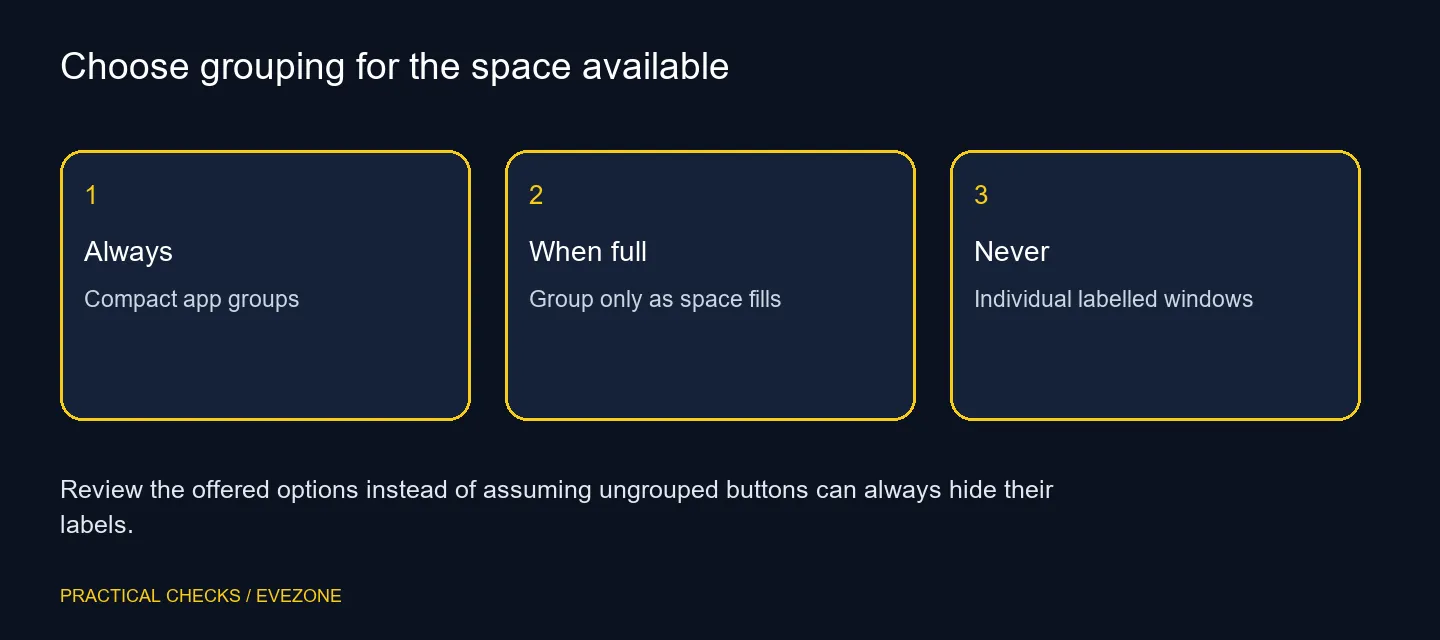
Separate labels can help on a wide desktop but become crowded when many windows are open. The documented options include keeping groups compact, grouping when the taskbar fills and avoiding grouping. Compare the choices under the same number of windows rather than declaring one universal best arrangement.
If the row becomes awkward, a when-full setting may provide a more useful balance. Display scaling, icon size and window grouping are separate controls, so do not change all three at once. Record the initial choice before experimenting. Restoring it should be easy if the extra buttons make switching slower instead of clearer.
🖥️ Inspect additional displays independently
A computer with more than one screen can expose separate taskbar options for other displays. Review those settings if the main screen behaves as intended but another taskbar still groups windows. Identify which screen owns the window and which taskbar you are inspecting before calling the preference inconsistent.
Browse gaming monitors if you have a separate need for more usable screen area, resolution or a particular connection. A second monitor is not required to change grouping, and it does not guarantee that every taskbar will inherit the arrangement you prefer. The software settings still deserve attention after a display purchase.
⌨️ Keep switching methods flexible
Taskbar labels are one way to find a window. The familiar keyboard switching controls remain another option, particularly when the row is crowded. Consider which method fits the task rather than trying to force every window into one navigation habit.
If the keyboard itself needs replacement, compare all keyboards for the layout and keys you use. That is separate from the grouping preference. After a normal work session, keep Never only if the individual buttons actually reduce mistaken window choices. A deliberate, reversible setting is more useful than claiming that an ungrouped taskbar will automatically improve every person's productivity.
Frequently Asked Questions
Where is the grouping preference?
Open Taskbar settings and expand Taskbar behaviours. Review Combine taskbar buttons and hide labels, then choose Never if offered.
What does Never do?
The documented choice keeps individual window buttons with labels instead of collapsing them into one app group.
Can I keep ungrouped buttons without labels?
Do not assume that combination exists. Use the choices exposed by your installed Windows version and inspect the resulting buttons.
What happens on a small screen?
Separate labelled windows occupy more taskbar space. Compare the grouped or when-full option if the row becomes difficult to navigate.
Do other monitors use the same setting?
Review the separate options for taskbar buttons on other displays, where available, rather than assuming the main-display choice covers them.
Does changing grouping require new hardware?
No. The software preference costs R0 in additional hardware. Buy a display only for a separately identified screen-space requirement.
Test grouping with the windows you really keep open.
Compare separate labels with compact groups and inspect other-display settings before adding hardware.