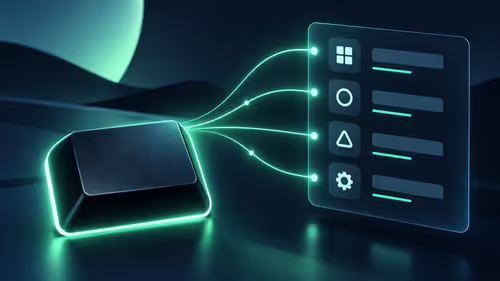
Reaching for Start in a familiar corner can feel easier than following a centred row of icons. Windows taskbar alignment is the preference to use for that change. It adjusts the icon arrangement while leaving other questions, such as grouping windows or choosing a taskbar edge, for their own controls.
Quick Answer
Open Taskbar settings, expand Taskbar behaviours and choose Left under Taskbar alignment. The built-in change costs R0 in additional equipment and can be reversed by choosing Centre. It controls icon alignment; it should not be confused with taskbar position, button grouping, display resolution or the removal of pinned applications.
📐 Adjust the row you actually use
Right-click the taskbar and open its settings. Find the alignment control in the behaviour section, then choose the left option. Look at Start and the pinned row before opening other menus. A simple before-and-after comparison is enough to decide whether the new reach feels more familiar.
Avoid rearranging all the pinned apps during the same experiment. If the familiar order changes at the same time as the alignment, it becomes harder to judge the one preference you set out to test. Use the arrangement for ordinary work and check where your pointer naturally goes when you need another application.
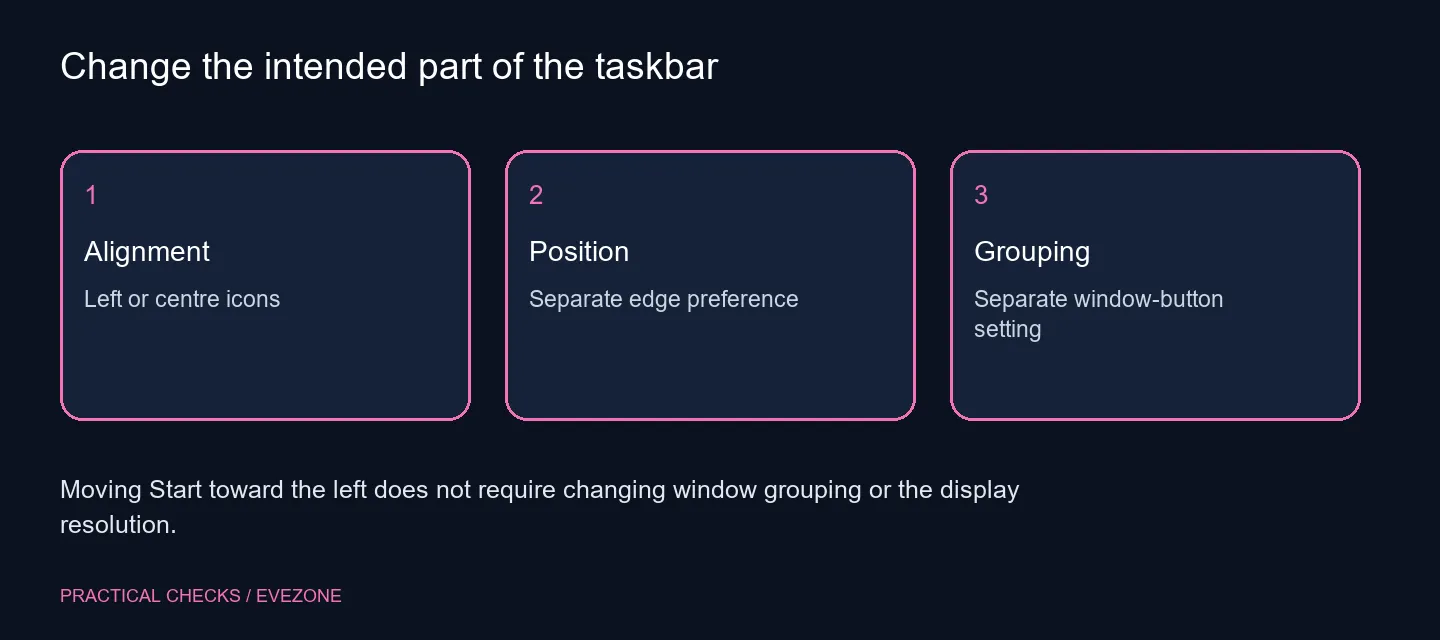
🧭 Distinguish alignment from position
Alignment describes where icons sit along the available taskbar. Position describes the screen edge occupied by the taskbar, and newer interface options can have version or rollout requirements. The documented left alignment choice does not require you to pursue every newer taskbar feature.
If the menus on your computer differ from an announcement or demonstration, use the options actually available in your installed version. Do not install a preview build just to reproduce a screenshot. A supported alignment change is a much smaller decision than changing the operating-system channel or adding a broad interface-modification tool.
🖱️ Compare reach before considering equipment
An icon row in a different place may improve familiarity, but it cannot correct a physical mouse fault or an uncomfortable desk reach. Check those separately. If movement is inconsistent even inside an application, investigate the input device rather than attributing it to Start being in the centre.
The all mouse range is useful when you have established a separate grip, button or reliability need. Likewise, gaming monitors should be compared for size, resolution and connections. Neither purchase is required to try an icon alignment setting, and changing monitors can leave the same software preference in place.
🔄 Keep other taskbar choices deliberate
Labels, grouping, badges and flashing all affect different parts of the experience. Review one at a time if they also need attention. Do not describe a left-aligned taskbar as a complete restoration of every earlier Windows behaviour; the installed version and other settings still matter.
On a shared account, agree on the arrangement with whoever uses it. If the centred row proves more comfortable after a normal session, restore Centre without treating the experiment as a failed upgrade. The useful result is a familiar place to launch and switch apps, achieved through one small preference instead of an unnecessary rebuild of the desktop.
Frequently Asked Questions
How do I move Start to the left?
Open Taskbar settings, expand Taskbar behaviours and choose Left under Taskbar alignment.
Does this move the taskbar to another edge?
Alignment controls where icons sit along the taskbar. Position is a separate preference, where available.
Will my pinned apps be removed?
The alignment preference does not ask you to unpin apps. Check their positions after the change rather than rebuilding the pinned list.
Does left alignment hide app labels?
Window grouping and labels have their own settings. Do not expect an alignment change to alter that behaviour.
Is it an extra paid feature?
The documented Windows preference costs R0 in additional equipment. There is no need to buy a utility for this basic change.
Can I return to the centre?
Select Centre in the same alignment menu. Keep other taskbar preferences unchanged while comparing the two positions.
Put the launch controls where your hand expects them.
Compare left and centred alignment before making separate changes to grouping, hardware or taskbar position.