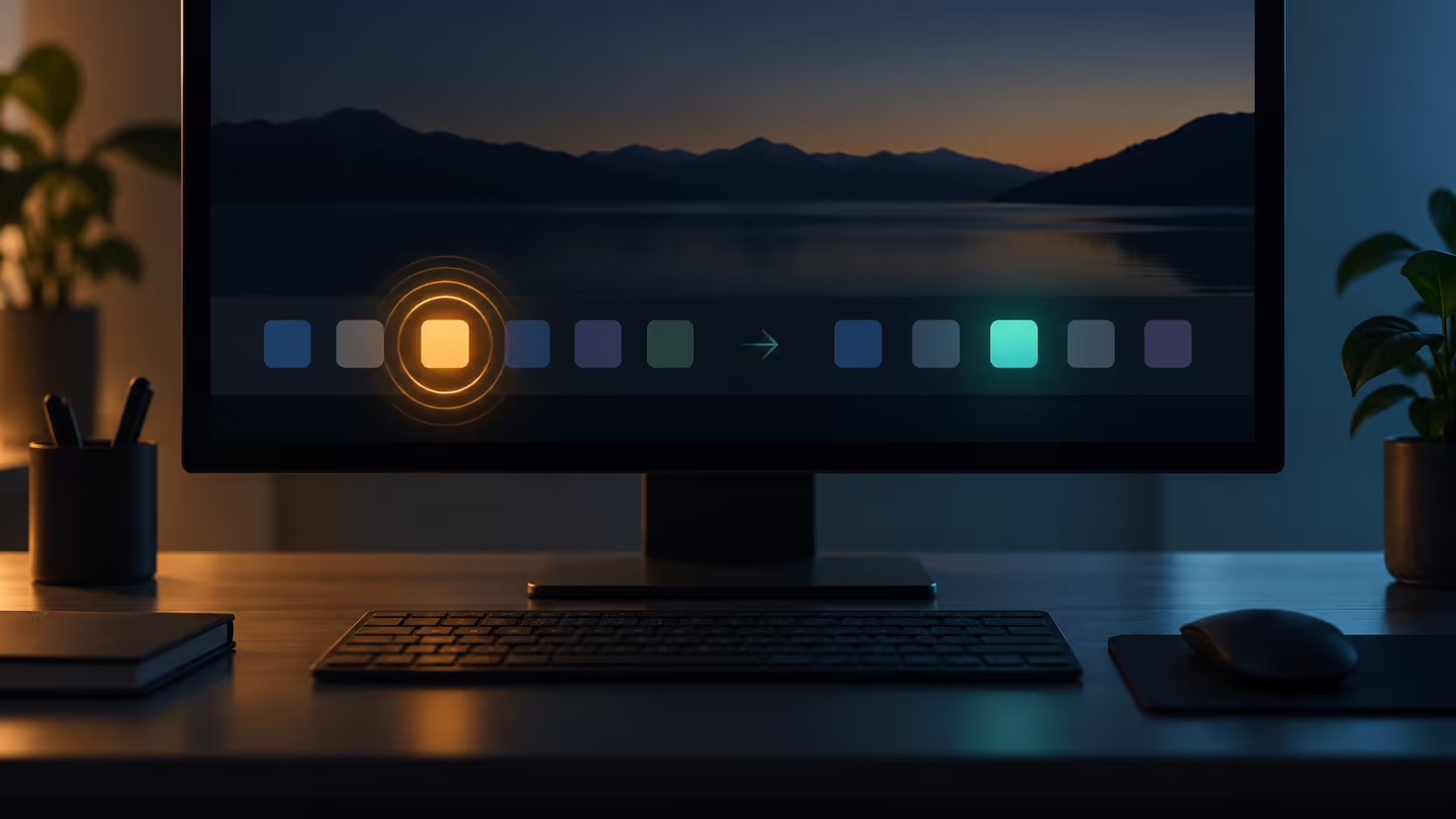
An app waiting behind your current window can keep drawing your eye back to the taskbar. Windows taskbar flashing is an attention signal with its own setting. You can reduce that particular distraction without immediately deciding that every notification, sound and message from the app should also disappear.
Quick Answer
Open Taskbar settings, expand Taskbar behaviours and disable Show flashing on taskbar apps. The change costs R0 in additional equipment. If you want a temporary quiet period instead, review Focus session options. Notification banners, sound and taskbar badges are separate controls, so check those independently rather than assuming the flashing switch mutes everything.
🔔 Identify the signal before changing it
A flashing taskbar icon usually means an application wants attention while another window is in front. Note which app does it and what is waiting when you open the window. A message, prompt or background action can explain the request without indicating a broken display.
Right-click an empty taskbar area and open Taskbar settings. Expand the behaviour section and change the flashing preference. Return to the usual workflow and watch the same app. Do not disable a large collection of background features merely because one attention pulse is annoying; keeping the experiment narrow makes the result easier to understand.
⏱️ Decide whether quiet should be permanent
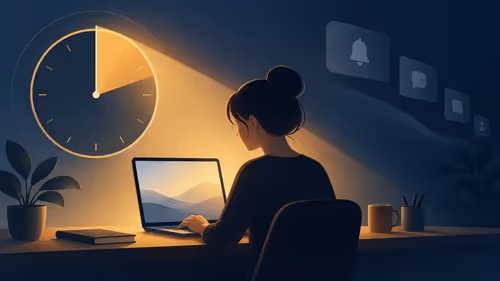
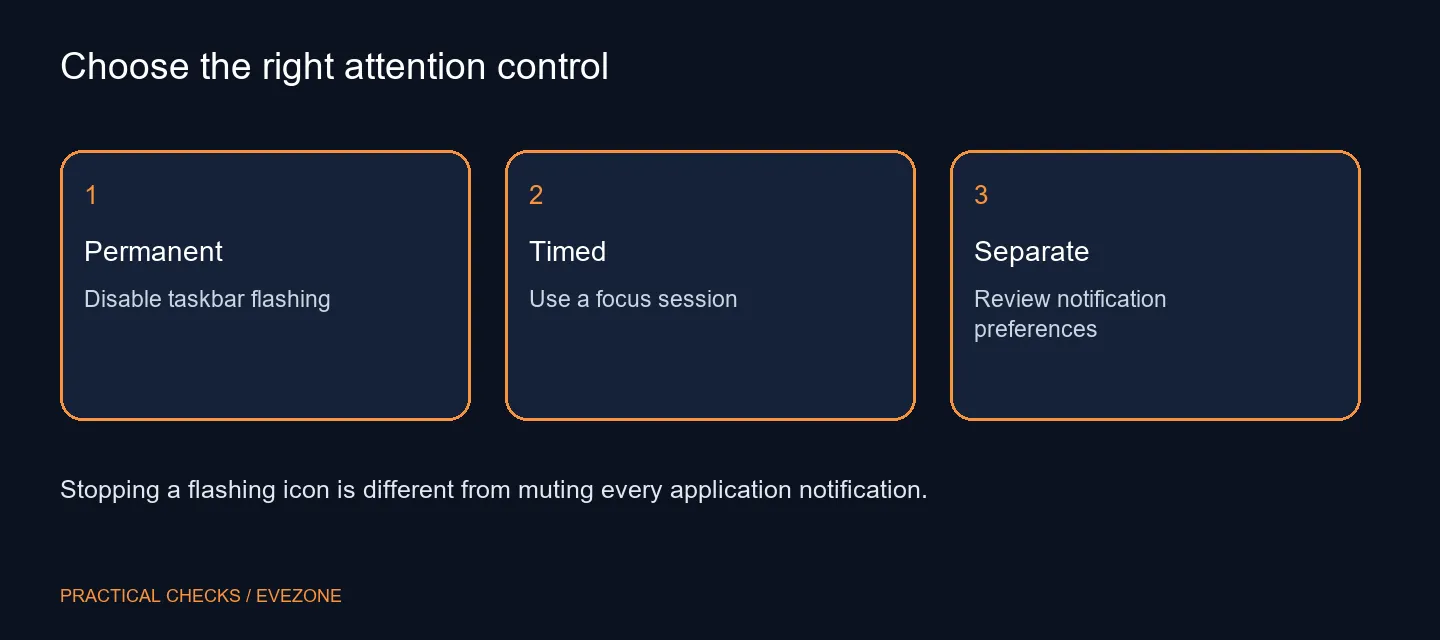
A permanent taskbar preference suits someone who never finds flashing useful. A focus period suits someone who wants uninterrupted time but still wants the usual attention behaviour afterward. Windows documents focus sessions as a way to suppress taskbar flashing and badges while the session is active.
Those choices have different consequences. If you permanently remove the pulse, you may need a habit of checking the app when convenient. If you choose a session, review the Focus settings and recognise when the timer ends. Avoid combining both approaches without thinking: a permanent off switch will remain off after the timed session finishes.
📨 Keep useful messages available
Banners, sounds and badges are not interchangeable with flashing. Review the notification preferences for the app if a banner is still distracting, but preserve the signals you need to notice. A scheduled work period can benefit from fewer interruptions without requiring a blanket silence for the entire day.
For a shared or support-related task, decide how urgent messages will be noticed during quiet time. That is a workflow choice rather than a reason to buy equipment. Browse all keyboards when there is a separate typing need, not because a taskbar animation suggests the keyboard is defective.
🧪 Test the result in an ordinary session
Use the same program that was drawing your attention and keep another window in front. Check whether the visual pulse changes and whether the message itself still arrives. This comparison prevents a mistaken conclusion that a missed message proves the flashing preference removed all notifications.
If the taskbar still behaves unexpectedly, record the Windows version, app and exact signal. A highlighted icon, a badge and a flashing pulse can look similar at a glance but need different controls. Compare all mouse only for an independent input problem. Restore the switch whenever the attention cue is useful; the goal is a deliberate signal policy, not a desktop stripped of every form of feedback.
Frequently Asked Questions
How do I stop the flashing permanently?
Open Taskbar settings, expand Taskbar behaviours and clear Show flashing on taskbar apps.
Can I stop it only while working?
A focus session can temporarily suppress taskbar flashing. Check your Focus options rather than making a permanent preference change.
Are notifications disabled too?
The taskbar flashing switch controls the visual pulse. Notification banners and sounds have separate settings.
Why does an app flash in the first place?
An app behind another window can request attention. A flashing icon does not by itself establish malware or a hardware fault.
What is the cost of changing this?
The Windows preference requires R0 in additional equipment. No replacement keyboard or monitor is needed to use the switch.
How can I restore the signal?
Re-enable Show flashing on taskbar apps, then test the program that normally requests your attention.
Keep the alerts you need and remove the pulse you do not.
Check taskbar flashing separately from notification banners, badges and sounds.