When a scrollbar fades away, finding your place in a long panel can become a small repeated interruption. Windows always show scrollbars is the visibility preference to check. It offers a simple starting point, while the important limit is that individual applications can draw and hide their own scroll controls.
Quick Answer
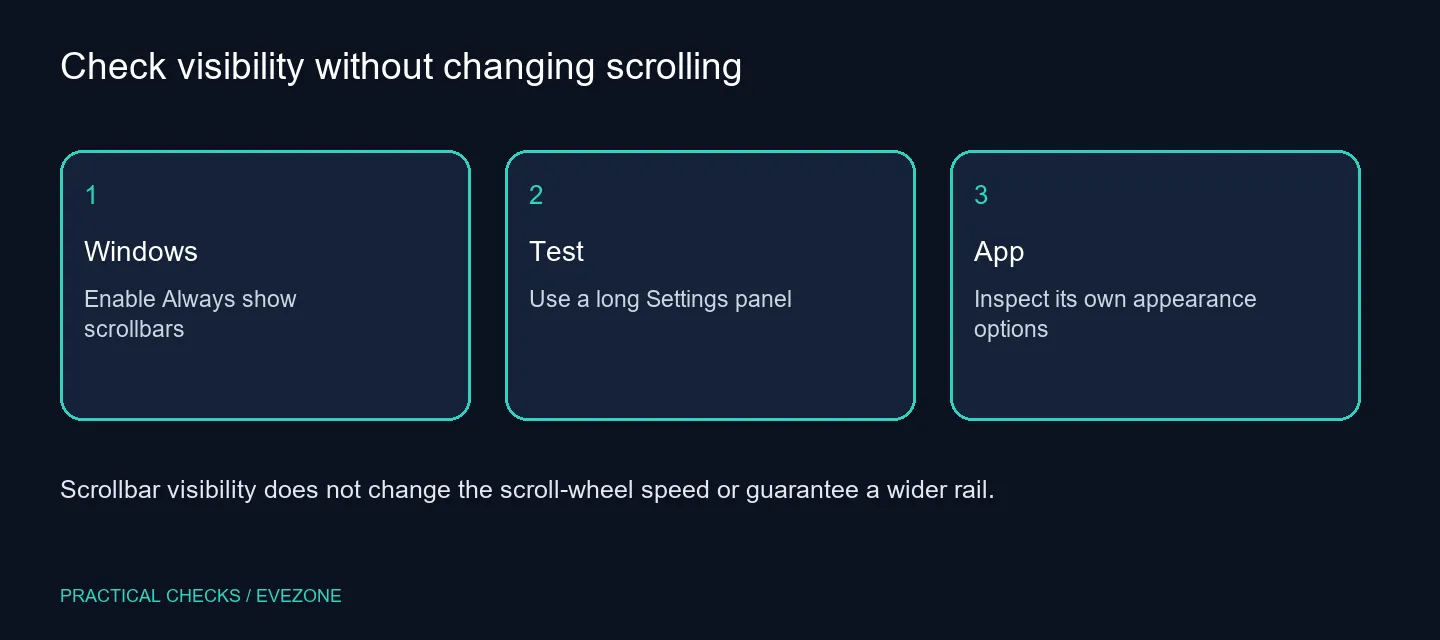
In Settings, open Accessibility, choose Visual effects and enable Always show scrollbars. This costs R0 in additional hardware. Test a long Settings page to establish whether the Windows control is visible, then check the app that bothers you. The preference does not promise a wider rail or different mouse-wheel speed in every program.
📍 Use a panel that actually needs scrolling
Open a Settings section with enough content to extend below the window. A short page with nothing below its visible area is a poor test because it may not need a scrollbar at all. Reduce the window height if necessary, then compare the right edge before and after enabling the preference.
Keep the pointer away from the rail during part of the comparison. That helps distinguish a permanently visible control from one that appears only when hovered. Note whether the rail, slider or both remain visible. Do not infer failure merely because a different application uses a thinner control than the one in Settings.
🧩 Separate Windows controls from app design
Applications can use different interface frameworks and their own appearance settings. If the Windows test changes but your browser or document app does not, investigate that app next. The recorded support question shows why a system toggle should not be described as a universal scrollbar redesign.
Look for a supported appearance or accessibility preference in the affected program. Avoid downloading a broad interface-tweaking utility just to test this one setting. Describe the exact result when asking for help: identify the app, the panel and whether the scrollbar appears on hover. That gives a much more useful diagnosis than saying every scrollbar has disappeared.
🖱️ Keep visibility apart from input problems
If the wheel skips, moves too far or fails to scroll, investigate input behaviour separately. A visible rail can make position easier to understand, but it does not repair a faulty wheel or change an application's scrolling rules. Browse all mouse if a separate mouse test establishes a physical problem.
The same distinction applies to screen size. A clearer or larger display can help with a real reading requirement, but gaming monitors should be compared on those needs. An interface that hides its scrollbar may retain that behaviour on a new monitor unless you change the relevant software preference.
📝 Record a small, repeatable result
Try a Settings panel, one browser page and one document you regularly use. Record which respond to the toggle and which do not. This gives you a manageable list of app-specific follow-ups instead of a general assumption about the whole desktop.
If the visible controls feel cluttered, restore the old setting. If they help, leave the preference on and avoid changing unrelated scrolling settings at the same time. The goal is a reliable way to see your position in the programs you use, with the scope of the Windows control understood before any additional purchase or modification.
Frequently Asked Questions
Where do I make scrollbars visible?
Go to Settings, Accessibility, Visual effects and turn Always show scrollbars on. Test a long page in Settings.
Does this make every scrollbar wider?
No. Visibility and width are separate properties, and applications can render their own controls.
Why does one app still hide its scrollbar?
The app may control its own scrollbar presentation. Check its appearance or accessibility options rather than repeating the Windows change.
Will the mouse wheel move differently?
This is a visibility preference. Wheel behaviour and scroll speed are separate input settings.
Do I need a larger display?
The built-in setting costs R0 in additional hardware. Try it before considering a screen purchase solely to find a scrollbar.
How do I reverse the change?
Return to Visual effects and turn the toggle off. Keep the original state noted if you are comparing different preferences.
Find the rail before replacing the mouse.
Compare scrollbar visibility in Windows and the affected application as two separate checks.