A window sliding into place can be more distracting than useful when you want a steady desktop. Windows animation effects is a built-in preference for reducing that interface motion. It is a good first check before treating every uncomfortable transition as a reason to change the monitor or buy a faster PC.
Quick Answer
Open Settings, choose Accessibility, then Visual effects, and turn Animation effects off. The change costs R0 in additional hardware and can be reversed in the same place. It affects Windows interface behaviour, not every animation inside a game, browser or application. Compare your usual tasks before making other display changes.
🪟 Change one preference, then look again
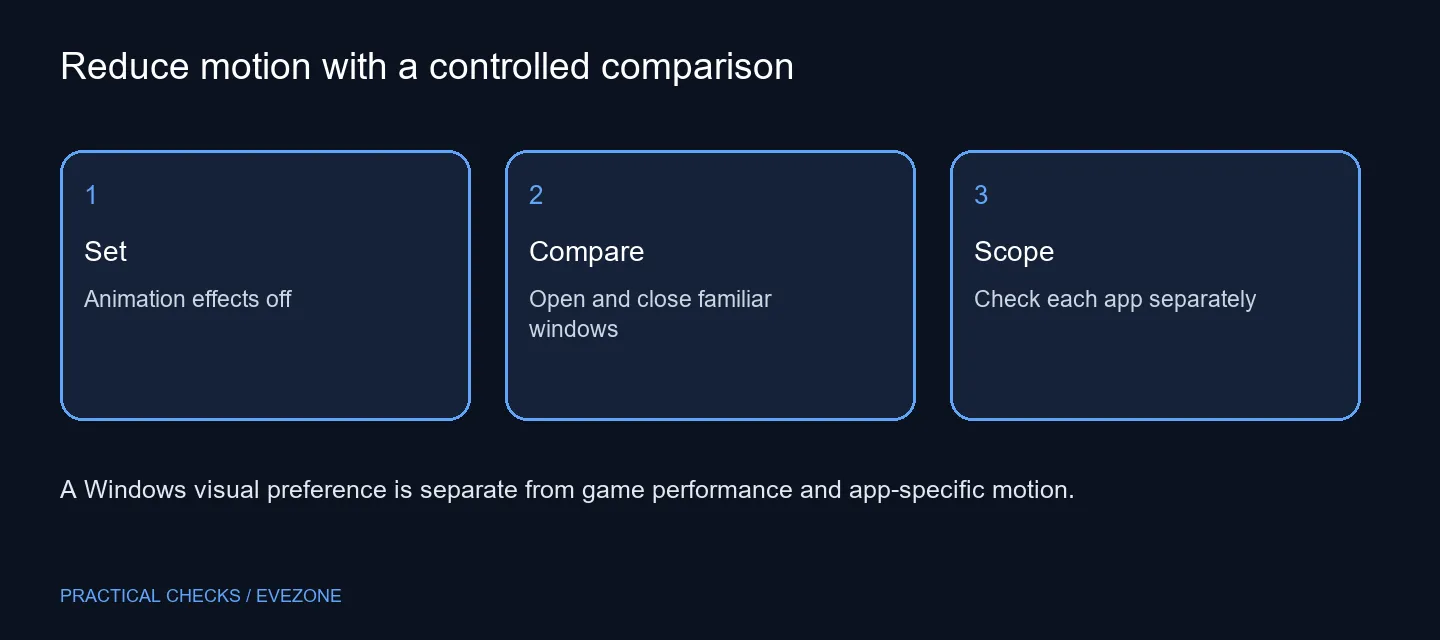
Keep a familiar window open while finding the switch. Settings search is useful if the category layout feels unfamiliar: search for the setting and open the matching result rather than browsing unrelated performance pages. After changing the toggle, open and close a few ordinary windows and compare the motion with what you saw before.
Avoid changing transparency, scaling and pointer preferences at the same time. Those settings answer different questions, and several simultaneous adjustments make it hard to identify the useful one. If a particular application is still uncomfortable, write down exactly which action causes it. A moving menu, a smooth-scrolling page and an animated game scene may need different controls.
🧭 Know where the setting stops
The Windows preference is a starting point for the desktop interface. An application can have its own transition, scrolling or accessibility controls. Check those controls if only that application remains distracting. Do not assume that switching off a system animation preference removes every kind of movement on screen.
For a browser page, compare the same page and action before and after changing an available app preference. For a game, use its own supported display and accessibility settings. This is a comfort adjustment, not a benchmark. It does not establish a new frame rate or remove the need to diagnose a machine that freezes or fails to draw a window.
🖥️ Keep hardware decisions separate
A display that is too small, positioned awkwardly or difficult to read can deserve a separate assessment. Browse gaming monitors when you have identified a resolution, size or connection requirement. An unwanted Windows transition, by itself, is not enough evidence that the current screen is the problem.
Similarly, a pointer that is difficult to control calls for an input check. Compare all mouse only after reviewing the mouse and pointer settings you already have. Separating motion preferences from physical equipment avoids buying a replacement that reproduces the same distracting interface behaviour on the new screen.
🔄 Leave yourself an easy return path
Note the original toggle position before the experiment. Use the computer for a normal session and decide whether the calmer transitions actually help. If they do not, restore the previous setting and investigate the specific application instead.
On a shared PC, explain the preference to the other person using the same account. A steady interface may suit one person while another prefers the original visual feedback. The useful outcome is a deliberate, reversible choice for ordinary tasks, with no claim that a single switch is a cure for every display or performance complaint.
Frequently Asked Questions
Where is the animation switch?
Open Settings, choose Accessibility, then Visual effects. Turn Animation effects off and compare familiar interface actions.
Does the setting cost anything extra?
The switch is built into Windows. Changing it costs R0 in additional hardware; that does not mean the PC or Windows licence is free.
Will this improve game frame rates?
The setting changes interface motion. It is not a measured gaming optimisation and should not be sold as a frame-rate improvement.
Will it remove all animation?
Apps and websites can control their own motion. Check a separate application preference when its animation remains.
Can I turn it back on?
Yes. Return to Visual effects and restore the toggle. Compare one change at a time so you know which preference helped.
Is a new monitor needed?
Try the software preference first. A monitor purchase should address a display requirement, not merely an unwanted interface transition.
Make the desktop calmer before changing the display.
Review the motion preference, then compare monitors or mice only for a separate physical need.