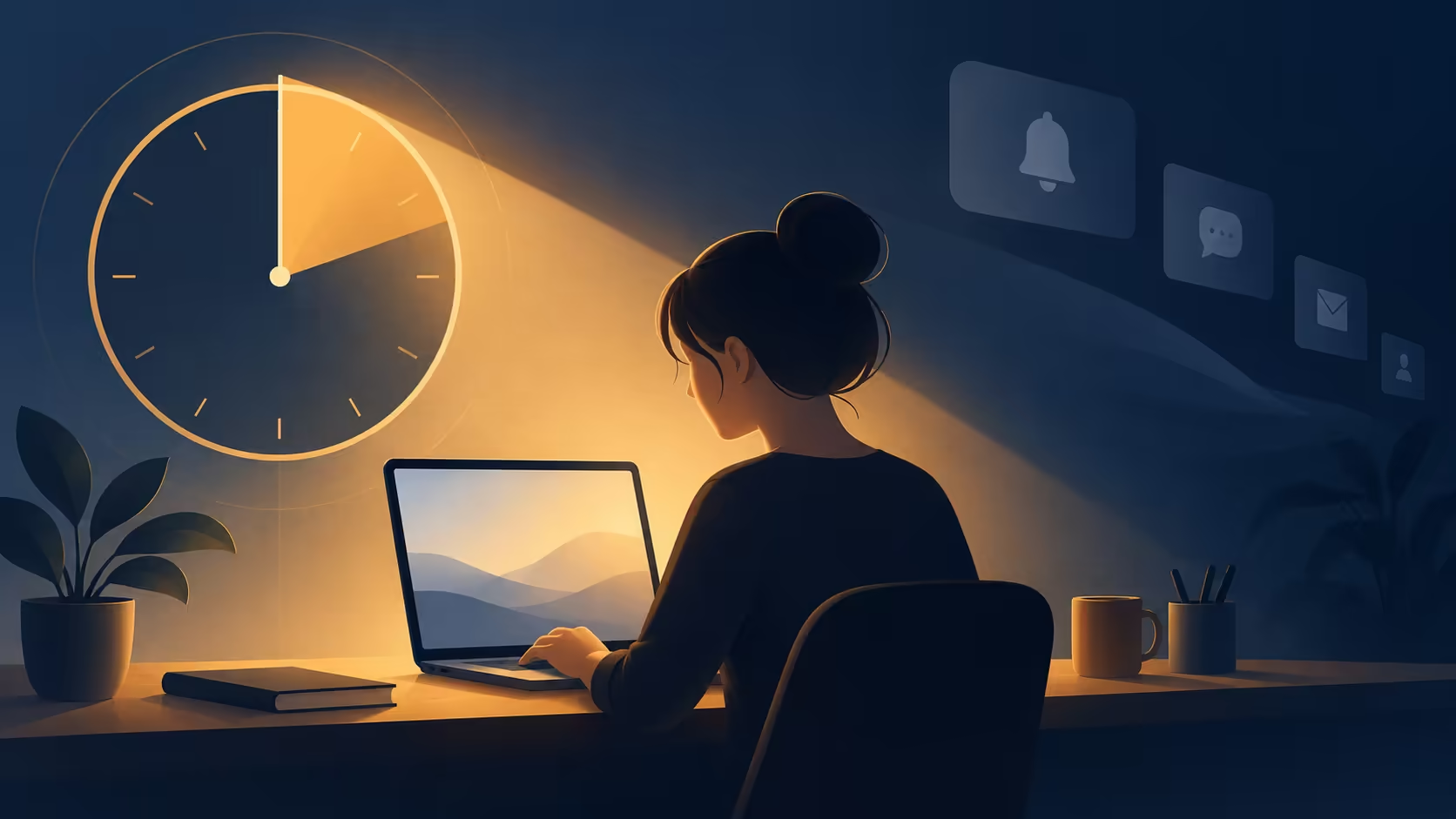
A quiet half-hour is easier to plan when the computer shows where that period begins and ends. Windows focus sessions combines a timer with attention controls. Before starting one, review which signals it will suppress so that a useful message does not become an unexplained missed interruption.
Quick Answer
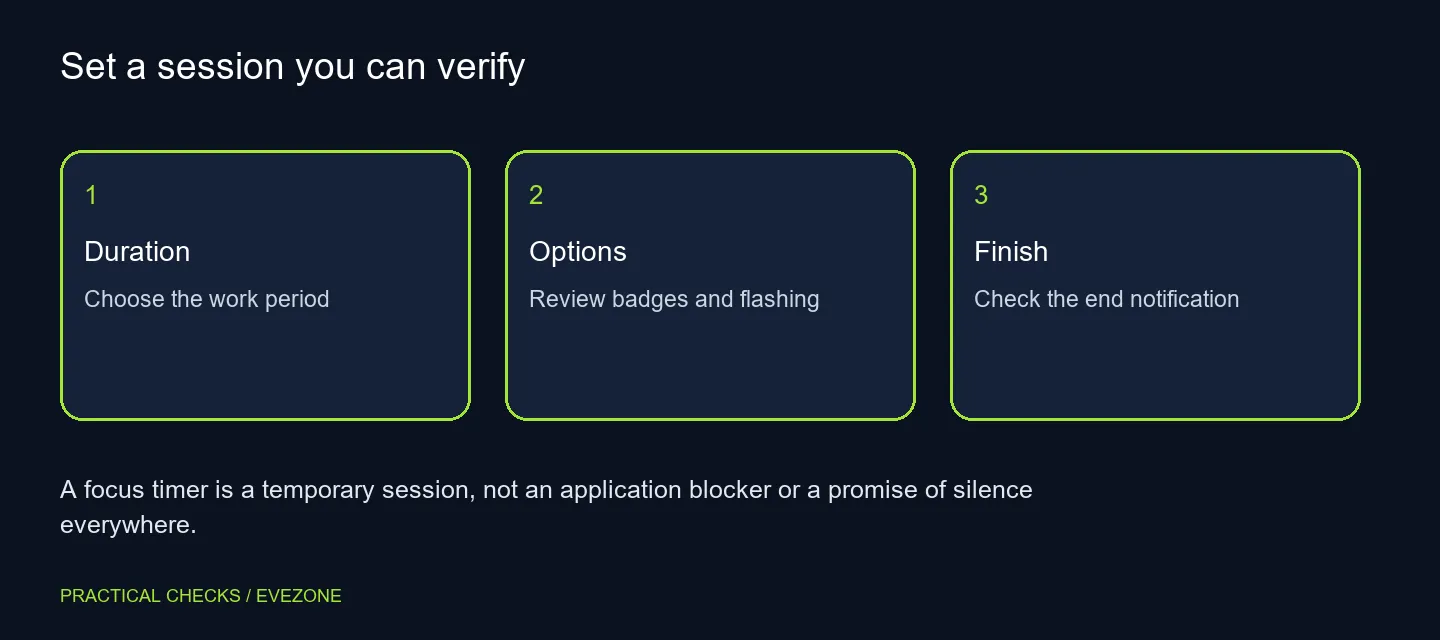
Start a session from System, Focus in Settings, the notification area or the Clock app. Choose the duration and review the options for taskbar badges, flashing and do not disturb. Using the built-in feature costs R0 in additional hardware. It organises a timed quiet period; it does not guarantee that every app will stop interrupting you or block distracting websites.
🕰️ Make the first session easy to finish
Choose a short period and one concrete task rather than planning an entire afternoon immediately. Check that the Clock app is available, because the documented workflow uses it. If the app was removed, follow the supported store route to restore it rather than treating the missing timer as proof of a deeper Windows fault.
Keep the timer visible if that helps you understand the session. Notice how you will end it early and what happens when it completes. Testing a small period lets you learn the controls before relying on them during a long meeting or study task. The timer is useful only if its start, finish and effect on the desktop are clear.
🛡️ Review the attention controls
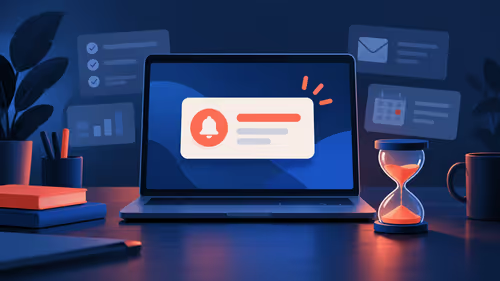
Starting Focus turns on do not disturb, and the session can suppress flashing and badges on taskbar apps. Review the individual options in Focus settings before assuming they are all selected. A timer running on screen and a quiet notification policy are related, but they are not the same observation.
Some notifications may follow separate rules, and applications can have their own behaviour. Check the alerts that matter to you with a short test. If a particular signal still appears, identify it rather than disabling unrelated services. The useful question is whether this session reduces the specific distraction you intended to manage.
🧾 Pair the timer with one manageable task
A session does not decide what deserves your attention. Write down the next action, clear the unnecessary windows and leave the materials for that action reachable. Music and task-list integrations are optional; the basic timer does not require a new account or a soundtrack.
For long typing tasks, an uncomfortable keyboard can be a separate issue. Compare all keyboards when its layout or physical feel limits the work. A new keyboard will not define the task for you, just as a focus timer will not correct a poor desk position or a distracting browser tab left in front.
✅ Check what returns at the end
When the session completes, review whether the usual attention signals return as expected. If you stopped it early, confirm that state too. This small check prevents you from attributing every quiet period later in the day to a timer that already finished.
On a shared machine, describe how the session works before another person relies on notifications. If you need a different computer for a separate workload, browse budget gaming pcs with that workload in mind. The focus feature is an organisational aid on the machine you have; judge it by a completed task and a clear alert policy rather than treating it as a hardware performance upgrade.
Frequently Asked Questions
Where can I start a session?
Use System, Focus in Settings, the notification area, or Focus sessions in the Clock app. Choose the duration before starting.
What happens to do not disturb?
Windows turns it on when a focus session starts. Review the notification rules for the alerts you still need.
Why is the Clock app relevant?
The documented Focus workflow uses the Clock app. If it was removed, restore it from the supported store before diagnosing the timer.
Do I need music for a focus session?
No. Audio integration is optional. A quiet timer can be useful without linking a music account.
Will it block games and websites?
The documented feature manages attention signals and a timer. It is not described as a general app or website blocker.
What does the built-in session cost?
Starting the Windows session costs R0 in additional hardware. Optional services have their own terms and are not required for this basic task.
Start with one short, clear task.
Review Focus duration and attention options, then confirm normal alerts return after the session.