One browser window can fill a surprisingly large part of the app switcher when its tabs become separate cards. Windows Alt Tab browser tabs settings let you choose whether those recent pages belong there. That is useful when a quick move from a game to chat keeps landing on another browser page instead.
Quick Answer
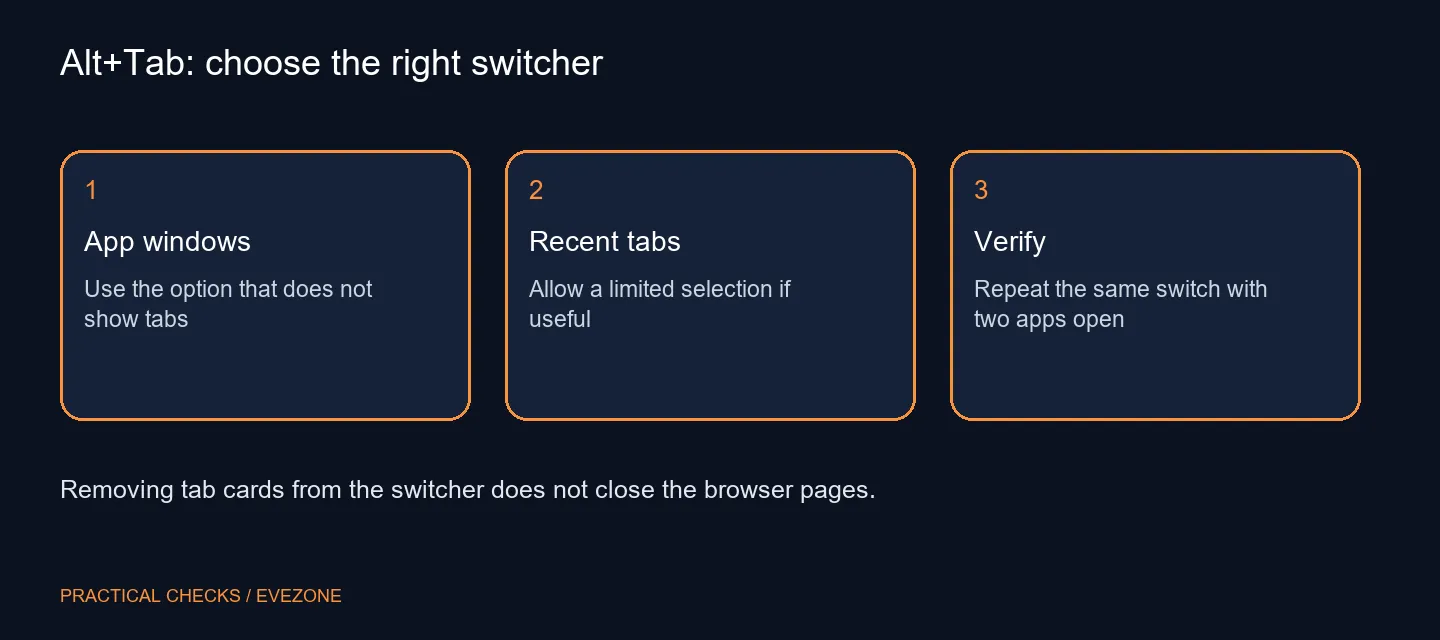
Open Settings, System, Multitasking and find the control for showing tabs when snapping or pressing Alt+Tab. Choose the option that does not show tabs if you want app windows only. The change adds R0 hardware cost and leaves the browser pages open; it does not clear history or speed up the pages themselves.
⌨️ Confirm which shortcut you are using
Alt+Tab moves between Windows app entries. Ctrl+Tab is commonly handled inside the current application. Keep that distinction clear while testing, otherwise a correct Windows preference can appear to have failed simply because you pressed the browser's own tab shortcut.
Open two recognisable applications and a browser with several pages. Press Alt+Tab and note which cards appear. Then change the preference and repeat with the same windows still open. This gives you a direct comparison without closing work or altering the browser configuration.
🗂️ Pick the amount of context you actually need
Recent-tab entries can help if the next task is usually another page in the same browser. They are less helpful when you mainly move between a game, voice chat and one reference window. Choose based on that routine rather than assuming the longest switcher gives the most control.
The documentation describes recent Microsoft Edge tabs, so do not assume every browser provides exactly the same integration. If a different program presents its own tab choices, inspect that program's settings separately. The Windows dropdown is not a universal command for every kind of tab.
Before comparing gaming keyboards, test whether all the shortcut keys register normally. A crowded switcher and an unresponsive physical key are different faults. This preference is aimed at the first problem.
🖥️ Keep windows and workspaces distinct
Multiple desktops add another layer of organisation. If a window seems absent after you remove browser-tab cards, check where the application is open instead of restoring every tab entry immediately. Keep the test on one desktop until the basic switching behaviour is clear.
For reading side by side, a suitable display from gaming monitors can offer more visible workspace. It will not decide which cards Alt+Tab includes. Make the software choice first, then judge a display upgrade on size, resolution and the physical space you need. A shorter switcher is successful when you reach the intended application with less searching.
Frequently Asked Questions
Where is the tab-count setting?
Open Settings, System, Multitasking and find the option for showing tabs from apps when snapping or pressing Alt+Tab.
What does Don't show tabs do?
It makes this switcher focus on open app windows instead of adding recent browser-tab cards. It does not close those tabs.
Does Ctrl+Tab use the same setting?
No. Ctrl+Tab commonly switches tabs inside an app. Alt+Tab is the Windows app-switching shortcut.
Will every browser behave identically?
No. App integration matters. The documented recent-tab example includes Microsoft Edge; check what your chosen app actually exposes.
Do I need a different keyboard?
No hardware is needed to change the tab preference. Investigate a keyboard only if key input itself fails.
Does this remove browser history?
No. The setting changes which cards appear while switching. It is not a browser-history or privacy-clearing command.
Switch between the tools you actually use?
Set the app-switching preference first, then choose keyboard and display equipment around your real workspace.