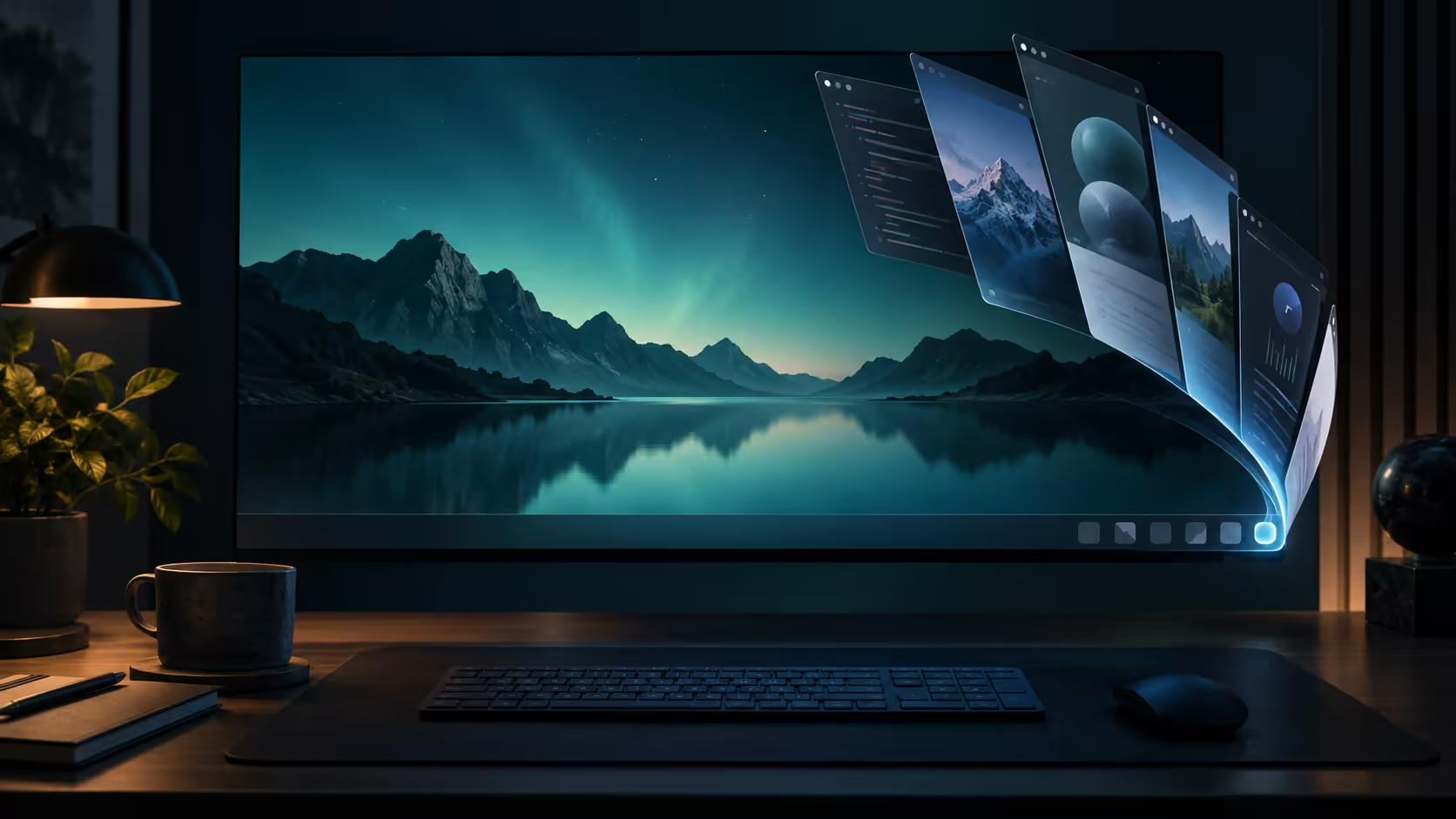
The smallest taskbar target can be the one you miss most when it stops responding. Windows show desktop button behaviour is controlled by a preference, so an inactive corner does not immediately mean the mouse or taskbar is broken. A keyboard check helps separate access to the desktop from the corner target itself.
Quick Answer
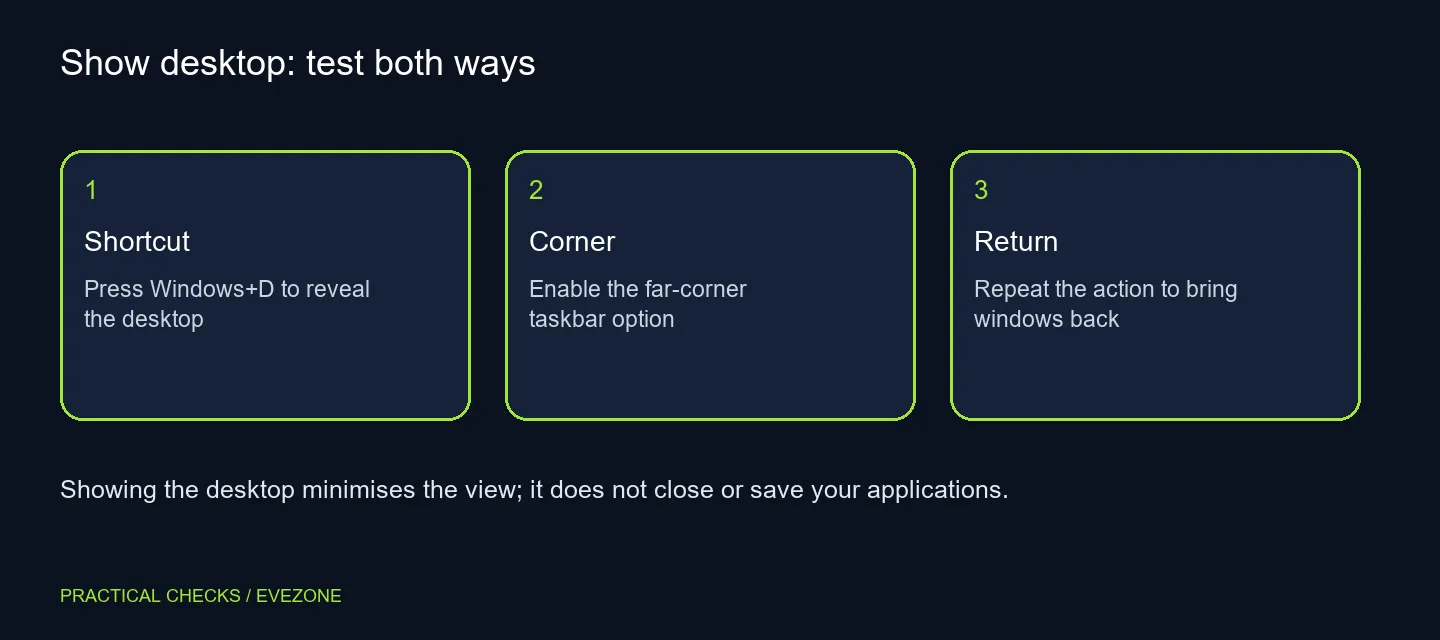
Open Taskbar settings, expand Taskbar behaviours and enable the option to select the far corner for the desktop. Try Windows+D as the keyboard alternative. These built-in controls add R0 hardware spending and do not close your apps; save work separately before any restart or shutdown.
🖱️ Test the target you are actually clicking
The desktop target sits at the far edge of the taskbar, beyond the usual app buttons. Clicking an app icon or a system-tray item nearby performs a different action. Move the pointer deliberately to the edge while checking the preference rather than treating any click in that area as the same test.
Keep your usual taskbar position and open a couple of harmless windows. Enable the option, click the corner and observe the change. Repeating the action should give you a way back to the open work. This controlled check is easier to interpret than making several taskbar changes at once.
⌨️ Use the shortcut to isolate the problem
Windows+D provides a second route to the desktop. If the shortcut behaves normally while the corner does not, concentrate on the taskbar preference and pointer target. If the keyboard command fails, check that the Windows key works in another normal shortcut before deciding that both routes share a fault.
The desktop view is a convenience for reaching files or shortcuts behind open windows. It is not a substitute for organising or saving documents. Do not use an empty-looking desktop as proof that an application has finished writing a file in the background.
Compare gaming mice for genuine grip, button or tracking needs. A disabled corner preference gives no reason by itself to replace a working input device.
🪟 Keep preview and desktop access separate
Older Windows instructions may describe Peek, where hovering previews the desktop temporarily. The current Windows 11 corner option is a separate behaviour to test. Match the instructions to the version you are using instead of expecting every hover demonstration to look identical.
If you prefer the keyboard method, make it part of your normal routine and leave the corner as a choice. Options from gaming keyboards can change keyboard feel and layout, but the shortcut is already a software feature. The successful fix is reliable access to the desktop with the equipment you own, followed by an easy return to the windows you were using.
Frequently Asked Questions
Where is the corner setting?
Open Taskbar settings, expand Taskbar behaviours and enable the option for selecting the far corner to show the desktop.
What is the keyboard alternative?
Press Windows+D. Microsoft lists that shortcut for displaying and hiding the desktop.
Does Show desktop close my applications?
No. It changes the visible window arrangement. It is not a close, save or shutdown command.
Is hovering the same as clicking?
Do not assume so. Peek behaviour and the click-to-show-desktop option differ across Windows versions and settings.
Should I install a desktop-button utility?
Try the built-in corner setting and shortcut first. An extra utility is unnecessary for the normal Windows function.
Does this require a mouse upgrade?
No. There is R0 additional hardware cost for the setting. Test normal pointer and click behaviour separately if input remains unreliable.
Reach the desktop without losing your place?
Test the built-in button and keyboard route before choosing new input gear for a separate need.