A missing folder can turn a simple file-copy job into an unnecessary storage purchase. Windows show hidden files is worth checking when you know an entry exists but File Explorer does not display it. The aim is to inspect the location safely, not to clean away everything that appears afterwards.
Quick Answer
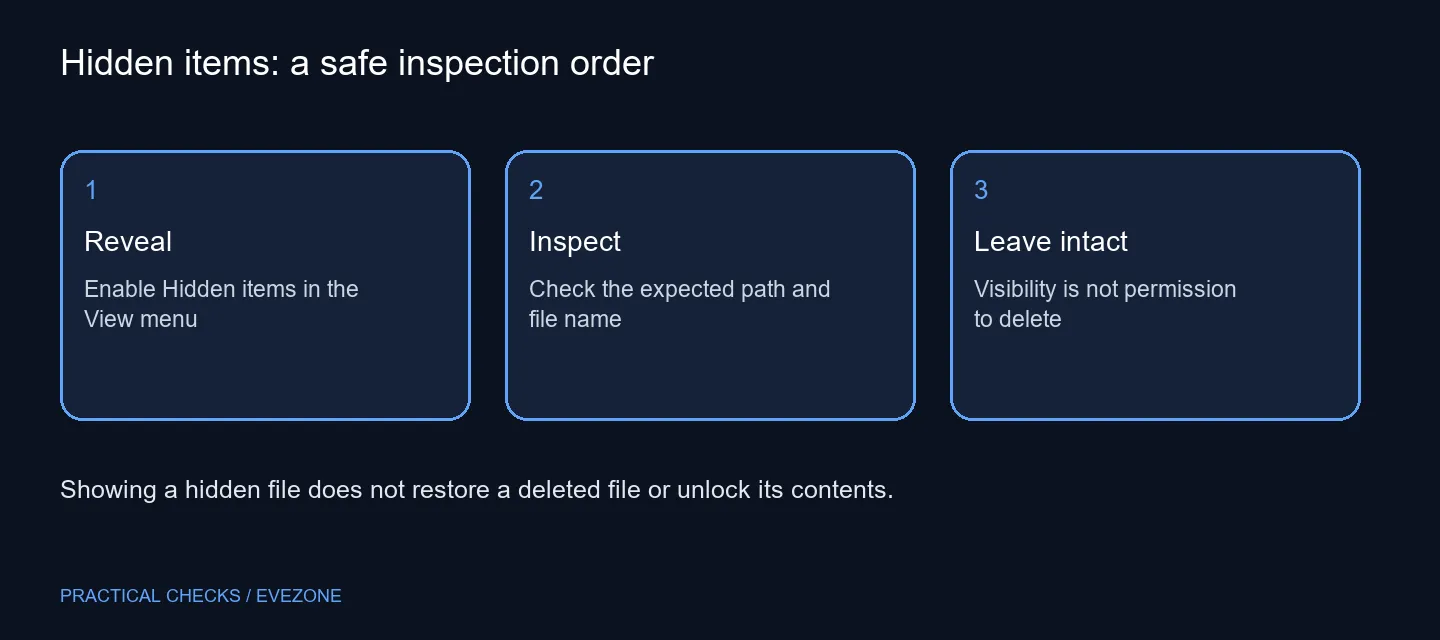
In Windows 11 File Explorer, choose View, Show and Hidden items. This adds R0 in hardware spending and changes visibility only; it does not restore deleted files or bypass permissions. If the folder appears, check its path and purpose before opening, moving or deleting anything inside it.
📁 Begin with the location you expected
Open the parent folder from a path you recognise. A download saved under another Windows account, a removable drive with a different letter, or a cloud folder can look like a visibility problem when it is actually a different location. Compare the path in the address bar with the application that saved the file.
Then enable Hidden items and look again. You are testing one explanation for the missing entry. If nothing changes, do not keep switching unrelated settings in the hope that the file returns. Check the original save destination and any available backup before making changes to the drive.
🔎 Read the entry before taking action
Some newly visible folders contain application settings or other support files. Their unfamiliar names do not make them disposable. If you are following a support procedure, match the complete path and filename, and preserve a copy where the procedure calls for one.
Keep protected operating-system visibility separate from the ordinary Hidden items option. There is no reason to expose every system entry just to inspect one known folder. A setting that reveals more names is not a repair for file corruption and cannot establish that storage hardware is healthy.
When comparing all ssds, first establish whether your current drive actually lacks space or has a confirmed fault. A hidden folder alone proves neither. Avoid formatting or resetting a drive simply because the first view appears empty.
💾 Close the inspection with the data preserved
If the expected document is present, open it in its normal application and verify that it is the right version. If it matters, include it in your existing backup plan. Options from external ssds can provide a separate destination, but buying one does not automatically create a verified backup.
Turn Hidden items off again if you prefer a quieter everyday folder view. That reverses the display preference without deleting the entries you inspected. On a shared computer, remember that hiding a file is not a security boundary; use the correct account and permissions for private material.
Frequently Asked Questions
Where is the Windows 11 setting?
Open File Explorer, choose View, then Show, then Hidden items. The setting controls whether hidden entries appear.
Does this recover deleted documents?
No. Visibility and recovery are different tasks. If the file was deleted, inspect your backup or recovery options instead.
Does a faded icon mean the file is broken?
No. A dimmed appearance can identify a hidden entry. Check its name and location rather than assuming corruption.
Can I delete every newly visible folder?
No. Applications and Windows use hidden folders. Leave unfamiliar entries intact until you know their purpose.
Does showing files bypass access permissions?
No. A visibility preference does not grant permission to open another account's protected data.
Must I buy software to change this?
No additional software is needed for the built-in visibility setting. It does not include a data-recovery service.
Keep your files visible and recoverable?
Confirm the folder path first, then choose storage and backup equipment for an established need.