Opening the file manager and seeing recent documents instead of drives can feel like the computer has changed where everything lives. File Explorer opens Home because that is the current Windows 11 starting view. You can choose This PC instead when the first thing you usually need is a drive or a connected storage device.
Quick Answer
In File Explorer, choose See more, Options and the Open File Explorer to dropdown, then select This PC and apply it. This R0 hardware-cost change selects a starting view only. It does not move files, format storage or convert local documents into cloud files.
🏠 Decide what you want to see first
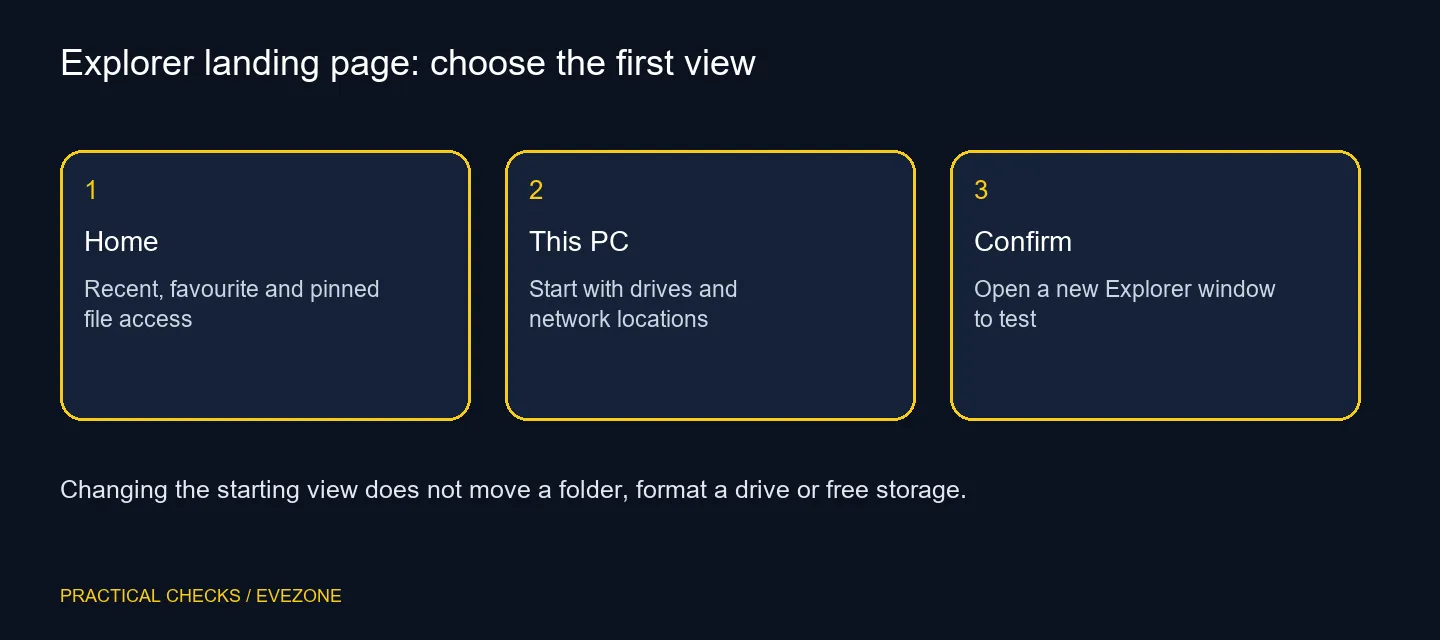
Home groups useful file access, including recent items, favourites and pinned folders. This PC focuses more directly on drives and network locations. Choose the first view that matches your routine rather than treating one as a repair for the other.
If you mostly open Downloads or a project folder, a Quick access pin may be more useful than changing the landing page. If you often compare drive space or connect an external SSD, This PC may reduce the first few clicks. Both views are ways into your existing storage.
Apply the choice and open a fresh Explorer window to test it. Keep the old window available so you can compare without losing the folder you were working in. If you change your mind, return to the same dropdown and restore Home.
📂 Find familiar folders in the navigation pane
Current Windows 11 layouts place known folders such as Documents and Downloads in Quick access. Their absence from the central This PC view does not mean they were deleted. Check the left navigation pane and the path for the folder you need.
Distinguish a folder shortcut from the data behind it. Pinning or unpinning changes convenient access, while moving a folder changes its location. Do not drag a large document collection onto a different drive just to make it appear in the starting view.
Compare all ssds only after checking the actual capacity and storage needs. A different landing page does not create more room or establish that an existing SSD is too slow.
🔌 Diagnose external storage separately
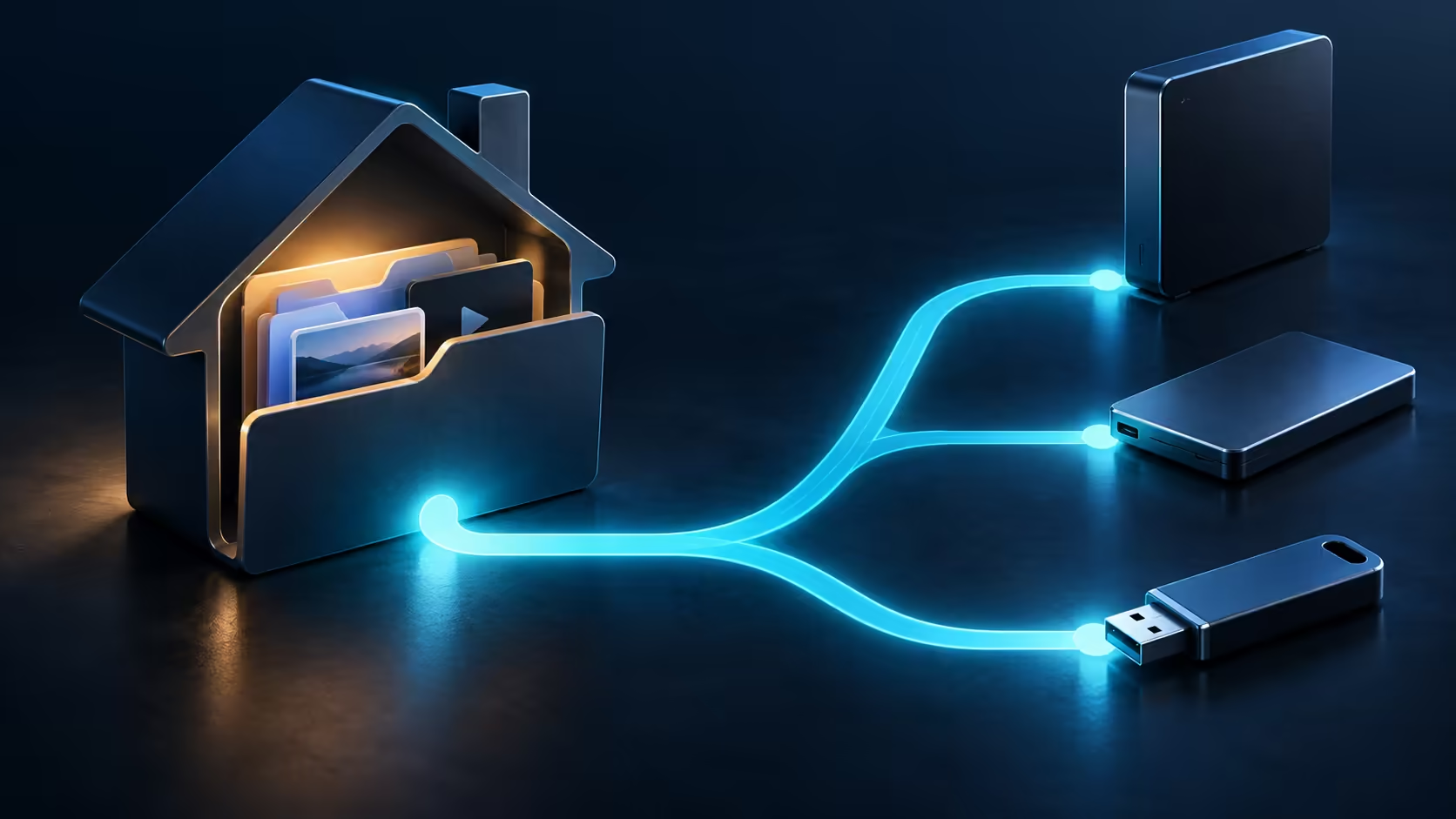
This PC is a useful place to look for a connected drive, but selecting it does not make an unrecognised USB device appear. Check the physical connection and the device's normal behaviour before deciding the starting-page preference failed. Preserve important files while investigating.
When choosing from external ssds, think about the files you carry and the ports available on the computers you use. That hardware choice is separate from whether Explorer begins on Home. A successful setting change simply puts the most useful view in front of you while leaving your folders and documents intact.
Frequently Asked Questions
How do I start Explorer with This PC?
Open File Explorer, select See more, Options, then choose This PC in Open File Explorer to and apply the change.
Does Home mean my files moved to the cloud?
No. Home is a starting view. Check each file's actual path to establish where it is stored.
Where did Documents and Downloads go?
Current Windows 11 layouts pin known folders in Quick access under Home and in the navigation pane. Inspect those entries first.
Will switching the start page erase pins?
The landing-page choice is separate from pinning folders. Check your existing Quick access entries after the change.
Does This PC repair a missing USB drive?
No. It provides a drive-focused view. A disconnected or unrecognised device still needs separate diagnosis.
Does this require an SSD upgrade?
No. Changing the starting view has R0 additional hardware cost and does not add capacity or change the drive's speed.
Start with the storage view you need?
Choose the Explorer landing page first, then compare drives for a measured capacity or portability need.