Struggling to manage a chaotic desktop? We've all been there… juggling Discord, a game, a browser, and Spotify, all fighting for screen space. It's a productivity killer. But what if you could tame that chaos with a single click? Windows 11 Snap Layouts are a simple yet powerful feature designed to bring order to your digital workspace, helping you focus and boost your daily efficiency without needing extra software. Let's dive in. ✨
What Exactly Are Windows 11 Snap Layouts?
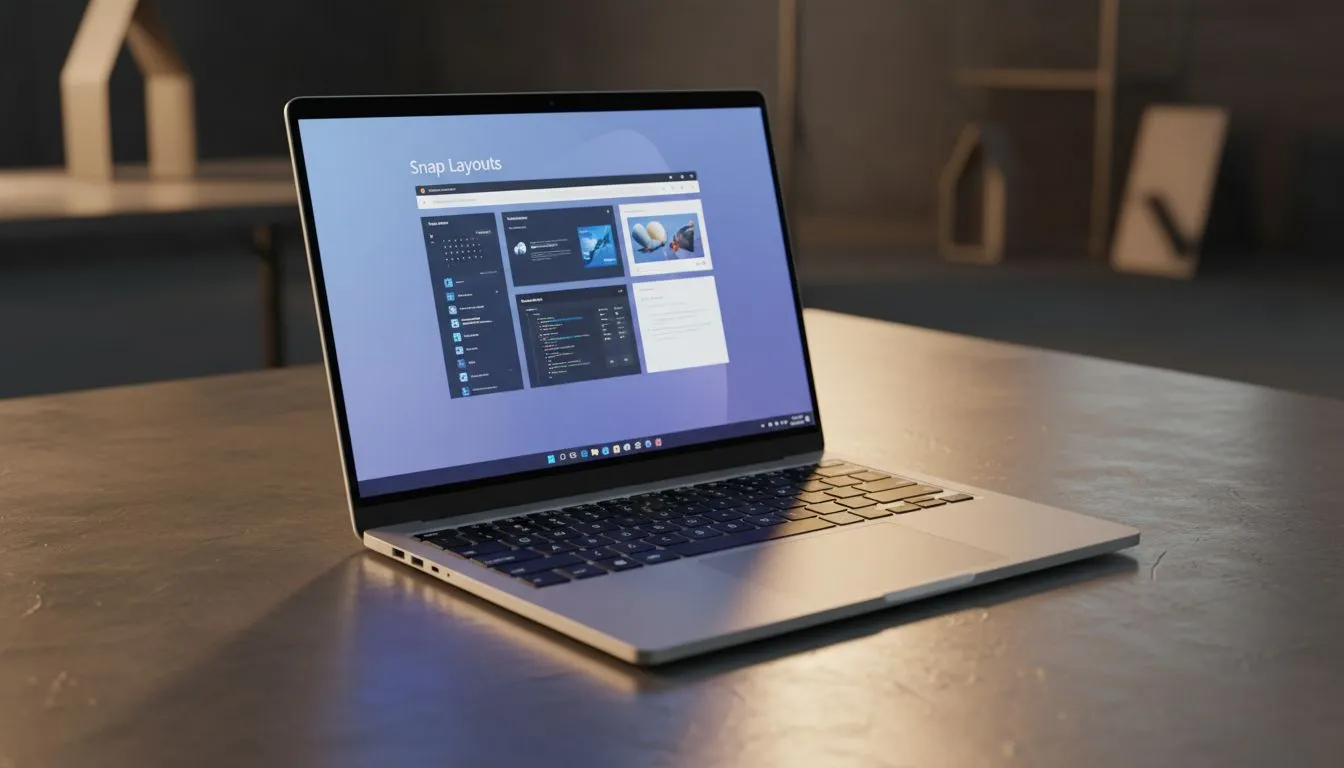
Think of Windows 11 Snap Layouts as a smart grid system for your open applications. It’s a major upgrade from the old drag-to-the-side snapping in Windows 10. Instead of just splitting your screen in half, this feature presents several pre-defined layouts—like a four-way grid or a main window with smaller sidebars—allowing you to neatly arrange your apps in a way that makes sense for your task.
This functionality is especially brilliant on the vibrant, high-resolution screens found on modern PCs, turning a single display into a powerful multitasking command centre. You can see this in action on many of the top-tier gaming laptop deals available today.
How to Use Snap Layouts to Optimise Your Workflow
Getting started is incredibly easy. Microsoft designed this feature to be intuitive, giving you two main ways to activate it.
The Hover Method (The Easy Way)
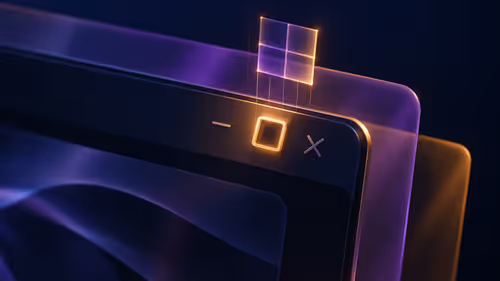
This is the most common way to use snap layouts. Simply move your mouse cursor over the "Maximize" button (the square icon next to the "Close" button) on any window. Don't click it… just hover for a second. A small pop-up will appear showing you the available layout options for your screen size. Click on the zone where you want that window to go, and it will snap right into place. 🔧
The Keyboard Shortcut (The Pro Way)
For those who live by keyboard shortcuts, press Windows Key + Z. This brings up the exact same layout panel, allowing you to choose a zone with your arrow keys or mouse. It’s a tiny bit faster and feels slick once you get used to it. A responsive system is key here; both powerful Intel laptops and their equivalent AMD Ryzen-powered machines handle this kind of snappy multitasking effortlessly.
Productivity Pro Tip ⚡
On Windows, use the PowerToys FancyZones utility to create custom snap layouts for your windows. It's a lifesaver for managing multiple apps on an ultrawide monitor, letting you organise your timeline, preview window, and asset folders perfectly for video editing.
Practical Scenarios for South African Users 🚀
The real magic of using Windows 11 Snap Layouts is how they adapt to what you're doing.
- For the Gamer: Keep your Discord chat snapped to one side of the screen while your game runs in the main window. Or, follow a YouTube build guide in a small window while you tweak your character in-game.
- For the Student: Have your research open in a browser on one side and your Word document on the other. No more frantic Alt+Tabbing to copy a reference. It’s a must-have for assignment crunch time.
- For the Professional: Easily view a spreadsheet, your email, and a Teams chat simultaneously. It makes reporting and responding to queries much faster.
You don’t need a top-of-the-line machine to benefit, either. Many excellent gaming laptops under R20k have more than enough power to make multitasking with snap layouts a smooth experience.
Is Your PC Keeping Up With Your Workflow?
While Windows 11 Snap Layouts are a fantastic software feature, their performance is directly tied to your hardware's capabilities. If you notice stuttering or lag when arranging multiple demanding applications like OBS, Adobe Premiere, or the latest AAA game, your PC might be struggling to keep up.
Smooth window animations and instant app-switching rely on a fast processor and, crucially, a capable graphics card to render everything without a hitch. This is where modern NVIDIA GeForce RTX laptops truly excel, providing the horsepower needed for serious work and play. If your current setup feels slow, harnessing the full potential of these efficiency tools might require an upgrade.
Ready to Multitask Like a Pro?
Windows 11 Snap Layouts are just the start. A powerful new PC makes all the difference. Explore our massive range of laptop specials and find the perfect machine to conquer your workload... and your game.