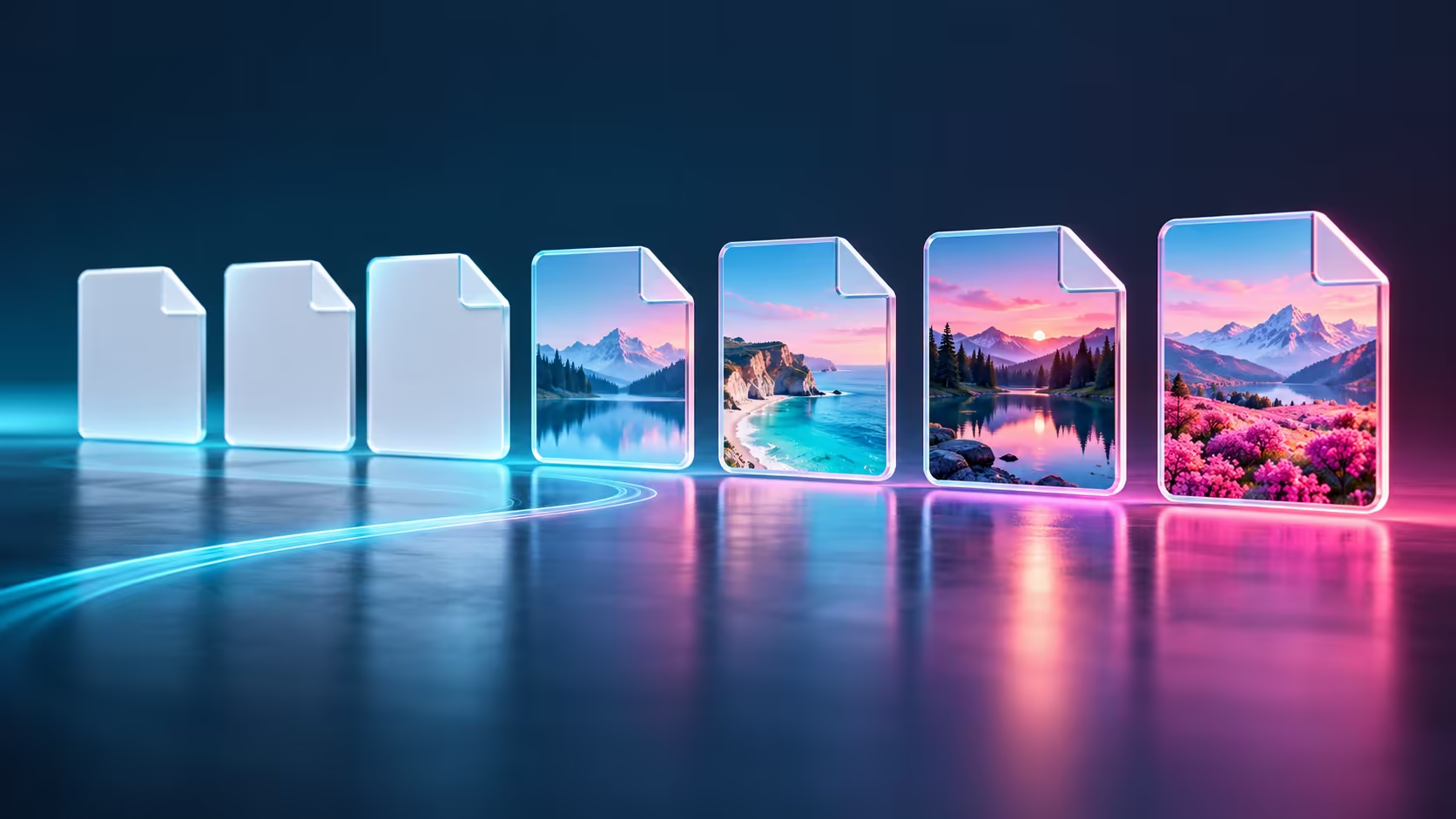
A folder of photos represented by identical icons is hard to scan, even when every picture still opens. File Explorer thumbnails not showing can result from a viewing choice rather than damaged images. Start by checking that preference before attempting a repair that changes files or removes cached data.
Quick Answer
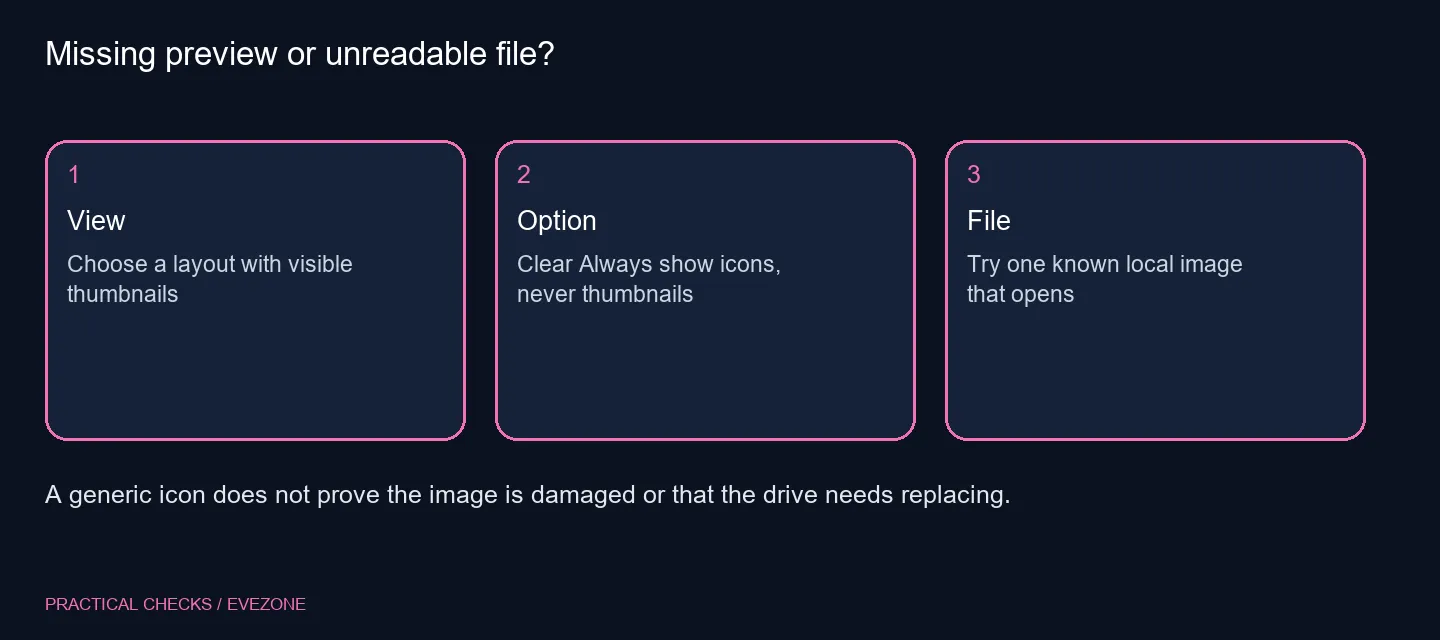
Open File Explorer Options, choose View and clear Always show icons, never thumbnails if it is selected. Save the setting, choose a large enough icon layout and test a known local picture. The initial check costs R0 in hardware and does not require deleting files, buying an SSD or installing an unfamiliar image package.
🖼️ Start with a picture you know can open
Use a small folder containing an ordinary local image that you have already opened successfully. This separates a missing thumbnail from an unreadable file. If the original itself will not open, record that as a different symptom rather than assuming a viewing preference will repair it.
Choose a layout that actually displays thumbnail images clearly, such as a larger icon view. A compact details list can make a working preview too small to judge. Compare one known picture before deciding an entire folder is affected, and leave the original file in place throughout the test.
⚙️ Read the icon-only checkbox carefully
In Windows 11 Explorer, use the three-dot menu and Options, then select View. Find Always show icons, never thumbnails. To permit thumbnails, the checkbox should be clear. The wording can be easy to reverse when you are trying to switch previews on quickly.
Apply the change and return to the test folder. Do not simultaneously change several performance, display and folder settings. If the image now appears, you have identified a preference without disturbing the picture collection. If it remains an icon, preserve that result and check the file type and source next.
📂 Keep thumbnails separate from other panels
The preview pane and details pane are different parts of Explorer. A thumbnail appears directly in the file listing, while those panels act on a selected item. Turning a panel on will not necessarily change an icon-only listing, so be precise about what you want to see.
Managed PCs can also have thumbnail-related policies. If an option is unavailable or changes back, ask the administrator rather than trying to override the work configuration. A policy restriction and a local file problem need different remedies, even when they look similar at first glance.
🔍 Escalate only from a repeatable example
If the built-in preference does not help, note the Windows version, file extension and whether the image opens. Compare another ordinary local image. Avoid downloading random codec packs or clearing broad caches as a first move; neither action is needed to establish the basic symptom.
Browse internal ssds only for a separate capacity or storage requirement. Likewise, monitors can help with screen size and workspace, but neither purchase follows from a missing thumbnail alone. Keep the investigation tied to a known file and a clear before-and-after view, so any later support request has something concrete to reproduce.
Frequently Asked Questions
Which option can hide thumbnails?
In File Explorer Options > View, Always show icons, never thumbnails can suppress thumbnail previews.
Should I turn that option on?
To allow thumbnails, clear the checkbox. Read the wording carefully because the option is expressed as an instruction to show icons.
Is the preview pane the same thing?
No. A thumbnail sits in the file listing; the preview pane is a separate panel for the selected item.
Can every file make a thumbnail?
No. Support varies by file type, provider and availability. Start with a known local picture that opens normally.
Does an icon mean my SSD is failing?
No. An icon-only view is not evidence of drive failure. Investigate file-open errors separately if they occur.
What does the first check cost?
Changing the built-in viewing preference costs R0 in additional hardware. Avoid buying storage solely to change an icon.
Sorting out your photo workspace?
Check Explorer viewing preferences first, then compare Evetech screens or storage for a clearly separate need.